---
title: "WYSIWYG Editor: Adding an Image to Content"
slug: "wysiwyg-editor-adding-an-image-to-content"
updated: 2025-01-06T18:01:51Z
published: 2025-01-06T18:01:51Z
canonical: "support.smarteru.com/wysiwyg-editor-adding-an-image-to-content"
---
> ## Documentation Index
> Fetch the complete documentation index at: https://support.smarteru.com/llms.txt
> Use this file to discover all available pages before exploring further.
# WYSIWYG Editor: Adding an Image to Content
You can use the [WYSIWYG editor](/v1/docs/wysiwyg-editor) to include images in your content. For example, you can include an image in an online course's [quiz question](/v1/docs/quiz-question-question).
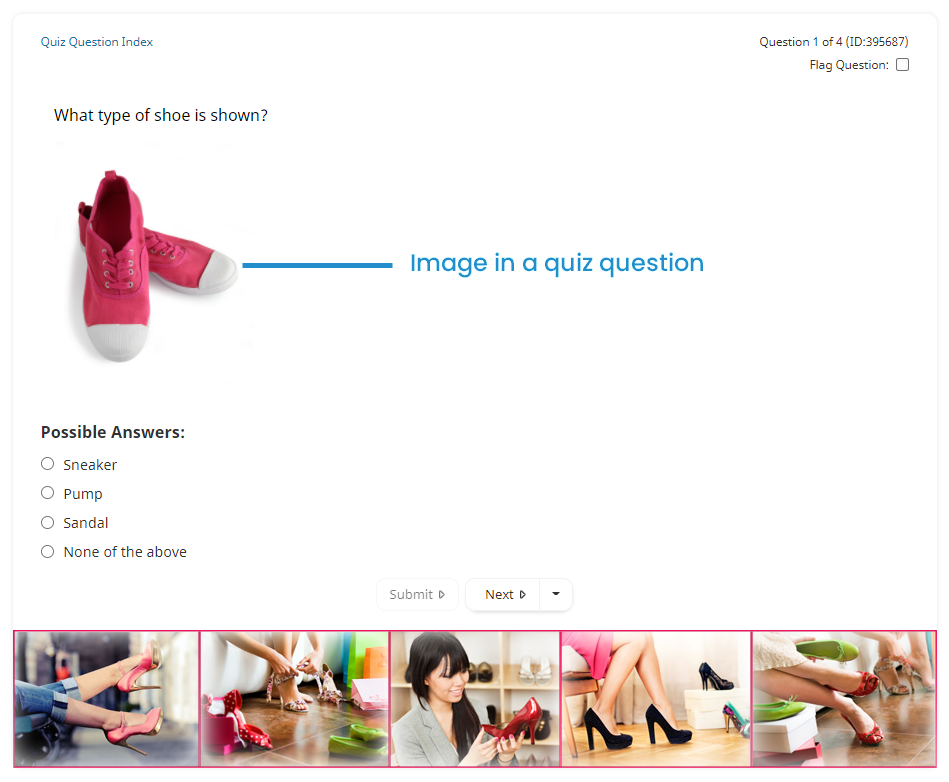
Adding an Image to Content
- Be sure that image files do NOT contain an ampersand (&) in their name. Although the [WYSIWYG editor](/v1/docs/wysiwyg-editor) allows you to upload files with an ampersand in the name, the image cannot be previewed or added to a course.
- We recommend resizing and cropping your image to the desired size prior to uploading the image's file. Refer to [SmarterU File Uploads](/v1/docs/smarteru-file-uploads-1) for image file specifications.
To add an image to your content:
1. Position your cursor on the location in your content where you would like to add the image.
2. Click  on the [WYSIWYG toolbar](/v1/docs/wysiwyg-editor#toolbar) to insert an image. The Insert/Edit Image window displays.
1. Click  to upload an image.
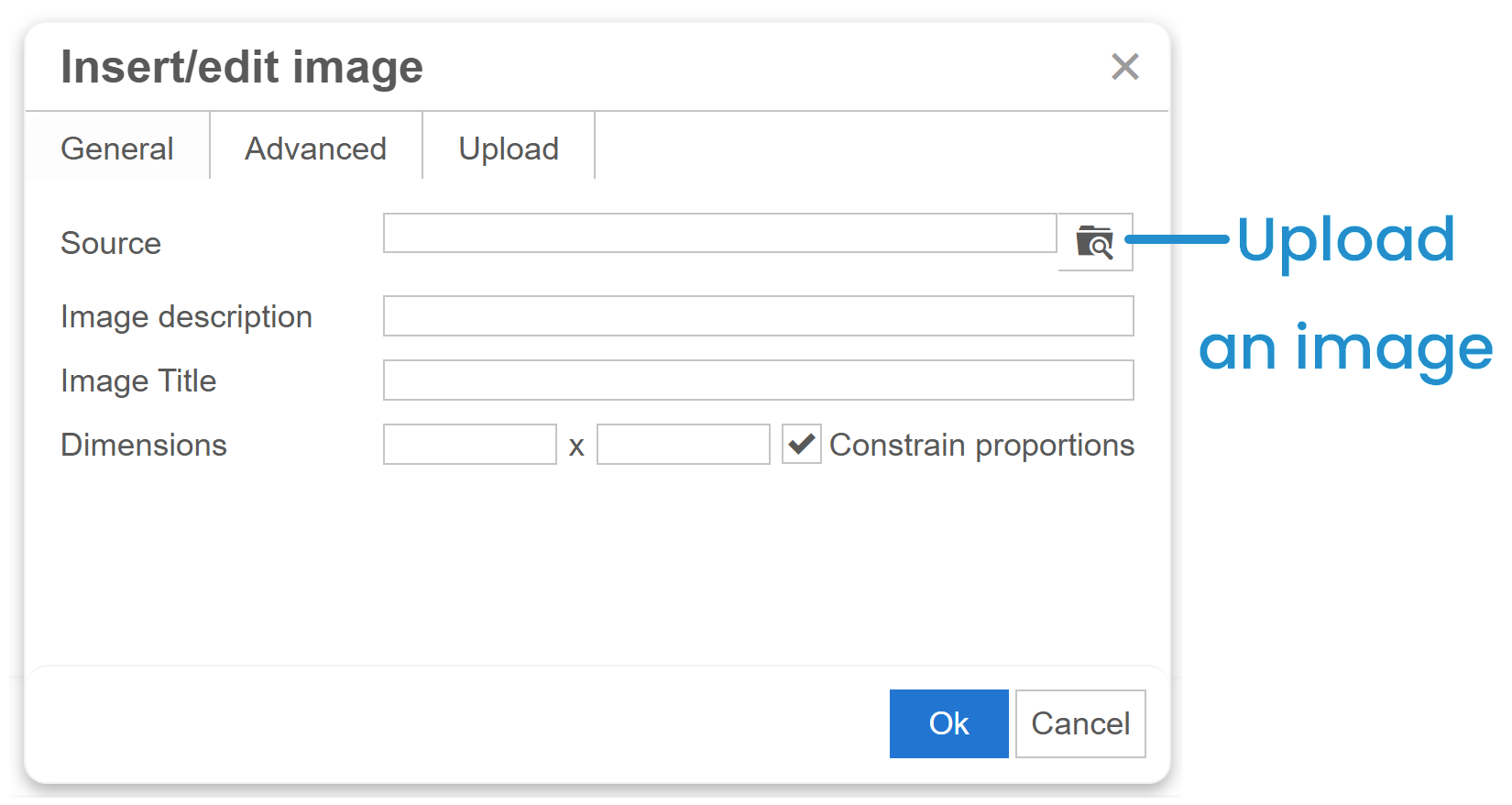
The File Manager window displays.
1. Use the File Manager to [upload your file's image](/v1/docs/wysiwyg-editor-using-the-file-manager#uploading-files).
2. Click **OK**.
3. Click **Save**.
Replacing an Image
To replace an existing image in your content:
1. Click the image you would like to replace.
2. Do one of the following:
- From the [WYSIWYG toolbar](/v1/docs/wysiwyg-editor#toolbar), click .
- Right-click the image and select .
The Insert/Edit Image window displays.
1. Click . The File Manager window displays.
2. Use the File Manager window to [upload your file's image](/v1/docs/wysiwyg-editor-using-the-file-manager#uploading-files).
3. Click **OK**.
4. Click **Save**.
## Related
- [Content Slides](/content-slides.md)
- [Editing an Online Course](/editing-an-online-course.md)
- [Flashcards](/activity-flashcards.md)
- [Quiz Question: Question](/quiz-question-question.md)
- [WYSIWYG Editor](/wysiwyg-editor.md)
- [WYSIWYG Editor: Editing an Image](/wysiwyg-editor-editing-an-image.md)
- [WYSIWYG Editor: Using the File Manager](/wysiwyg-editor-using-the-file-manager.md)