Data privacy is a growing priority for organizations everywhere. If you receive a "Right to be Forgotten" request from a learner, you’ll want to know what that actually means and how to handle it in SmarterU without losing valuable training data.
What is a "Right to be Forgotten" Request?
A "Right to be Forgotten" request is part of data privacy regulations like the GDPR that gives individuals the right to ask an organization to delete their personal data.
This data is often referred to as Personally Identifiable Information (PII). PII includes any information that can be used to identify a specific person, such as:
Full names
Email addresses
Employee IDs
Phone numbers or home addresses
Why Anonymize Instead of Delete?
Deleting a user from a Learning Management System like SmarterU causes problems. If you delete a user completely, you lose the history of what that person learned. Your reporting (e.g., How many learners completed Compliance Training 101?) would become inaccurate.
Making a User Profile Anonymous in SmarterU
The following steps make a user anonymous by removing their PII. This satisfies their request while keeping their training history intact; their records (e.g., course enrollments, course completions, quiz scores) remain in SmarterU, but are no longer associated with a specific person.
To make a user profile anonymous in SmarterU:
If your organization uses actions in learning plans and these actions have file attachments, remove attachments containing PII from the user’s actions.
Deactivate the user’s profile by setting the Status to Inactive.
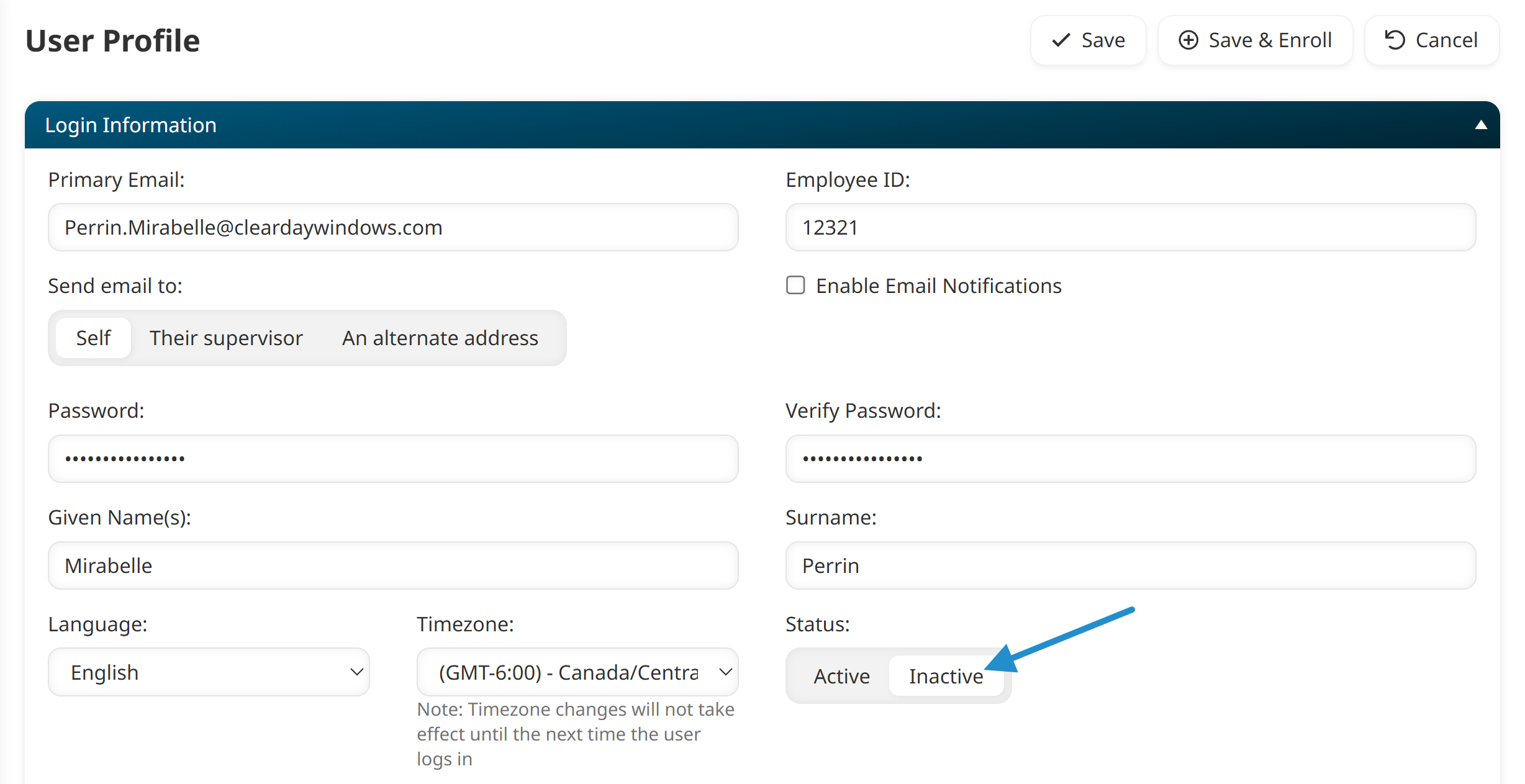
Click Save. Now that the user profile’s setting is Inactive, the user will not be able to log in.
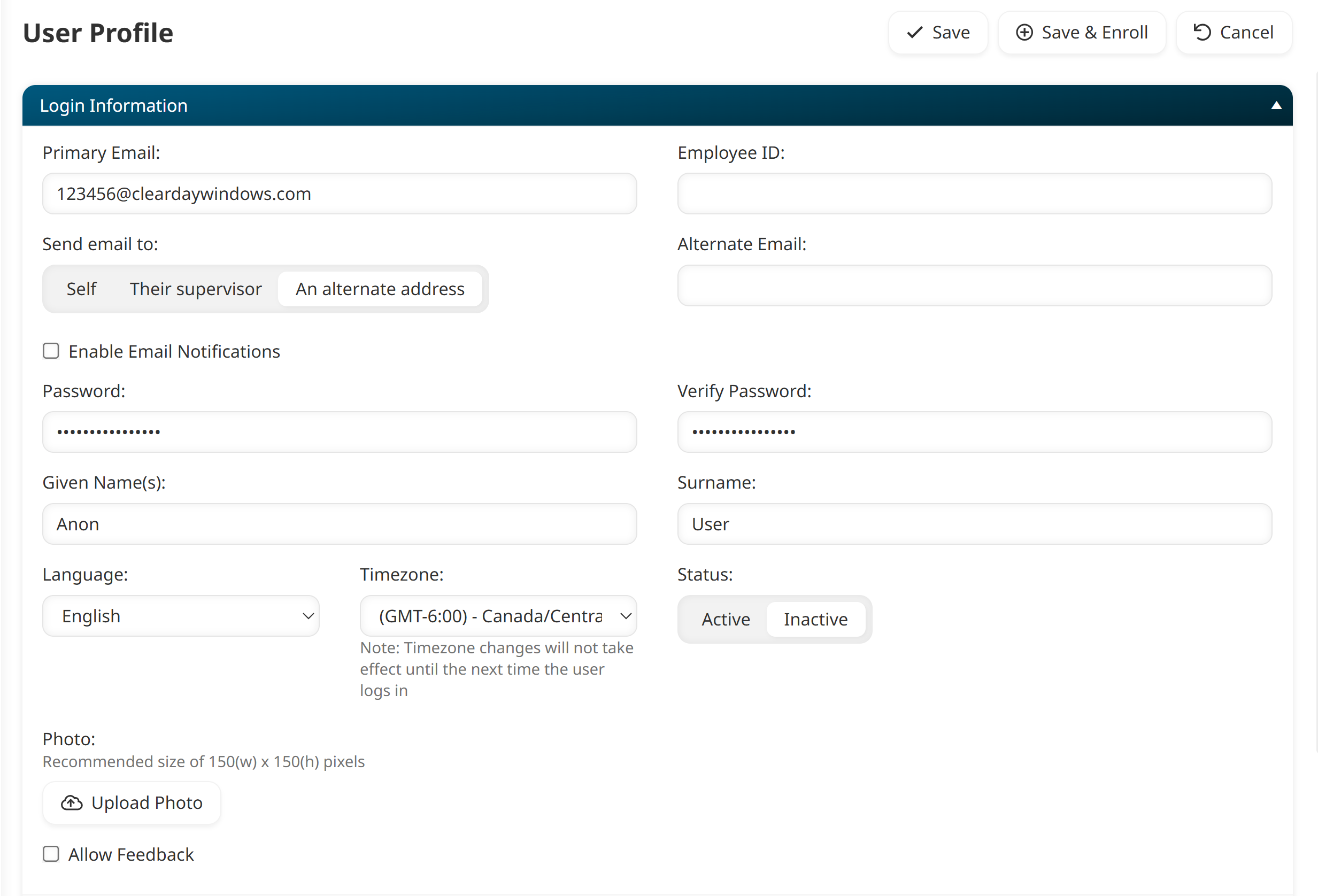
From the Login Information accordion, edit the following settings:
Setting | Instructions |
|---|---|
Given Name | Replace the name with Anon. |
Surname | Replace the name with User. |
Primary Email | Replace the email with a random, non-functioning email address (e.g,. 12345 |
Employee ID | Clear the field so that it’s blank. |
Alternate Email | If your organization specifies an alternate email, clear the field so that it’s blank. |
Photo | If your organization uploads a user photo, upload a generic image file that’s 150px x 150px. |
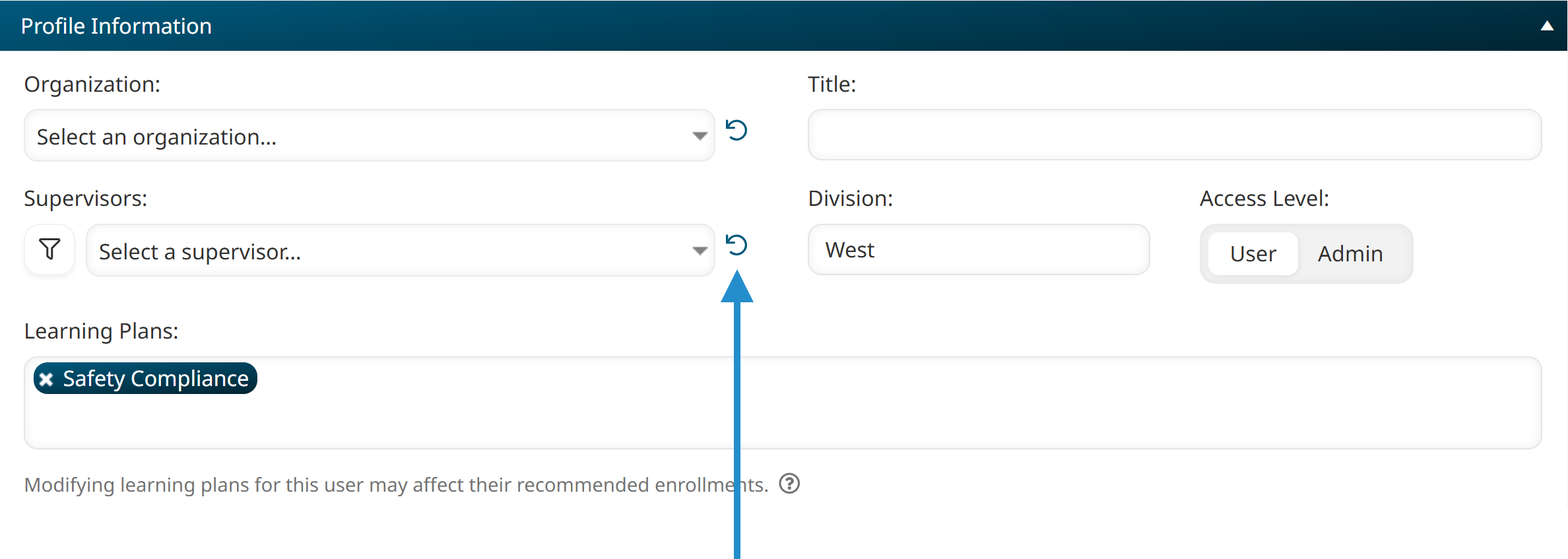
From the Profile Information accordion:
Clear any settings that contain PII.
Clear the Supervisor setting by clicking
 .
.
From the Contact Information accordion, clear any settings that contain PII.
From the Custom Fields accordion, clear any settings that contain PII.
Click Save.
Note on Linked Profiles: If a user has a profile in multiple SmarterU accounts using the same email address, you may be restricted from editing their name or email. If you encounter this, please contact our Success Desk.
After saving the updated user profile, the user's PII is permanently overwritten and no longer accessible in SmarterU. However, SmarterU will still show that an anonymous user completed their assigned training, ensuring your reports remain accurate.
Removing Attachments with PII from Actions
If your organization uses actions in learning plans and these actions have file attachments, you’ll need to remove any attachments containing PII from all actions, regardless of their status. To do this:
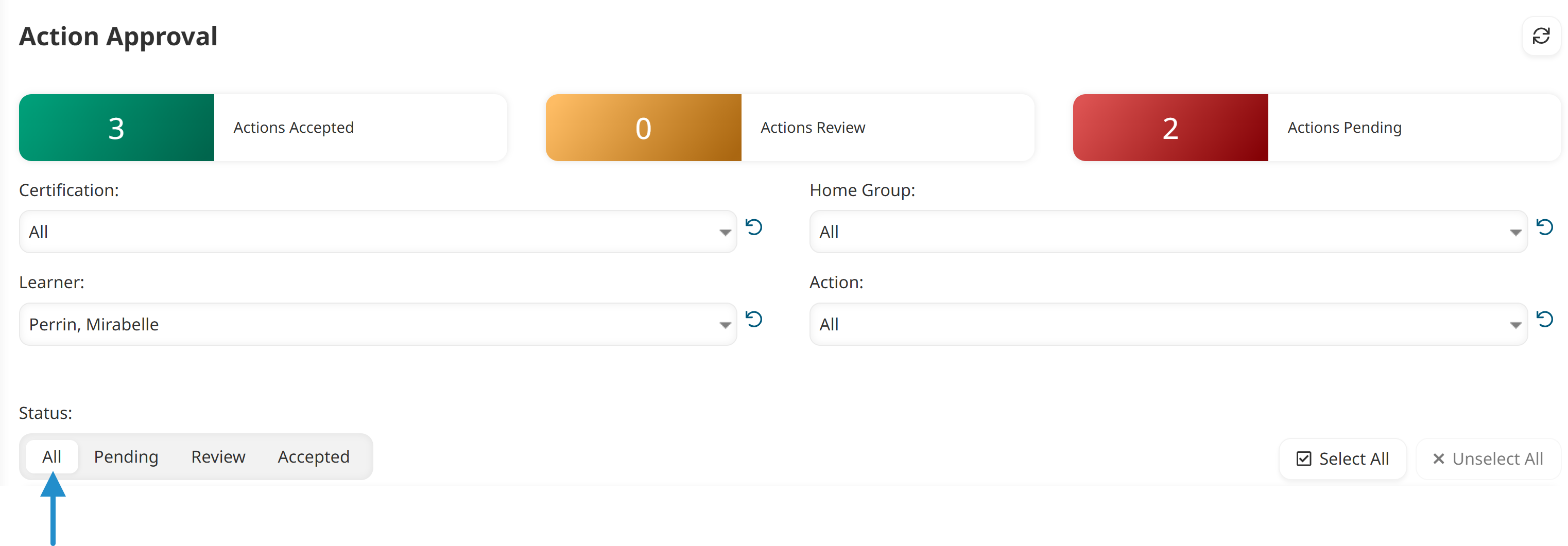
From the Action Approval workscreen, filter the grid to show actions associated with the user.
Because you’ll need to remove attachments with PII from all actions associated with the user, be sure that the Status filter is set to All.
Click the
 in the Attachment column of the grid.
 From the Confirm Action window, click the
 beside each attachment you want to delete.
This will permanently delete the file from SmarterU. The history of the learning plan, including the action’s status and history, will be preserved after you complete the remaining steps to make the user’s profile anonymous.
Click Save.