Running an Enrollment Report is one of the most common tasks for a SmarterU administrator. You may need to check who has started a specific course or verify a learner’s completion status for their assigned training.
However, if your organization has a large course catalog, filtering on that one specific course can be frustrating. You open the Course filter in the Enrollment Report, but because you have hundreds of courses, you scroll through multiple pages to find that one specific title.
But did you know there are built-in search tools right inside the filter that allow you to find the exact course you need in seconds?
Want SmarterNews delivered to your inbox? Subscribe today!
How to Search the Course Filter
To search the Filter by Course dropdown:
Navigate to the Enrollment Report.
In the Filters accordion, expand the Filter by Course dropdown.
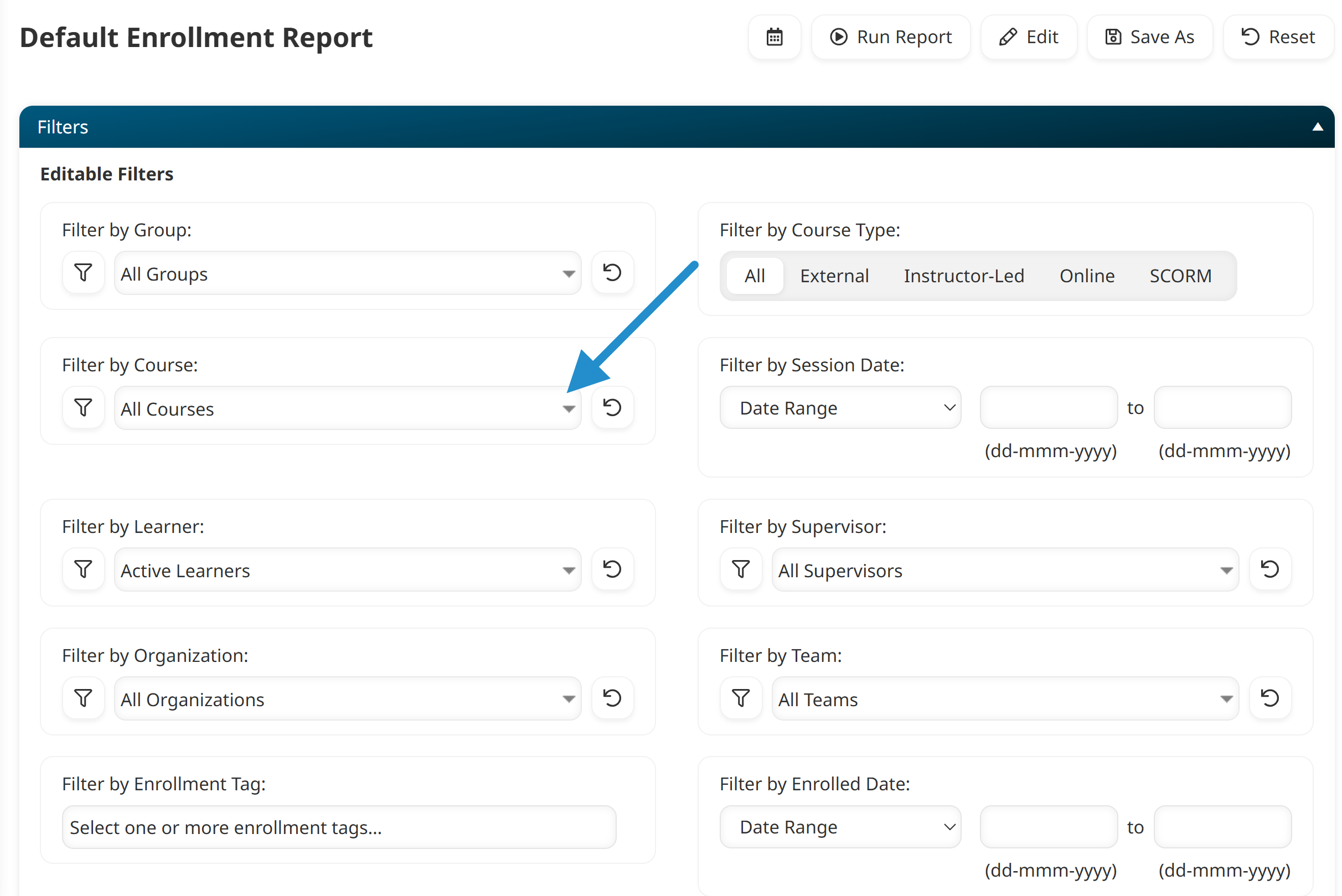
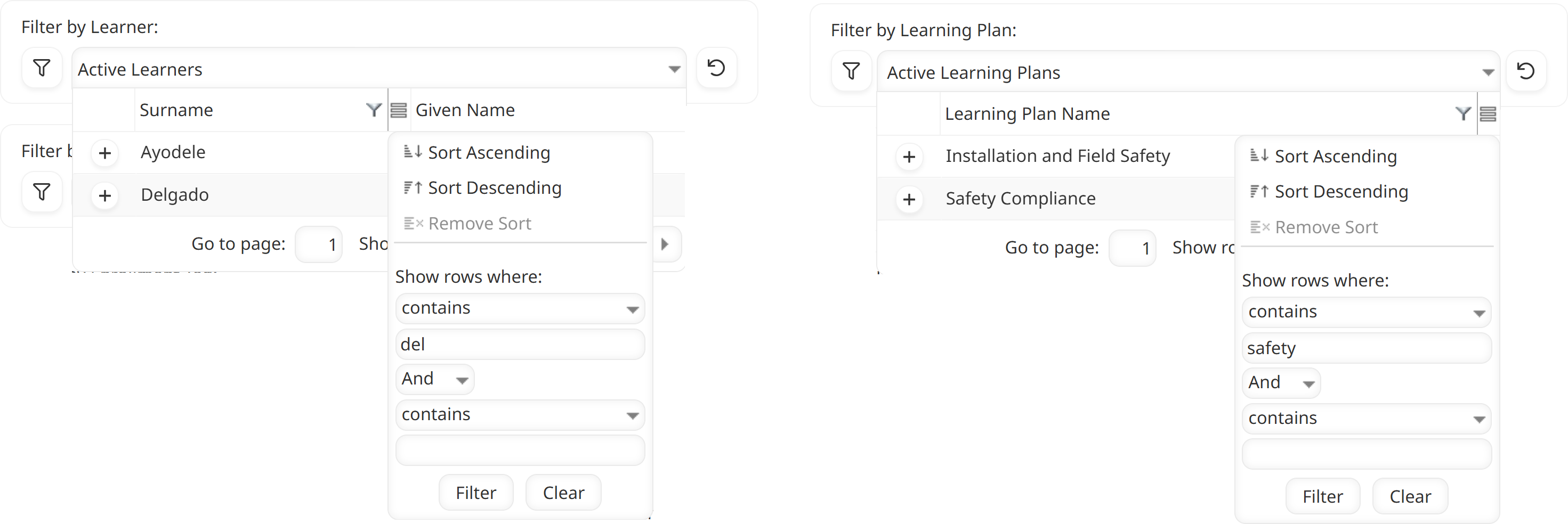
Hover over the Course Name column heading in the filter’s dropdown and click the
 filter icon.
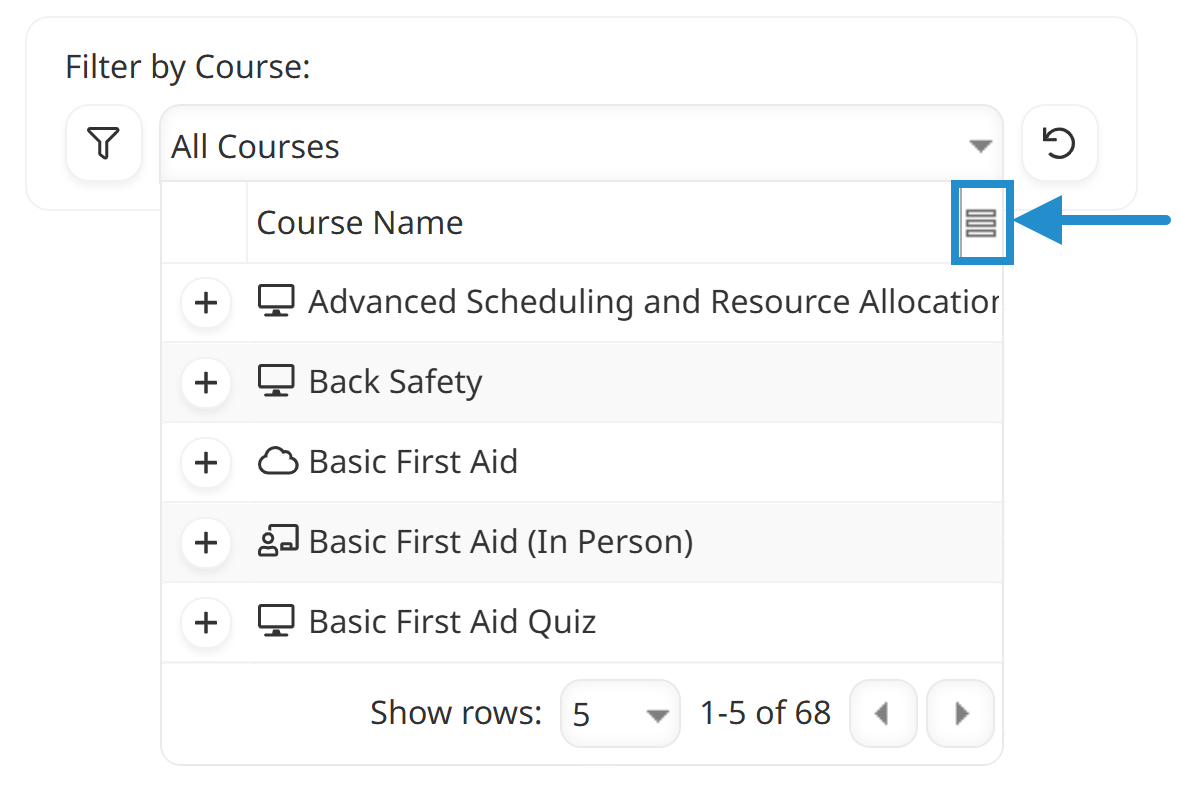
Enter your search criteria. In our example, we want to find all courses that include the word “safety”.
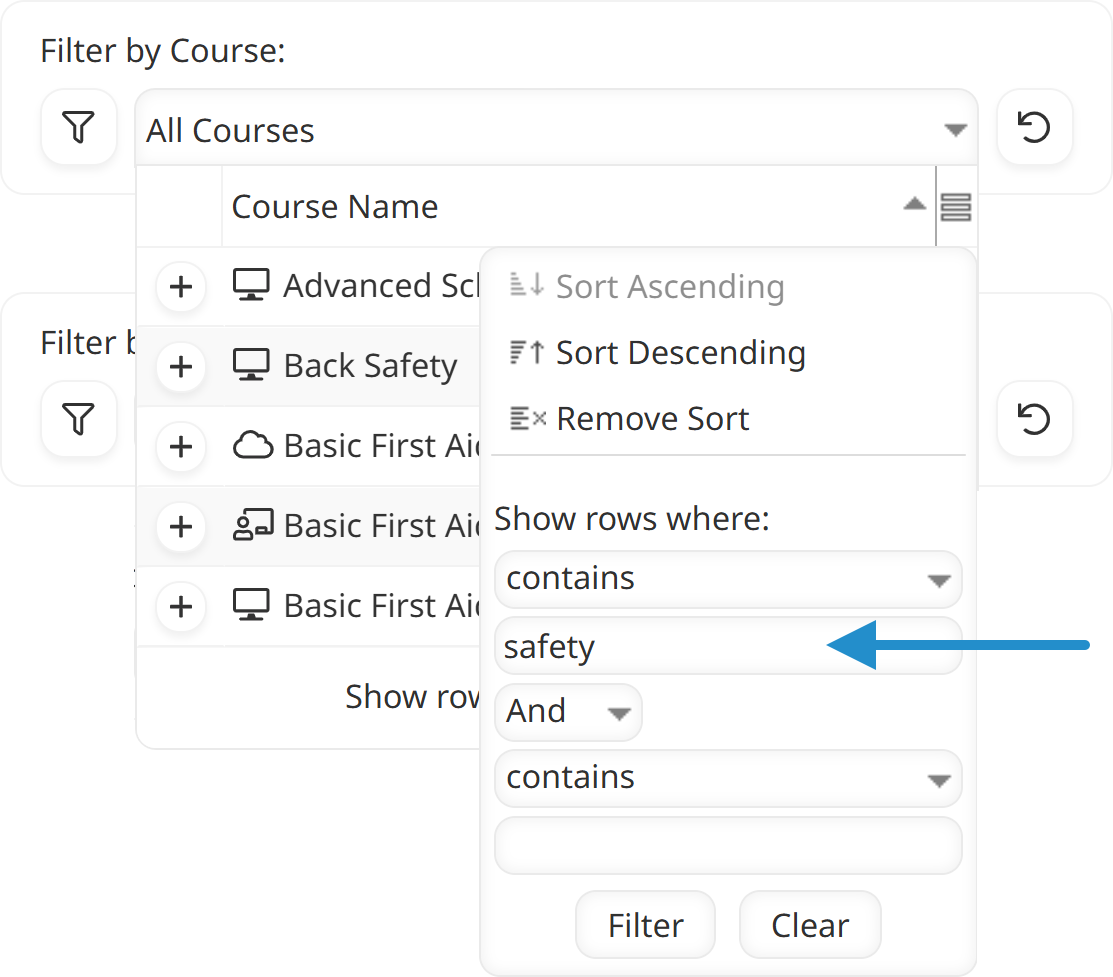
Click Filter. The dropdown updates to show only the courses that match your criteria.
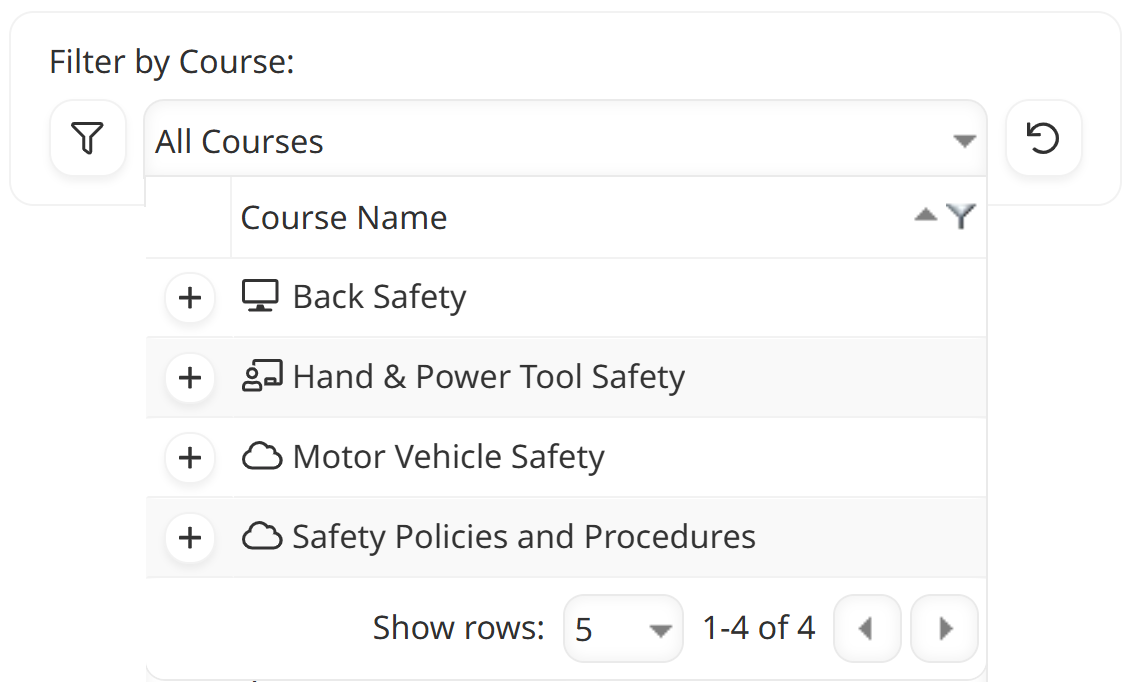
You can also filter courses by status (e.g., Active, Inactive) by clicking the
icon.
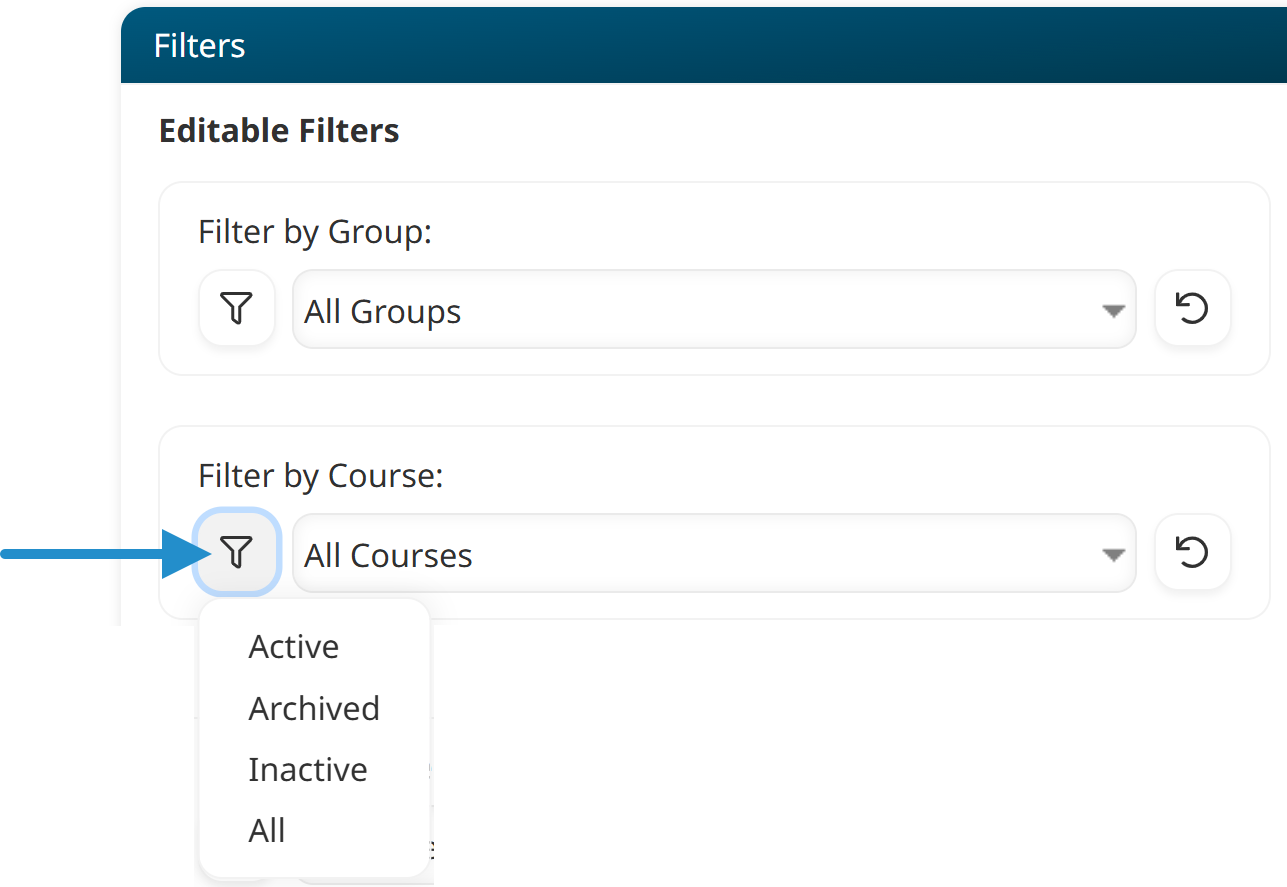
Click the
 icon beside the courses you want to include in your report.
Why Search Your Filters
Search your report’s Course filter to save time. Instead of clicking through multiple pages of course names, you can find the course immediately. For example, imagine that you want to run a report on the Safety Risk Assessment course. Instead of going through the courses alphabetically, you can just type in the name of the course.
Searching also helps ensure you select the exact course you need. Many organizations have courses with similar names (e.g., Safety 101 vs Safety 102). When you’re scanning a dense list, it’s easy to select the wrong course. By filtering the dropdown, you can see (or omit) all similarly named courses, making it easier to pick the right one.
Search Other Filters
The search feature is also available with other filters in the Enrollment Report and Learning Plan Report. You can use this technique to find learners, learning plans, groups, teams, and more!
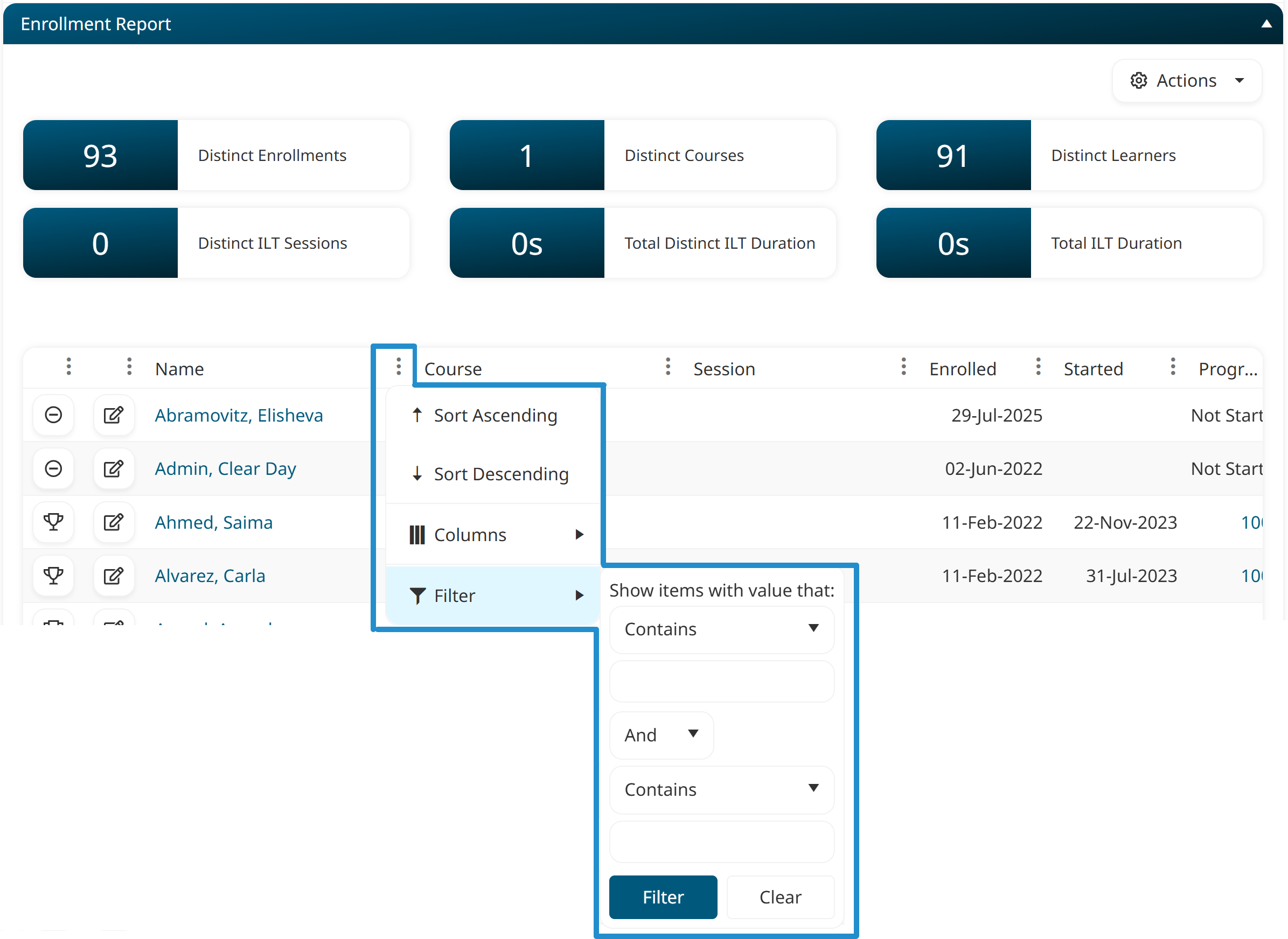
You can also search a report’s results by clicking the
icon. For example, you can search the Name column of the Enrollment Report to find specific learners.
This same search technique is available in all of SmarterU’s grids, including those on the Users Dashboard, Groups Dashboard, and Learning Plans Dashboard.
Next time you run a report, try searching your report’s filters to instantly narrow down your options. It’s a simple step that keeps your reporting fast, accurate, and frustration-free.
Questions? Contact our Success Desk.