
These quiz question settings are located in the General Preferences accordion of the Question workscreen.
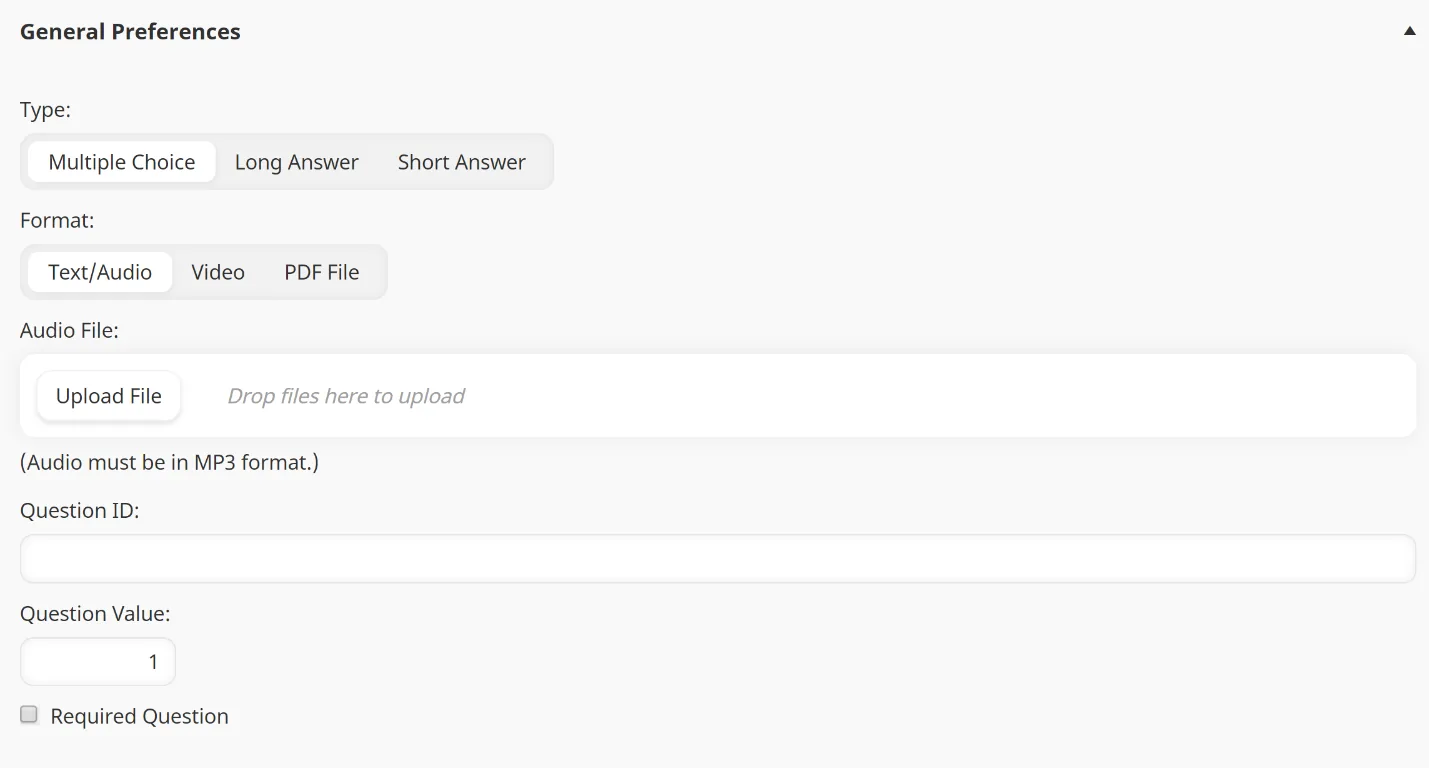
Settings
Type
Select the question type:
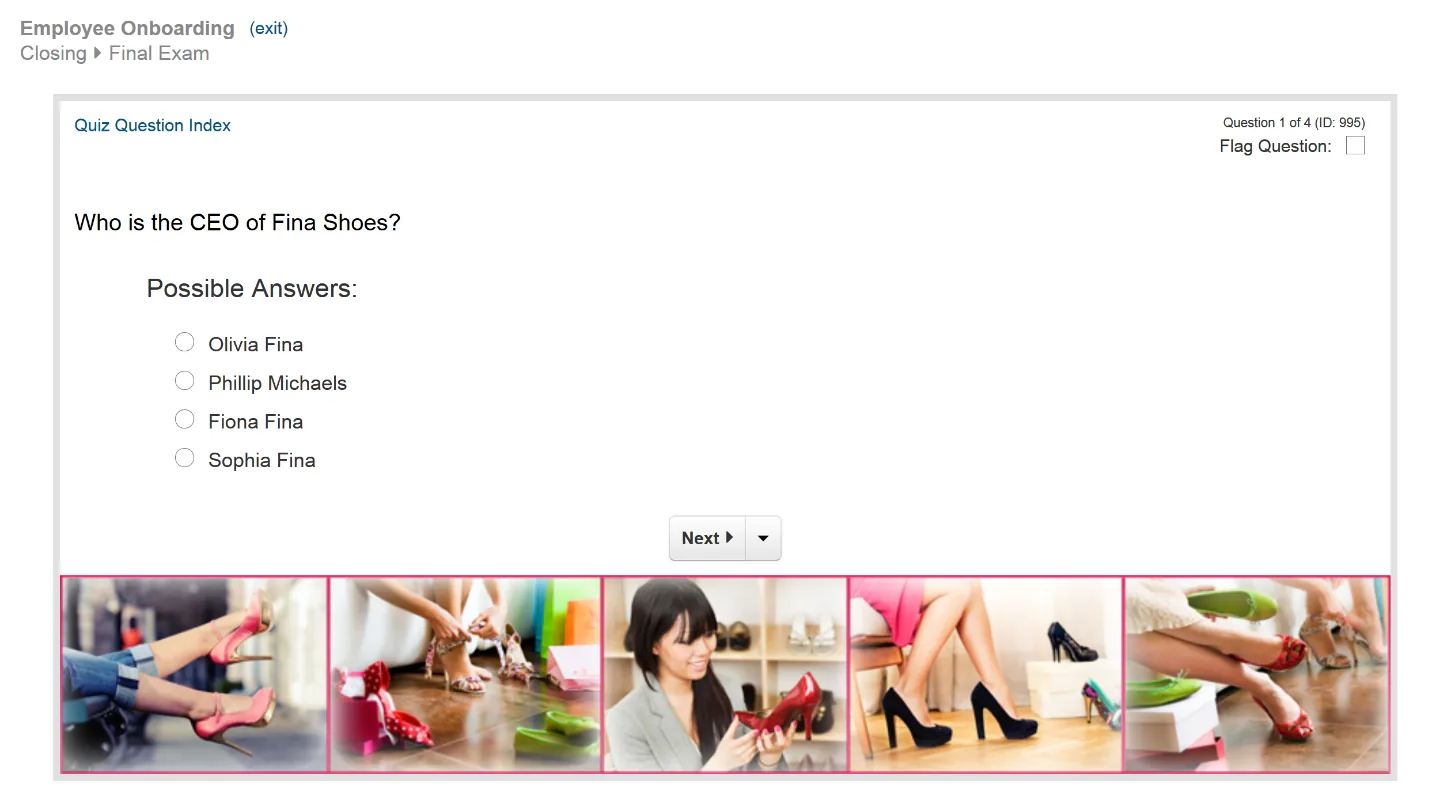
- Multiple Choice - Multiple choice questions provide the learner with possible answer options from which they will have to select the correct one. You can set up a multiple choice question to be a true/false, or one in which the learner has to select from a list of possible answers.
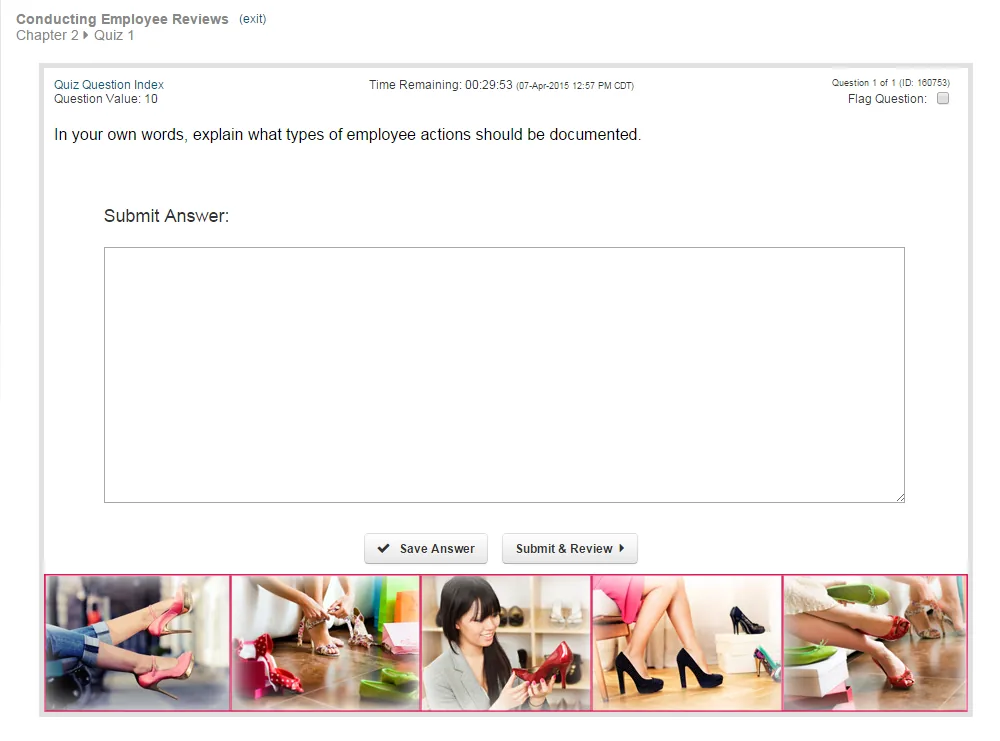
- Long Answer - Long answer quiz questions require the learner to enter their answer in the provided answer area. Long answer quiz questions will need to be manually graded from the Quiz Grading Dashboard by one of the specified graders.
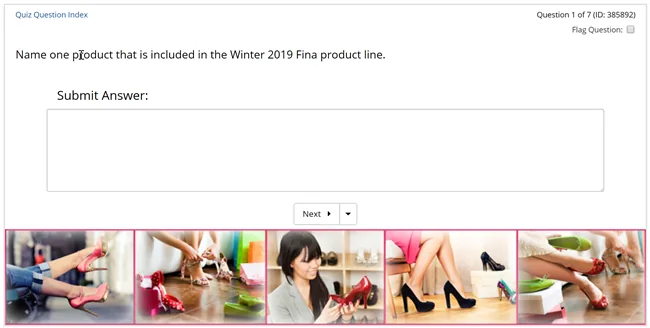
- Short Answer - Short answer quiz questions require the learner to enter one or more responses to the question. SmarterU searches the possible answers you provide to determine if the learner's response is acceptable and grades the question automatically. You can specify the number of answers that the learner is required to provide in order to get the question correct. For example, if there are 10 possible answers, you can require the learner to provide 3 correct answers to the question.
Format
Select the question's format:
- Text/Audio - Enables you to include audio or text-to-speech with the question. Click Upload File to upload an audio file. Refer to SmarterU File Uploads for the audio file's requirements.
- Video - Enables you to upload a video that the learner can view when answering the question. Click Upload File to upload a video file. Refer to SmarterU File Uploads for the video file's requirements.
- PDF File - Enables you to upload a PDF document that the learner can view when answering the question. Click Upload File to upload a PDF file. Refer to SmarterU File Uploads for the PDF file's requirements.
Question ID
Enter an identifier for the quiz question.
Question Value
Enter the value of the question.
Required Question
If checked, learners must answer this question. If the quiz's Randomize Question Order setting is NOT checked, required questions are displayed to the learner prior to non-required questions.
Was this article helpful?
Your answer helps us improve the Success Center.