Video-proctored quizzes use an online service, such as Integrity Advocates or AutoProctor, to ensure that the learner taking the quiz matches the identity on the provided ID and that learners follow the rules. To do this, the service will require access to your computer's microphone and camera to take a photo of you and your government-issued ID.
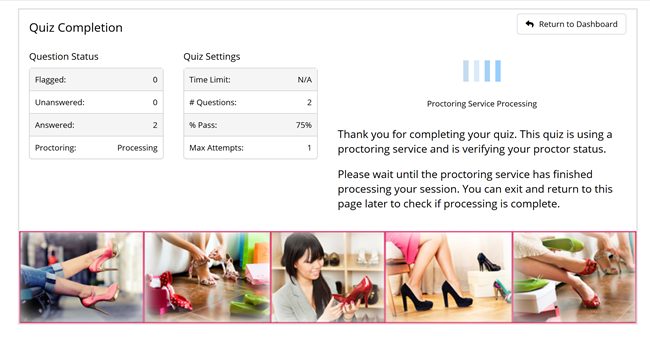
After taking a video proctored quiz, you may see a "Proctoring Service Processing" message on the Quiz Completion page. This message indicates that the proctoring service is analyzing your session to determine whether you followed the rules for taking the quiz.
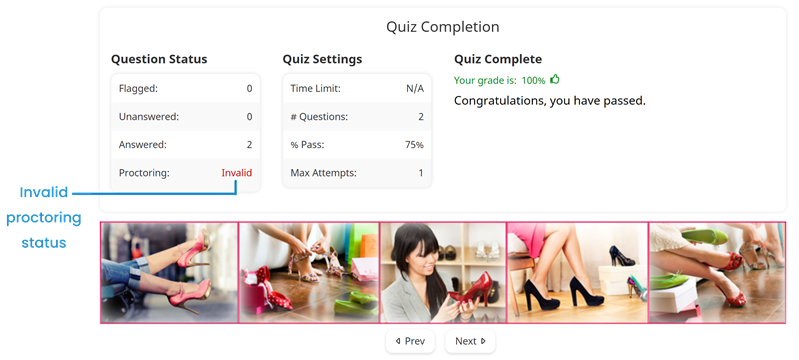
If you fail to meet any of the video proctoring service's rules, your quiz attempt will receive an Invalid proctoring status.
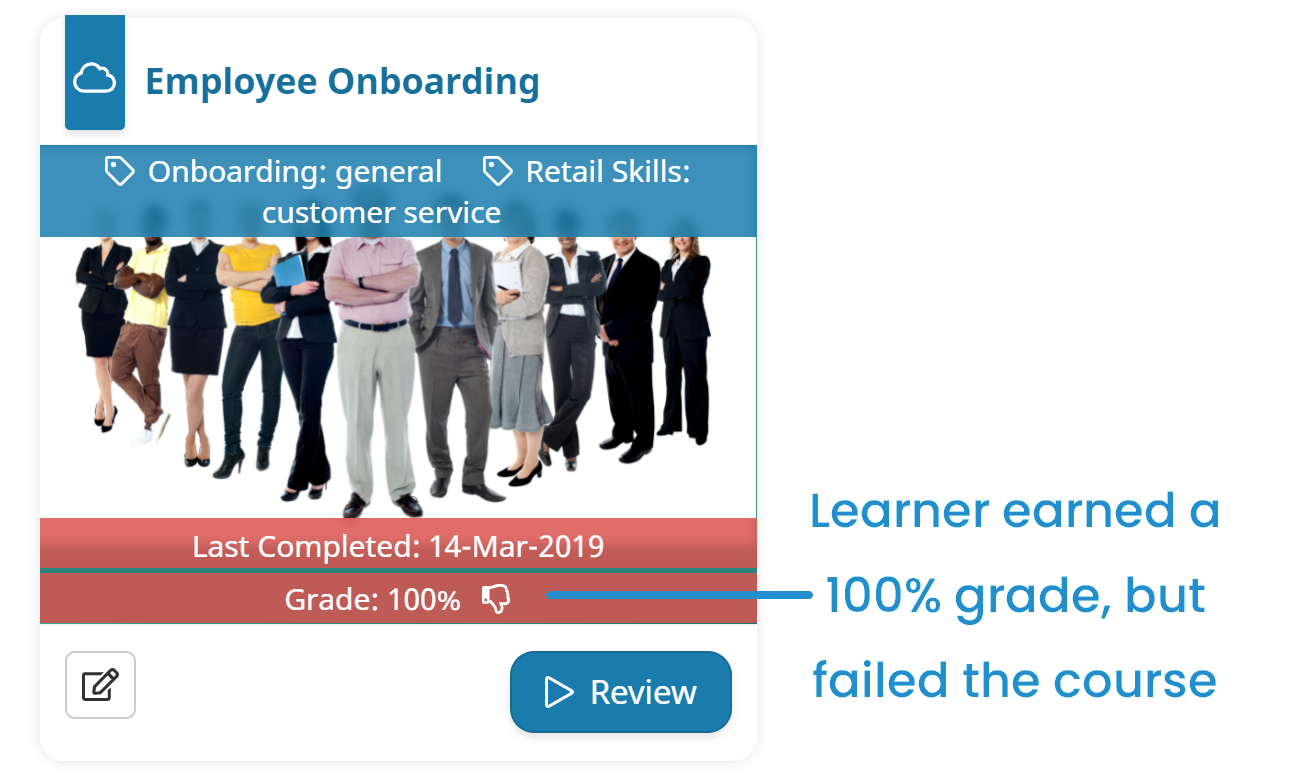
If your last attempt to pass any of the course's quizzes have an Invalid proctoring status, you will fail the course regardless of your quiz grade(s). In the example below, the learner earned a 100% grade, but failed the course.
Taking a Video-Proctored Quiz with Integrity Advocates
BEFORE YOU BEGIN
Be sure that your computer's microphone and camera are working.
Be sure you have a government-issued ID.
To take a video-proctored quiz with Integrity Advocates:
The service will prompt you to allow access to your computer's microphone and camera. To take the quiz, you will need to allow this.
Review the privacy policy and check the I Have Reviewed the Privacy Policy checkbox.
Click Begin Taking Photo. A prompt displays asking which device you want to use for verification. You can continue on your computer, or use your phone’s camera.
Select the device that you want to use.
If you’re using your computer to verify your identity, follow the instructions on the screen. If you’re using your phone’s camera to verify your identity:
Scan the QR code that displays on your computer screen.
Align your ID with the on-screen guide. When your ID is properly aligned, your phone will automatically take a photo.
Review the photo and ensure that all four corners of the ID and all text are clear.
If you want to use the image, tap Use Image. If you need to retake the photo, tap Retake.
Tap Submit Photo. A confirmation displays on your computer.
After completing the quiz, it may take some time for the proctoring service to process your session. After your session is processed, the Quiz Completion page's Proctoring Status will indicate whether your proctoring session was considered valid.
If the proctoring fails, the video proctoring service will send a notification to the email address specified for your user profile. Depending on the error, the email may provide you another opportunity to pass proctoring.