Getting learners to complete their training is a common challenge for LMS administrators. If you’re looking for a way to boost participation and add a bit of friendly competition to your LMS, it’s time to look at SmarterU’s leaderboard feature. This feature can transform the learning experience from a solitary task into an interactive challenge. Leaderboards tap into the social side of learning, making the process more enjoyable and motivating.
A leaderboard is a visual tool that shows how individual learners or groups compare to one another. They display the total number of points learners or groups have earned, ranking them in order so that the top performer is marked as #1. Learners earn points based on their course grade or when they complete a course. In SmarterU, these points are monitored using a point tracker.
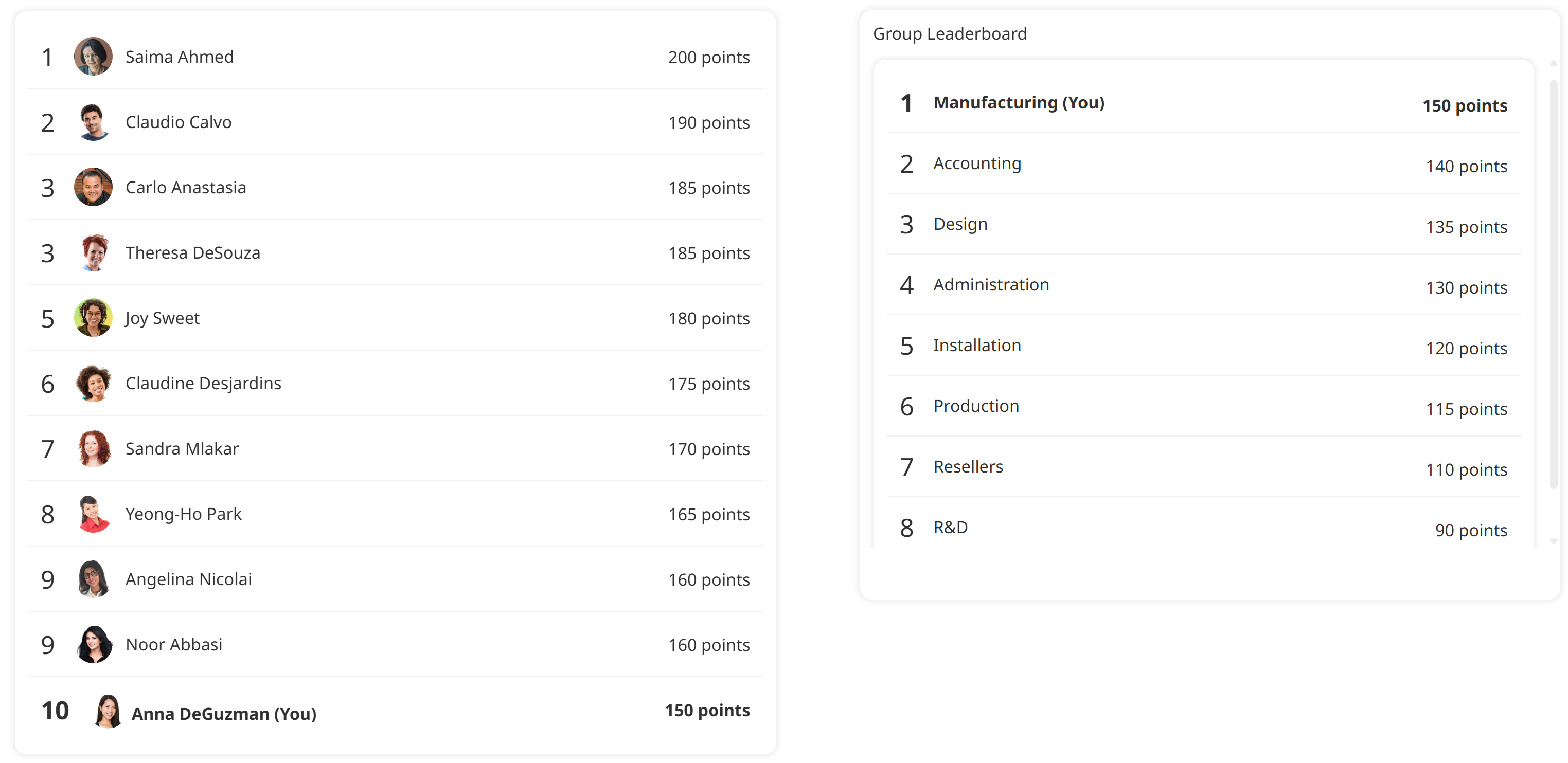
For example, imagine your Sales Team earning "Product Knowledge Points" for every new product webinar they finish, with the top learner each month winning a gift card. Or, picture your manufacturing departments competing to see which one completes their safety training first. Both scenarios use leaderboards to foster teamwork and accountability while turning the "to-do list" of training into a rewarding goal.
Want SmarterNews delivered to your inbox? Subscribe today!
Why use leaderboards?
Leaderboards tap into our natural desire for achievement and recognition. By implementing them, you’re building a culture of learning that feels dynamic and alive. Here’s how adding a leaderboard can benefit your organization:
Encourage Course Completion: When learners see they are just a few points away from the top spot, they are more likely to finish that next module to bridge the gap.
Introduce Gamification: Gamification turns the LMS into an interactive environment, making training feel less like "work" and more like a progression through a series of achievements.
Promote Friendly Competition: Whether it’s between individuals or different departments, a little healthy rivalry goes a long way in driving consistent engagement.
How to Set Up a Leaderboard
Setting up a leaderboard is a straightforward three-part process. First, create a point tracker to keep track of your learners’ points, then decide which courses will earn points. Finally, add a leaderboard to your learners' dashboard. Following these steps ensures your points are tracked accurately and displayed prominently.
Step 1: Set Up a Point Tracker
Before you can show a leaderboard, you need to set up a point tracker. To create a point tracker:
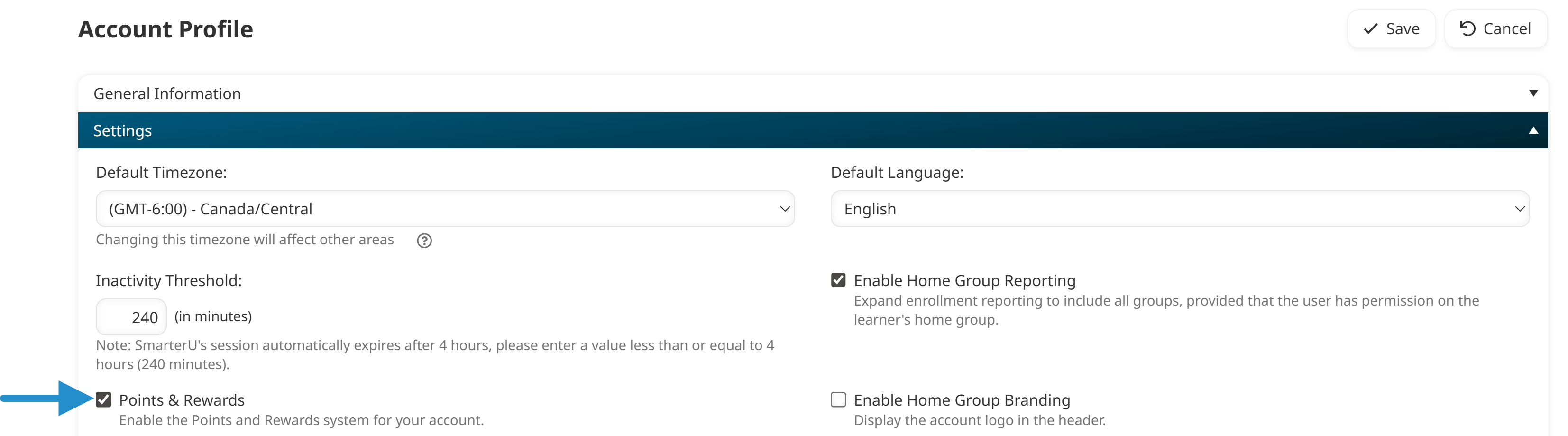
Navigate to your account settings and ensure that points and rewards are enabled.
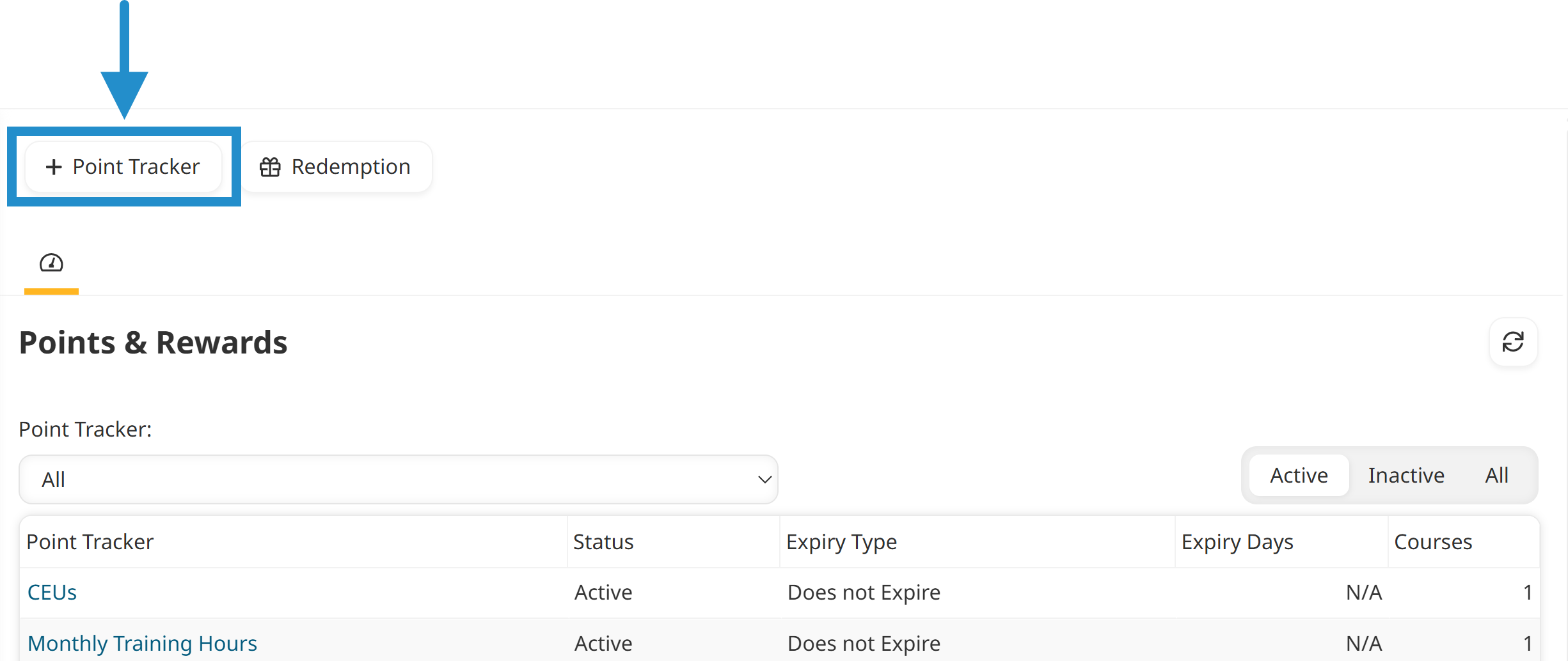
View the Points & Rewards Dashboard.
Click Point Tracker to create a new point tracker.
Enter a name (e.g., "Safety Excellence Points") and a description.
From the Expiration Options accordion, specify whether points expire. If points do expire, specify whether they expire at the end of the calendar year or after a set number of days.
Click Save.
Step 2: Associate the Point Tracker with a Course
Now that you have a point tracker, you need to link it to a course so learners can earn points based on their grade or how long it took them to complete the course.
A point tracker can be associated with more than one course, and a course can be associated with more than one point tracker.
Create or edit an online, SCORM, or instructor-led course.
In the Points & Rewards accordion, click Point Tracker.
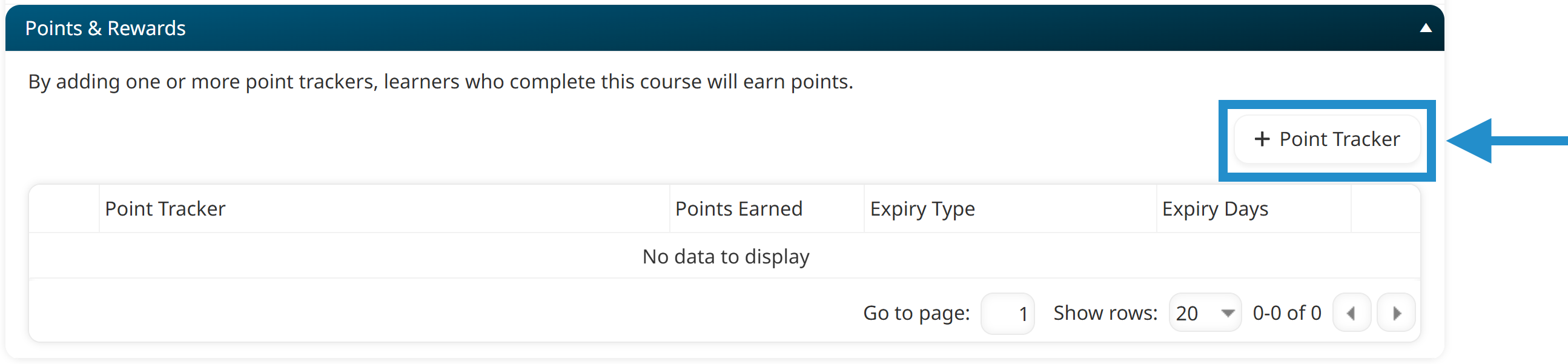
Select the point tracker.
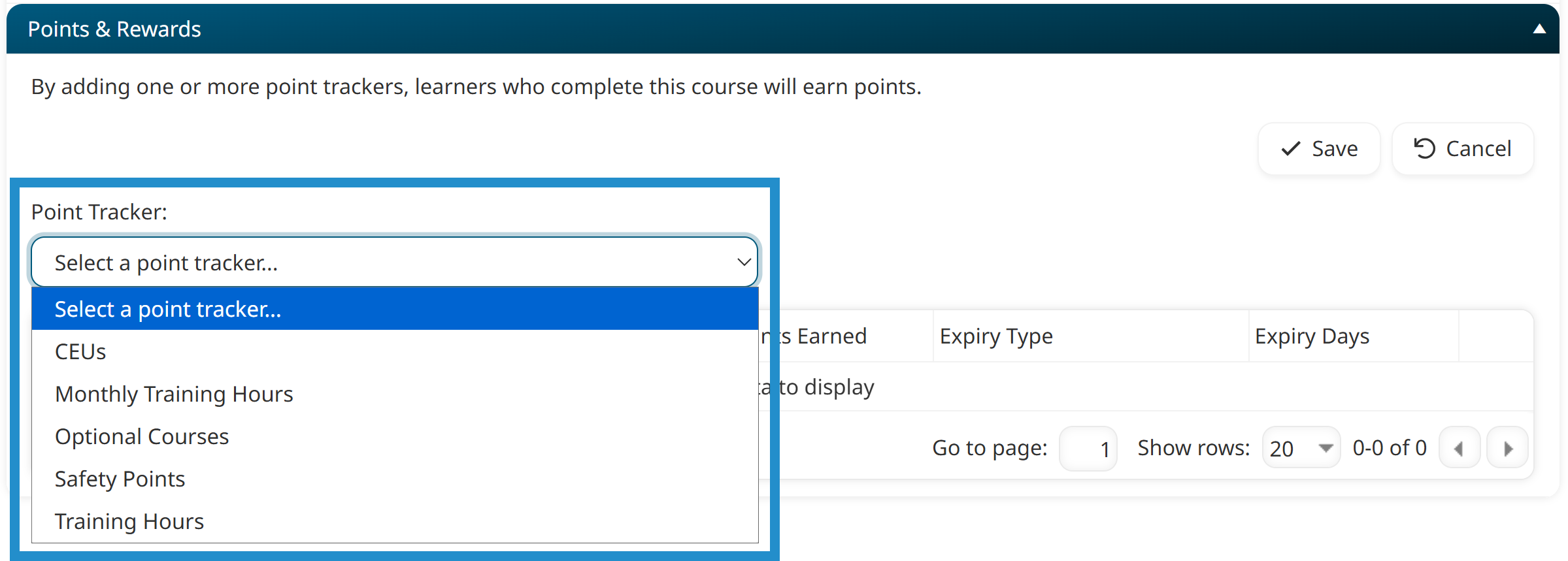
Specify whether you want to award points based on the learner’s grade or how long it took the learner to complete the course.
Specify the number of points a learner will earn.
You can customize how many points learners earn based on their grade. For example, learners with a grade of 90% or higher earn 10 points, while learners with a grade of 89% or lower earn 5 points.
Click Save.
Step 3: Display a Leaderboard to Learners
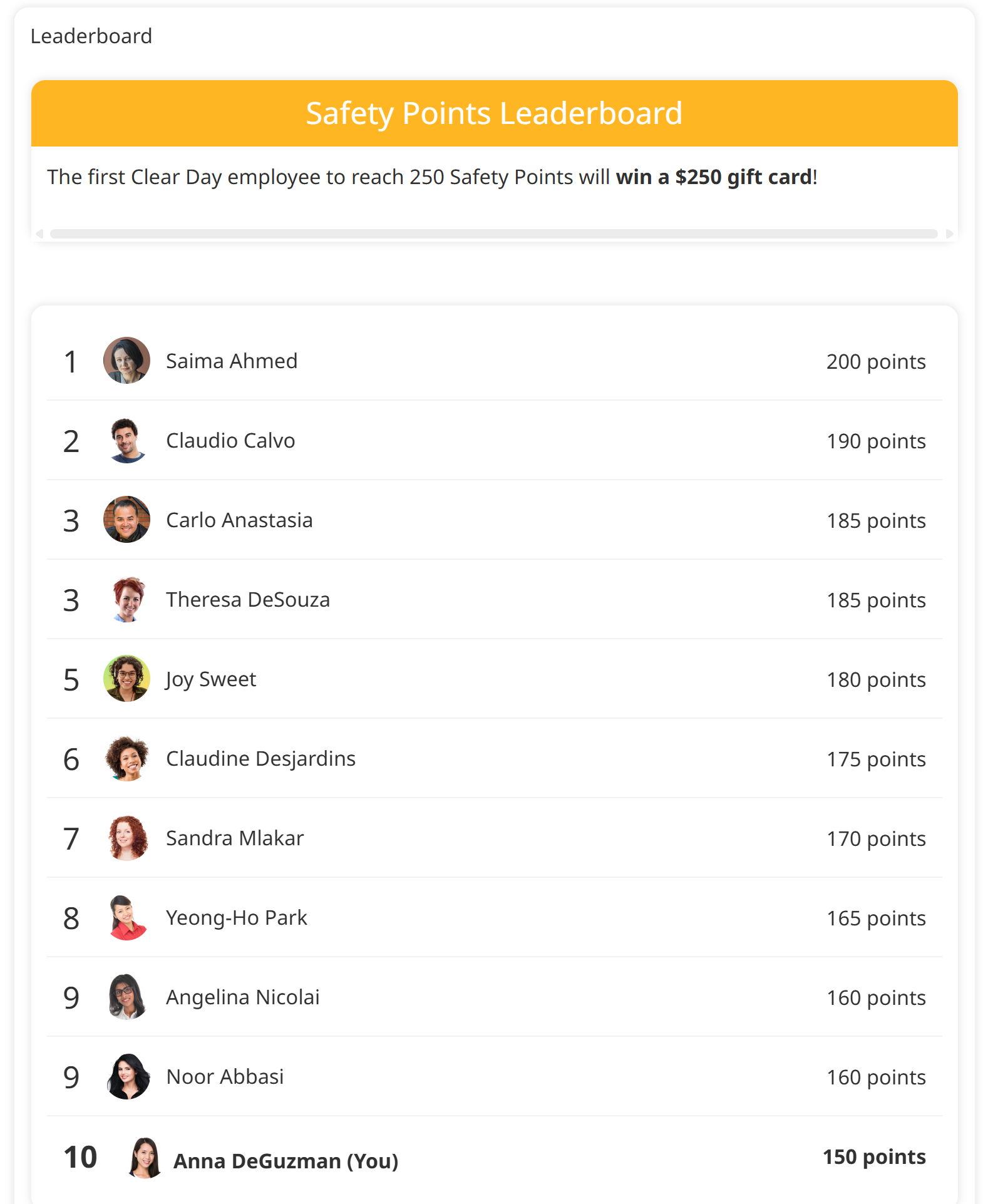
The final step is to make points visible on a leaderboard so learners can see where they stand. As learners earn points, the leaderboard automatically updates to show how they compare to other learners.
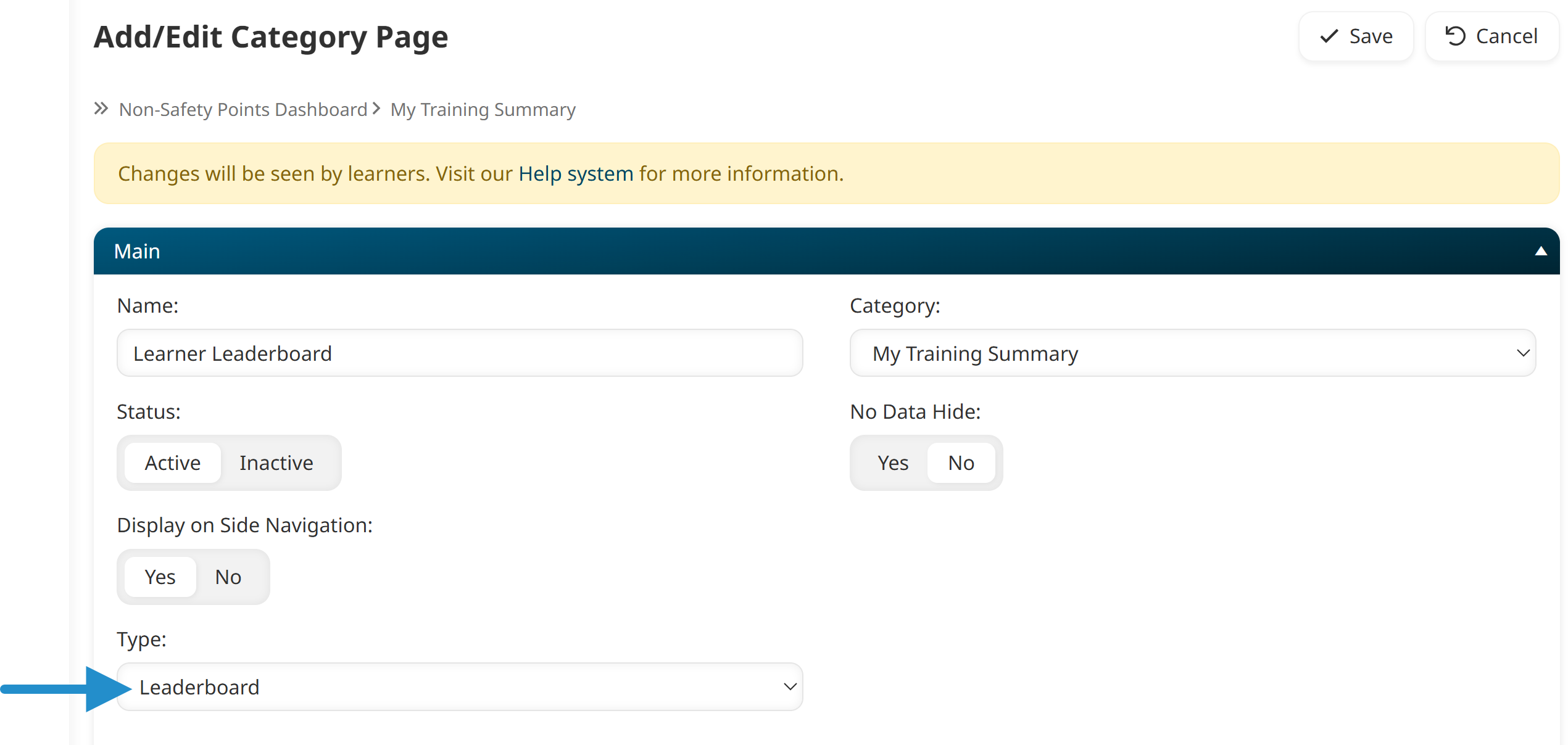
Navigate to the Learner Dashboard Builder.
Add a page and set its Type to Leaderboard.
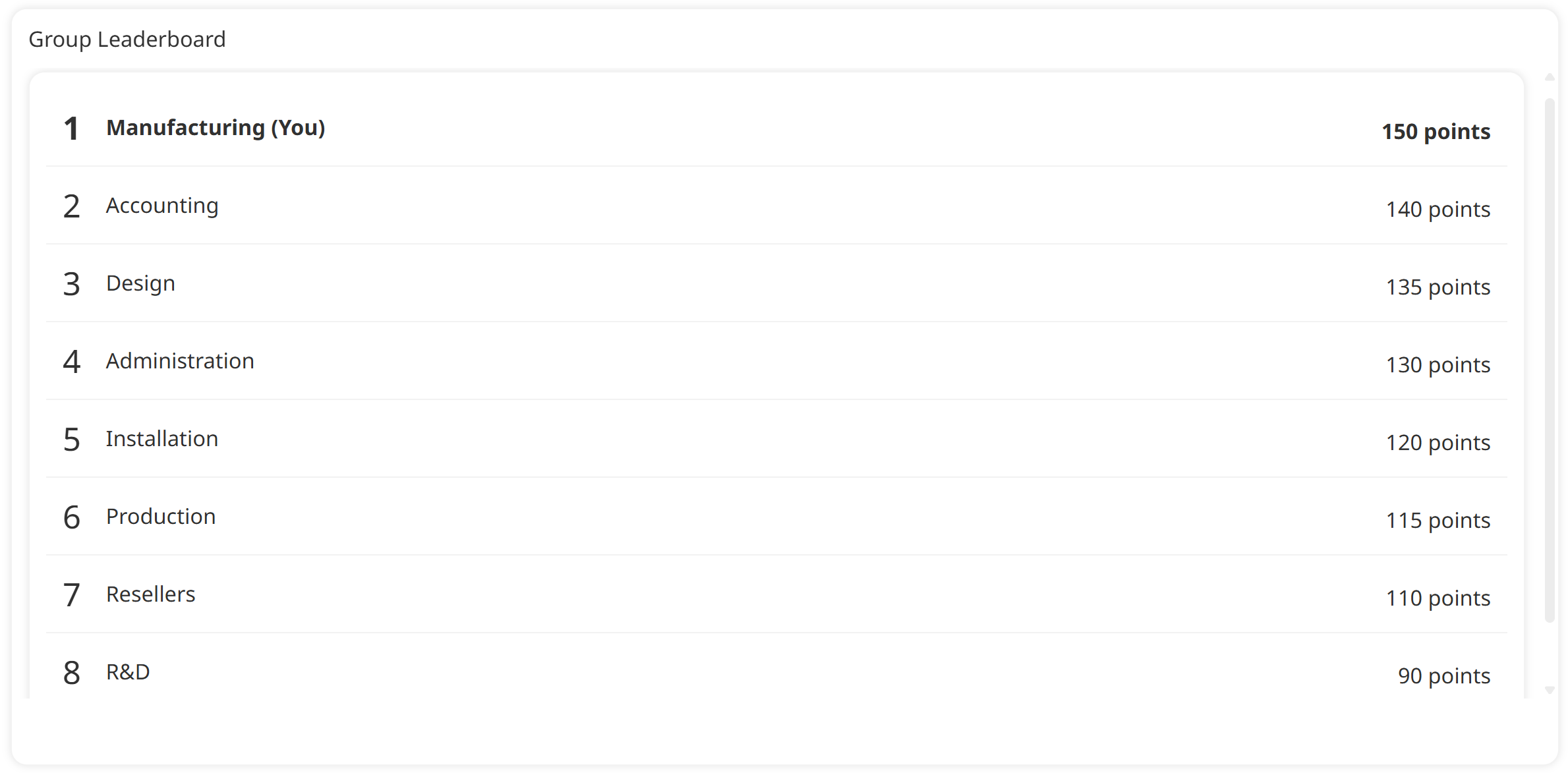
You can also display a leaderboard on a custom page by adding the leaderboard widget to the page.
In the Configuration accordion, select the point tracker that the leaderboard will use.
Select whether the leaderboard will show points for individual learners or for home groups. For example, you might choose to tally by home groups if you’re running a competition between departments to see which department completes the most safety training.
Specify any other details, such as the date range of points included in the leaderboard, the number of users or groups to display, and whether to display a message above the leaderboard.
Click Save.
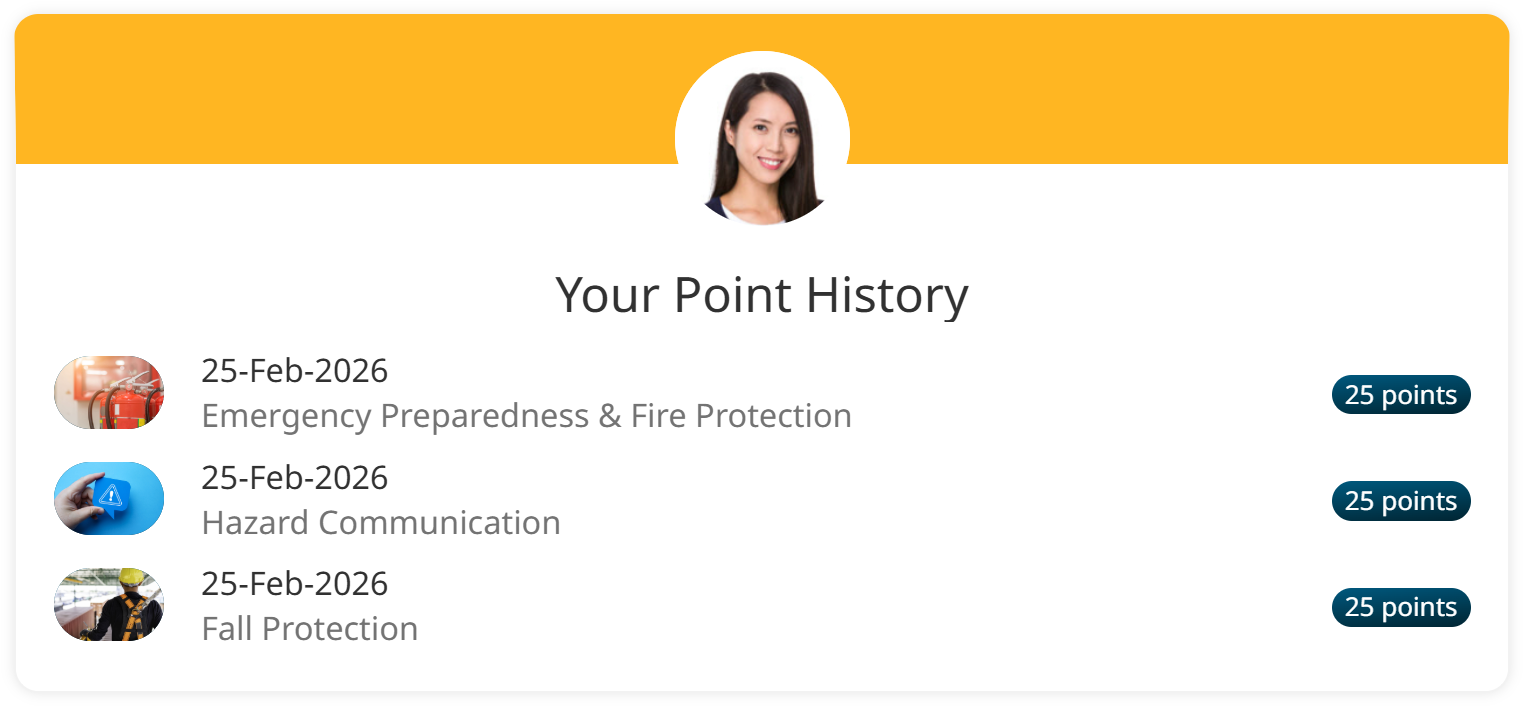
You can also show a learner their own point history by adding the Point History widget to a page.
By turning training into a rewarding, social journey, you’re building a more engaged and motivated workforce. Whether you start small with a single course or launch an organization-wide competition, SmarterU’s leaderboards offer a simple, effective way to make learning a highlight of your employees' day. Give it a try this week and see how displaying learners’ achievements can go a long way in transforming your training culture!
Questions? Contact our Success Desk.