Every organization experiences shifts in staffing. Team members go on parental or extended leave, seasonal contracts end, or employees move on to new opportunities. As an LMS administrator, keeping your user list up to date is an important task that keeps your account organized and your reports accurate.
Want SmarterNews delivered to your inbox? Subscribe today!
By inactivating departing users’ accounts, you ensure SmarterU LMS accurately reflects your true workforce while protecting your organization's data. Keeping an up-to-date user list also helps you stay within your account’s active user limits, preventing unexpected overage costs as seat counts grow.
Why Inactivate User Accounts?
In SmarterU, a user’s account is set to Active when someone needs to log in, complete training, or receive automated notifications. Setting a user to Inactive pauses login access while keeping their entire training history saved in the system.
Inactivating user accounts is the standard method for managing staff transitions, offering three key advantages for your organization:
Keeps your account secure: Login access ends immediately for departing employees or staff heading out on leave, preventing them from logging in or viewing training materials.
Preserves training history: All completed courses, quiz scores, certificates, and compliance records stay safely stored in SmarterU for future reporting or audits.
Quick reactivation: When a seasonal worker returns or an employee comes back from leave, you can simply reactivate their account, allowing them to jump right back into training without needing a new profile created.
How to Inactivate Users in SmarterU
Whether you are handling a single employee's departure or offboarding an entire team of seasonal workers, SmarterU makes it easy. You can update user statuses individually or process a larger group all at once.
Inactivating an Individual User
If you need to inactivate a single user, you can change their status directly from their profile settings.
Navigate to the Users Dashboard.
Find the user you want to update.
You can search for a user by clicking the
.png) icon beside the column header, selecting Filter, then entering characters from the user’s name.
icon beside the column header, selecting Filter, then entering characters from the user’s name.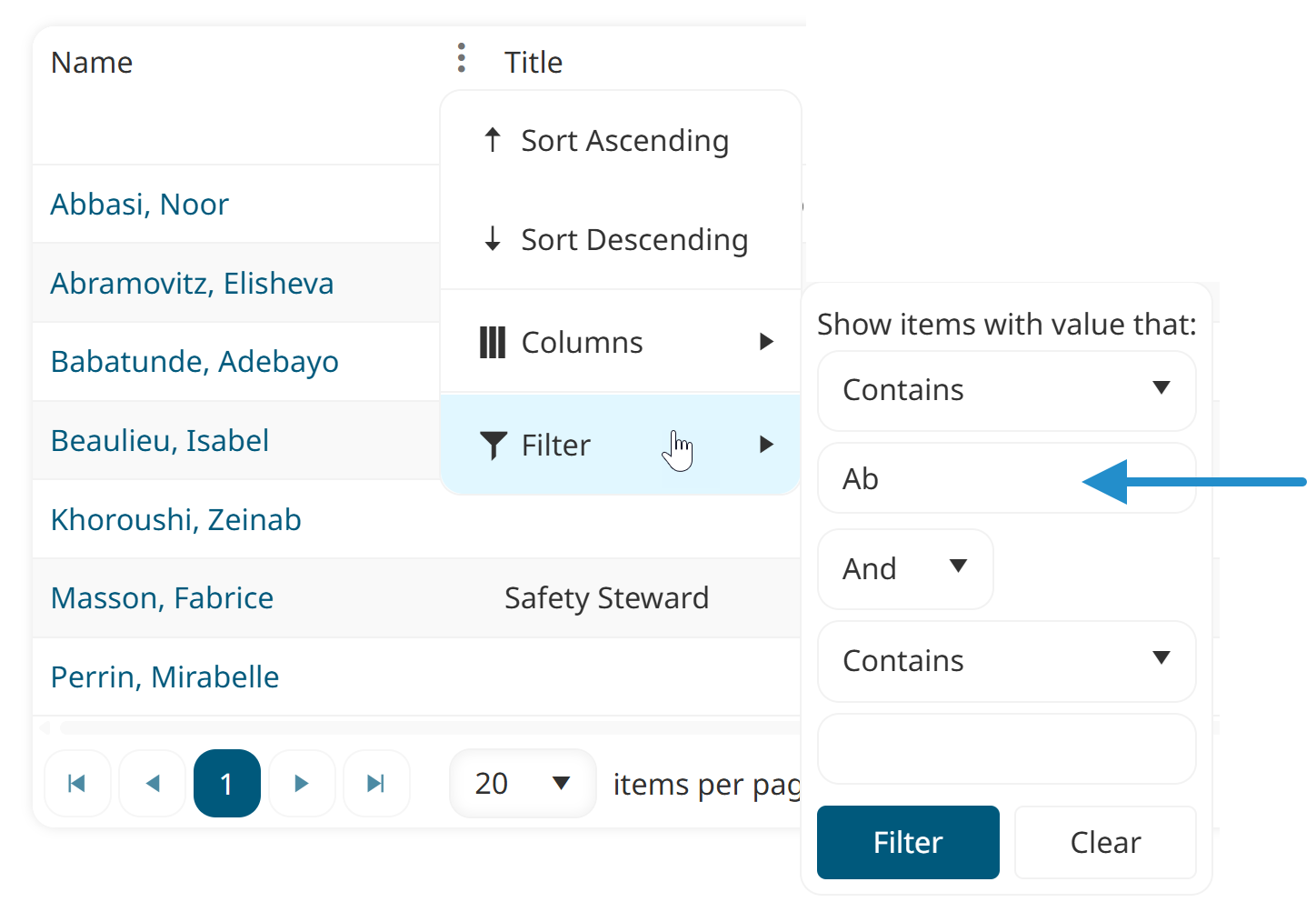
Select the user’s name to view their profile.
Click Edit.
Change their Status to Inactive.
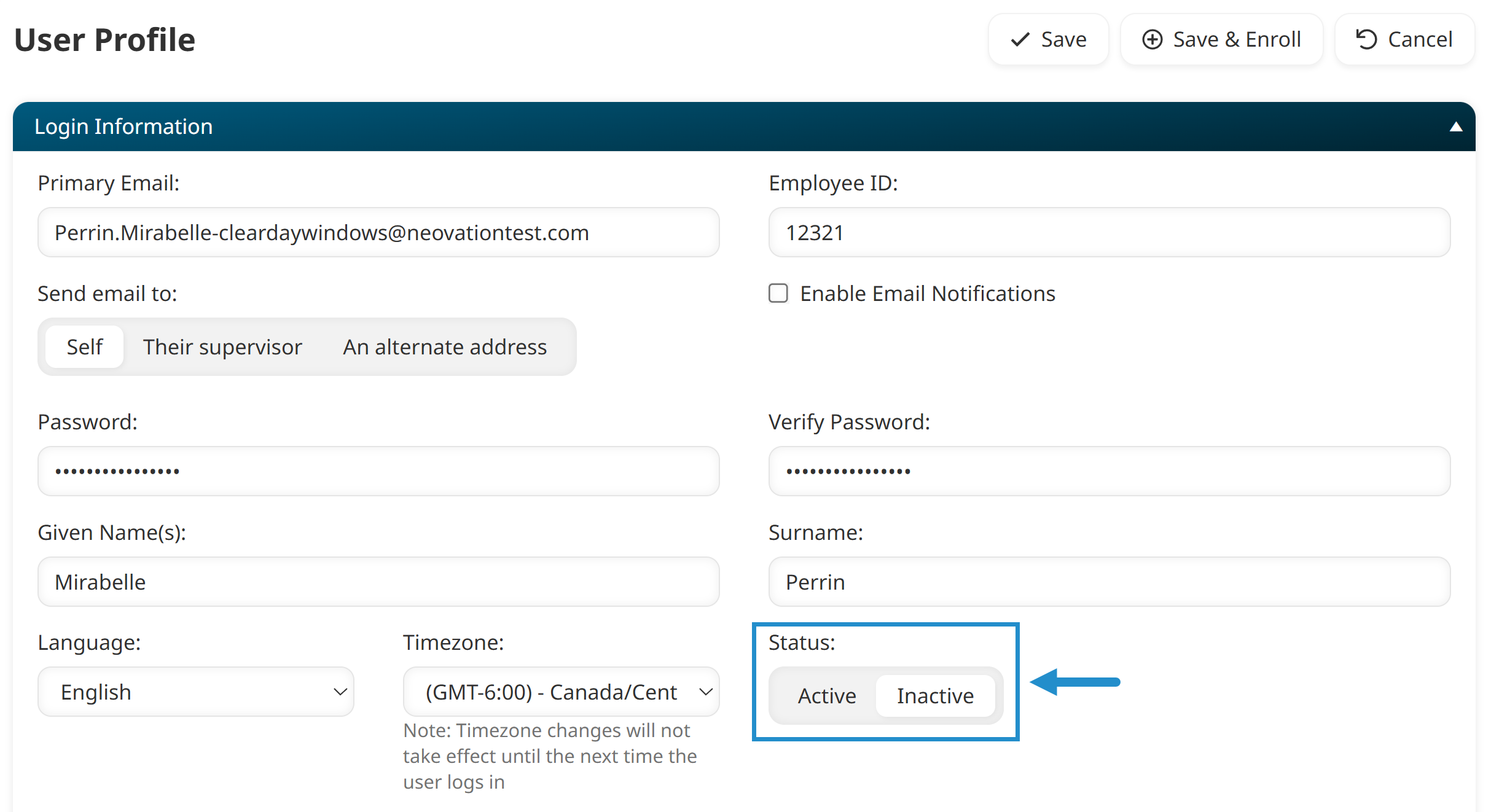
Click Save.
Once inactive, the user can no longer log in to SmarterU, but all their past training data remains securely stored in your account. If they return, follow these exact same steps, but switch their Status back to Active.
Inactivating Multiple Users
Updating accounts one by one can take time if you manage seasonal workforces or need to clean up a large list. The SmarterU User Import tool lets you update the status of multiple users at once with a simple spreadsheet.
Step 1: Create Your Spreadsheet
First, you’ll need to create a spreadsheet with all the users you want to change the status of.
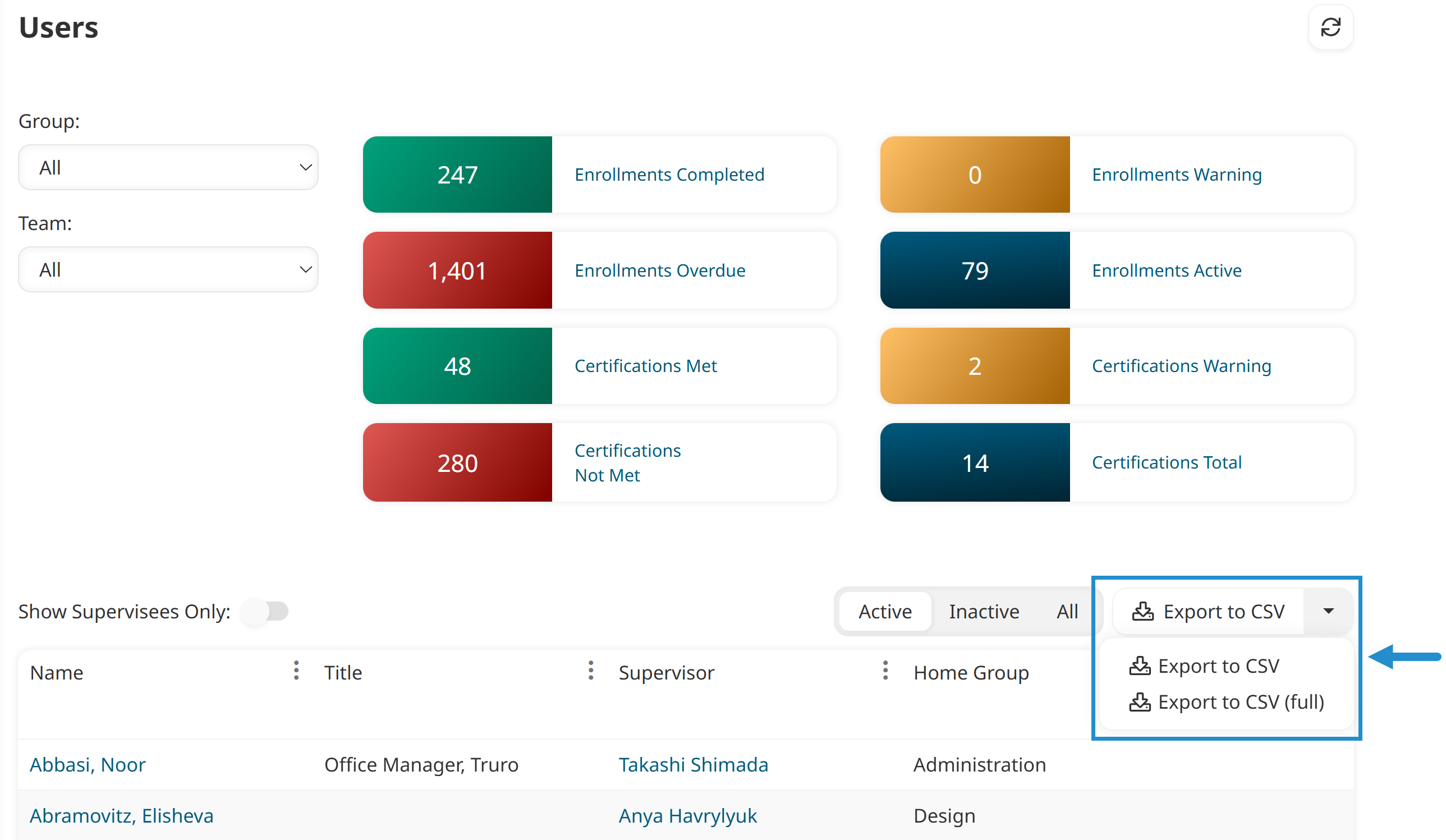
Export a CSV (full) of your users from the Users Dashboard. This will provide you with a file that contains a list of all your users in SmarterU, along with their information.
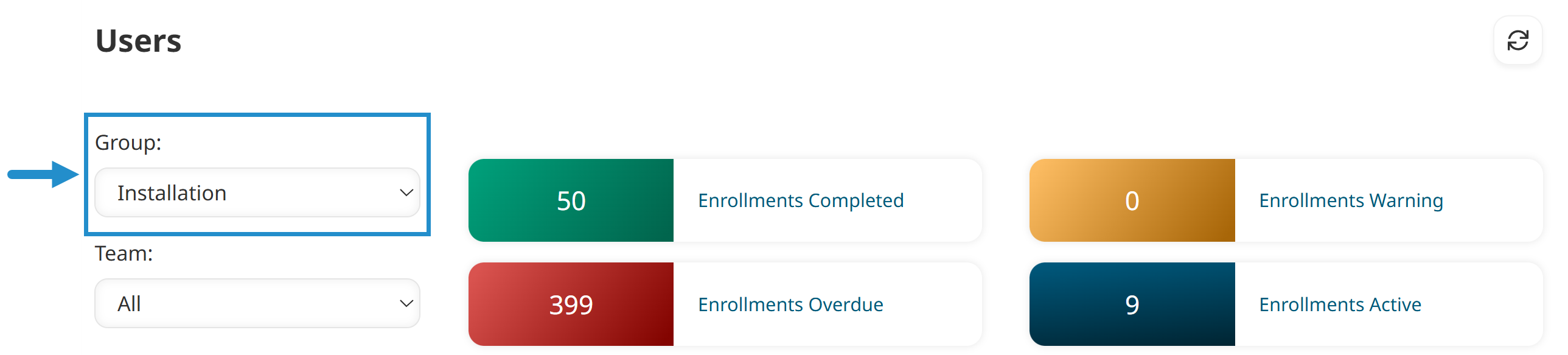
If the users you want to update all belong to the same group, filter the Users Dashboard for that group to reduce the size of the export and the list you have to work with.
Open the file in a program such as Microsoft Excel.
Delete any columns you don’t plan to change. Be sure to keep the Status column and the column containing your users' identifying information (their email address or employee ID).
Delete the rows for any users whose statuses will stay the same. While SmarterU will not update a user if their data hasn't changed, removing these extra rows keeps your file clean and easy to review.
In the Status column, change the text to Inactive for each user you want to pause.
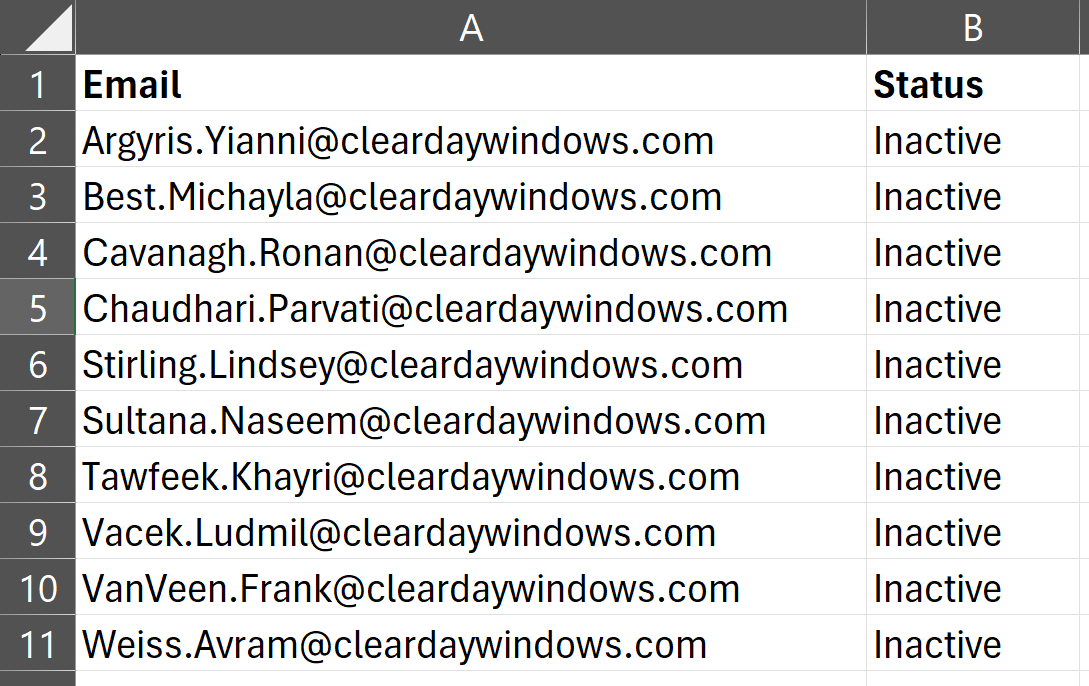
Save your spreadsheet as a CSV (Comma Delimited) file on your computer.
If you prefer not to export your existing user list, you can create a brand new spreadsheet instead. Include a column for the information that identifies your users in SmarterU (either their email address or employee ID). Then add a second column named Status and set its value to Inactive for every user you wish to pause. Save the file as a CSV.
Step 2: Do the Import
Next, you’ll use this spreadsheet and SmarterU’s User Import tool to update your users in SmarterU.
Navigate to the Users Dashboard.
Click Import Users.
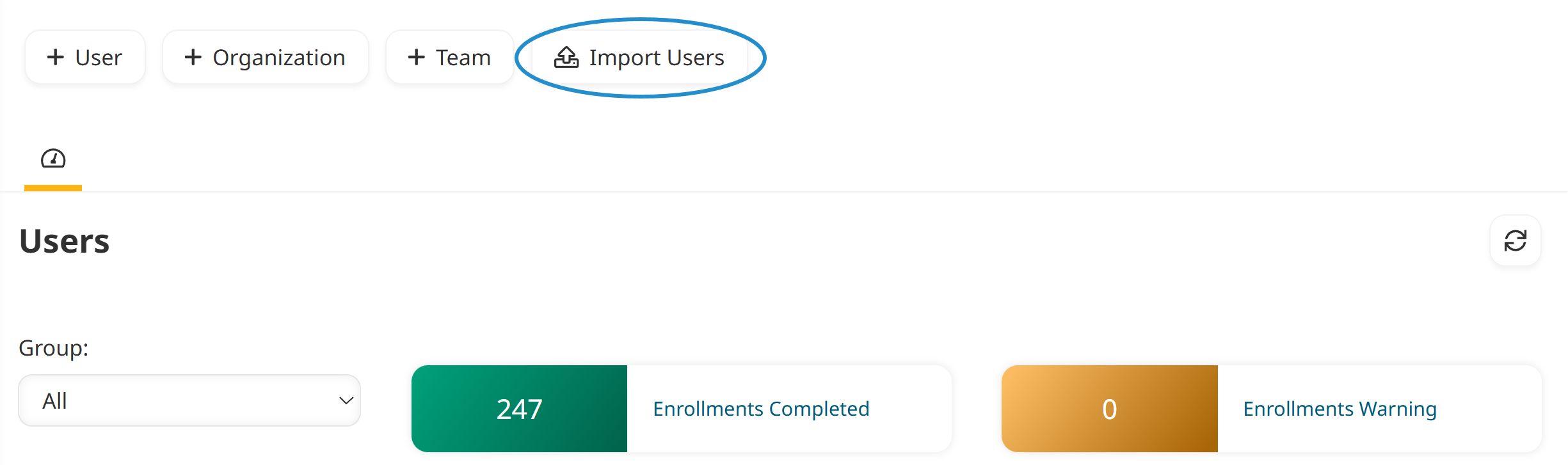
Click Select File, select your CSV file, then click Open.
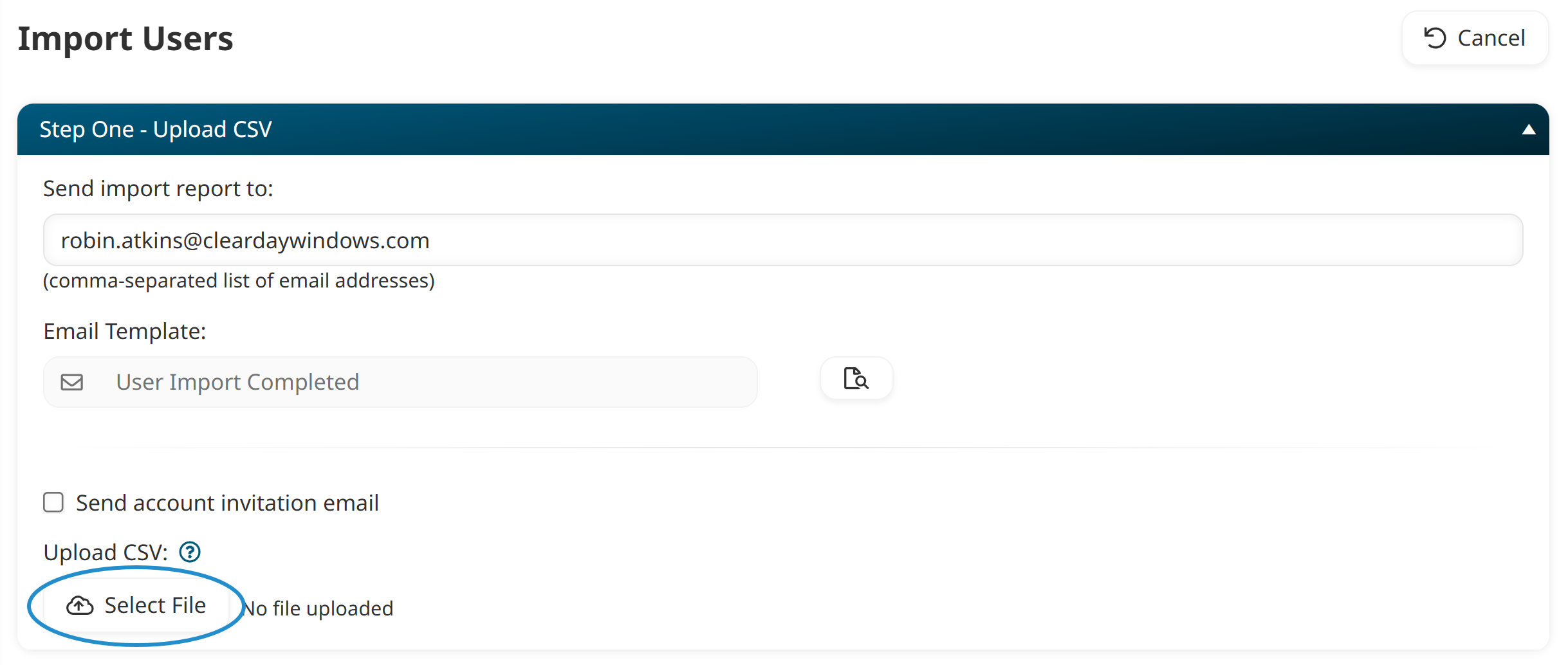
Confirm which email address you want to receive the User Import Report. This report is sent after the import is complete and summarizes the changes you’ve made in SmarterU.
Map your columns to tell the import tool which fields in SmarterU correspond to the columns in your report. For example, map the Email column from your CSV file to the Email field in SmarterU.
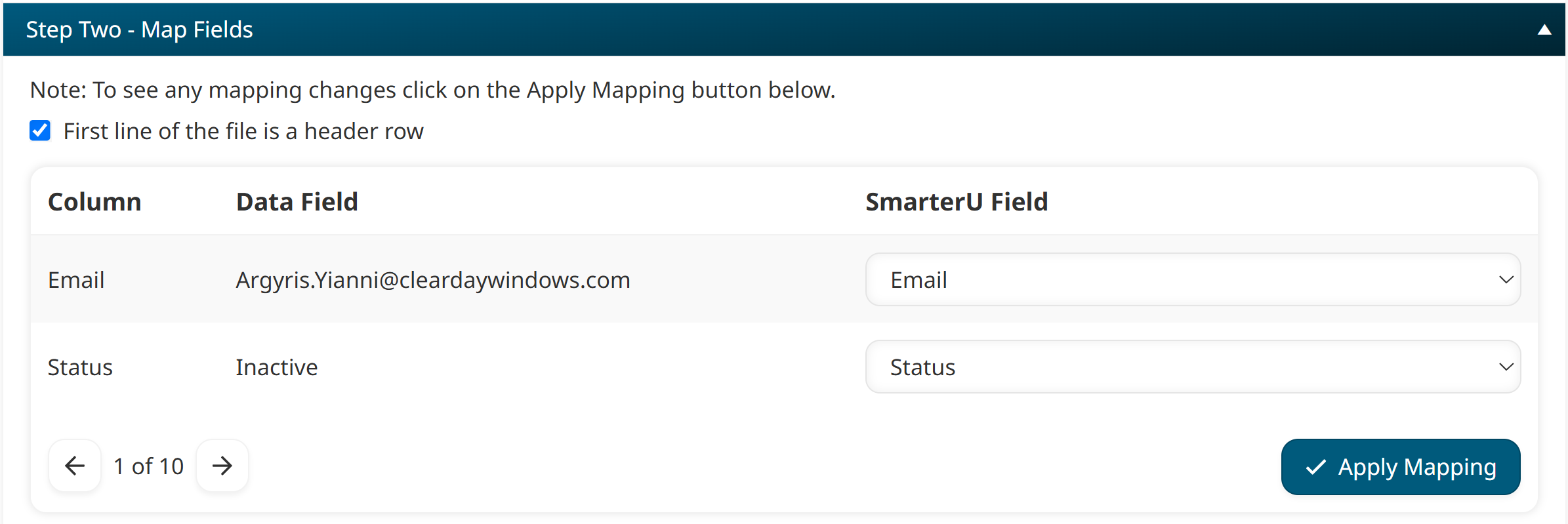
If you created your spreadsheet by exporting your Users Dashboard, your column headers will match SmarterU's field names, allowing the system to map them automatically.
Select the First Line of the File is a Header Row checkbox to skip importing the first row if it contains your column headers.
Click Apply Mapping.
Preview your import. This preview provides a list of the rows in your spreadsheet that SmarterU predicts will be imported, as well as those that won’t due to errors.
The import process cannot be stopped or reversed, so be sure to carefully review the preview.
Click Import Users.
The users’ statuses are changed. Inactive users will no longer be able to log in but their training history will be maintained.
Since the preview step (step 6) is based on SmarterU’s initial check to identify where an error might occur, we recommend reviewing the User Import Completed email we mentioned earlier to double-check everything and ensure nothing was missed.
Streamline Your User Management
Taking a few moments to update your user statuses helps keep your SmarterU account clean and organized. It ensures that your reports reflect your active workforce, enrollment lists remain accurate, and returning workers enjoy a smooth transition back into training.
Best of all, inactivating accounts protects your organization’s data security by immediately removing login access for former staff, preventing them from viewing internal materials or accessing the system. At the same time, your historical records stay completely intact. Whenever you need to run compliance reports, verify past certifications, or audit training history, all of your user data remains safely stored and ready to access.
Questions? Contact our Success Desk.