
The tags and values associated with a course are managed in the Tags accordion of the Course Information workscreen.

Associating Tags with a Course
To associate a course with tags:
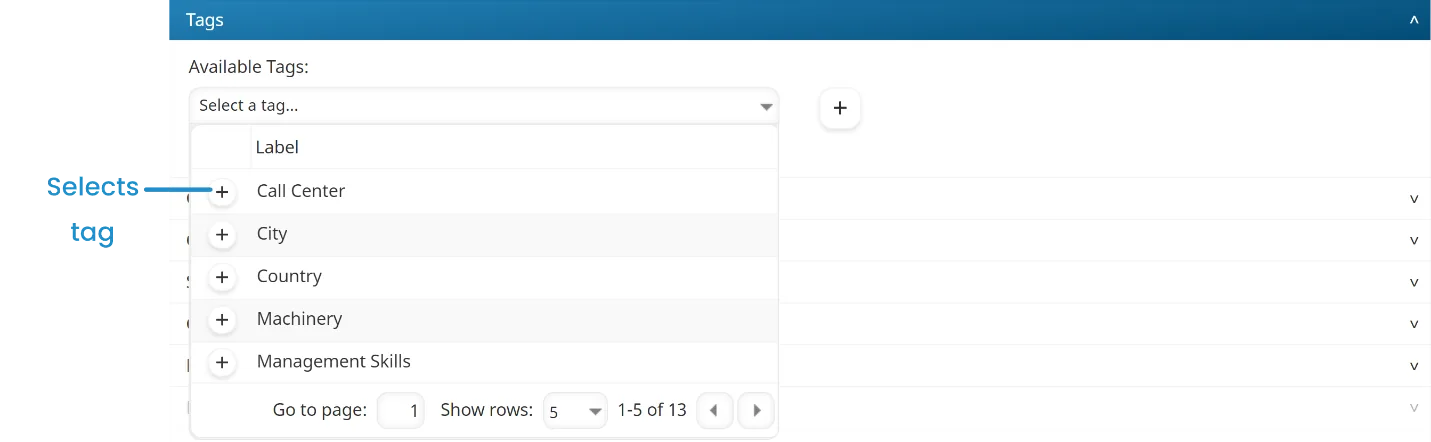
- From the Course Information workscreen, expand the Tags accordion.
- From the Available Tags list, click the
 beside the tags you want to associate with the course.
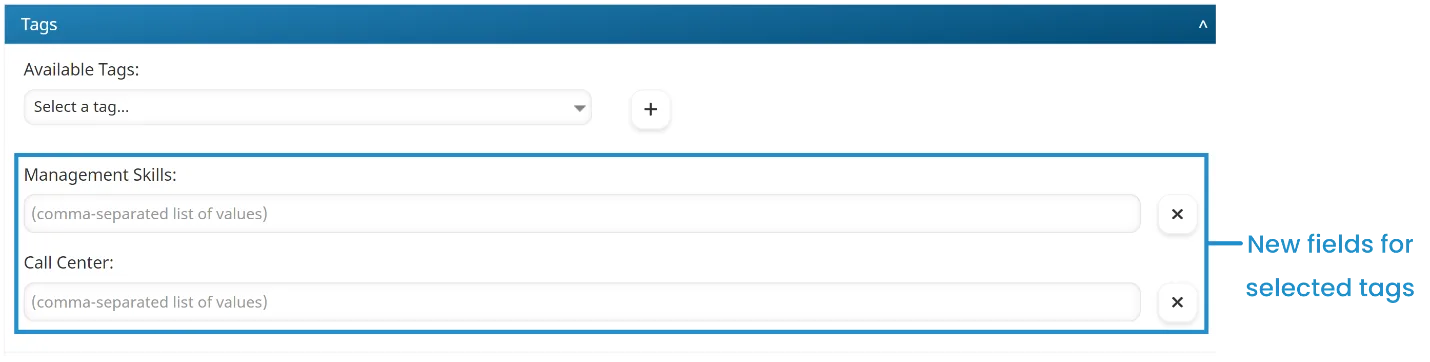
- Click the
 beside the Available Tags list.

A new field is added for each selected tag.
- Click Save.
Assigning Values to Course Tags
To assign values to a course's tags:
- From the Course Information workscreen, expand the Tags accordion.
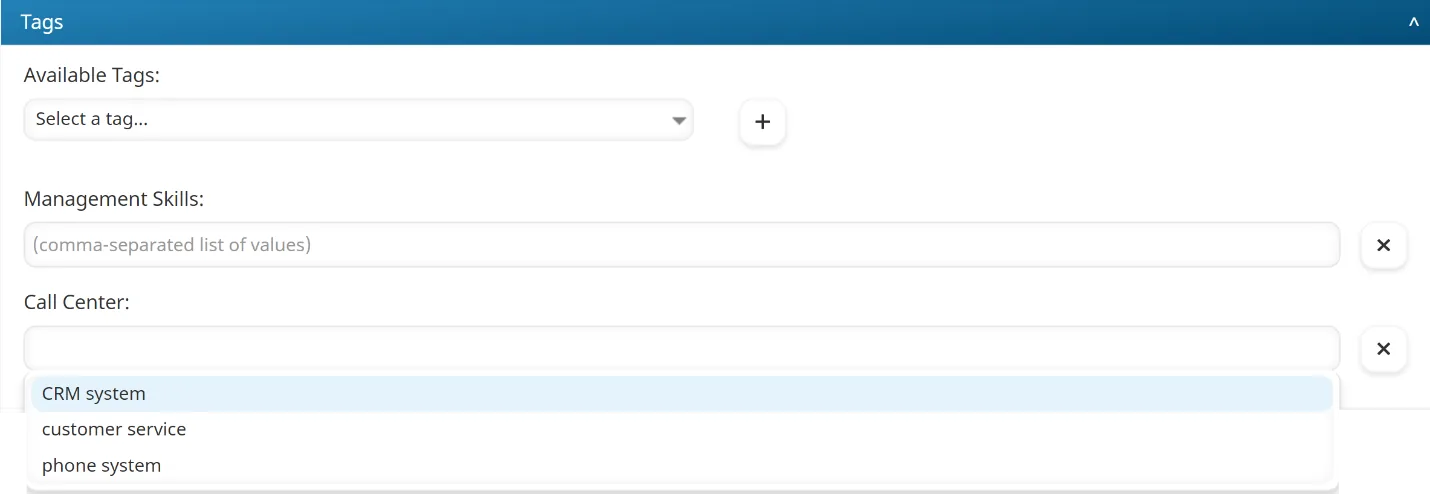
- Click in the tag's field. A list of the tag's pre-defined values displays.
- From the list, select the values you want to assign.
If the tag allows users to add values, the list will also include other values that were previously specified for the tag. You can enter a new value and press ENTER after each value, or enter all the values (separated by a comma) then press ENTER.
- Click Save.
Removing Tags or Values from a Course
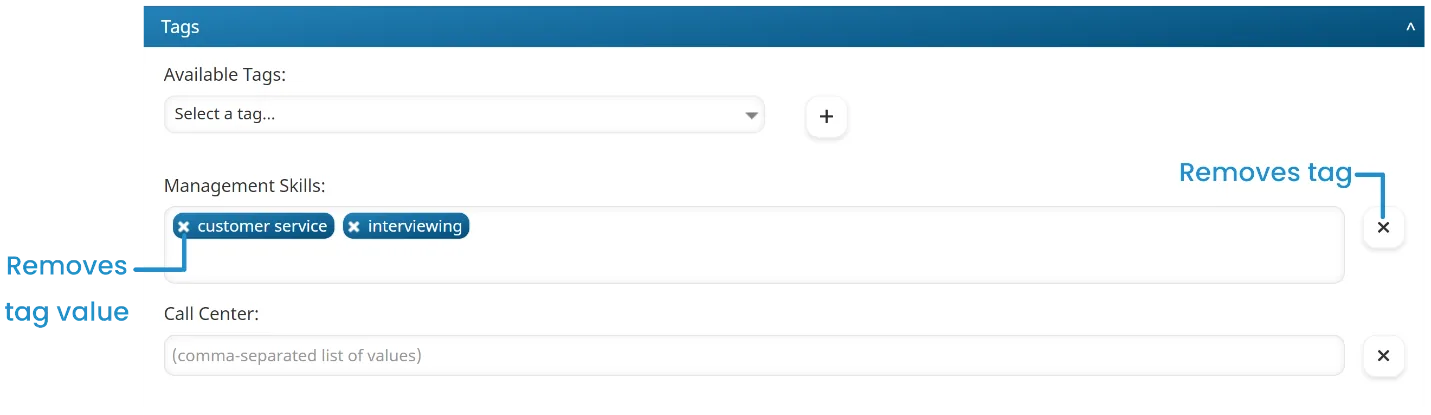
To remove a tag and all its values from a course:
- From the Course Information workscreen, expand the Tags accordion.
- Click the
 beside the tags you want to remove from the course.
- Click Save.
To remove a tag's value from the course, click the X beside the value.
Was this article helpful?
Your answer helps us improve the Success Center.