SmarterU enables you to add up to 15 custom user fields for capturing data about users that aren't part of the default SmarterU system. Custom user fields that you add are global for the entire account and display in the Custom Fields accordion of the User Profile workscreen.
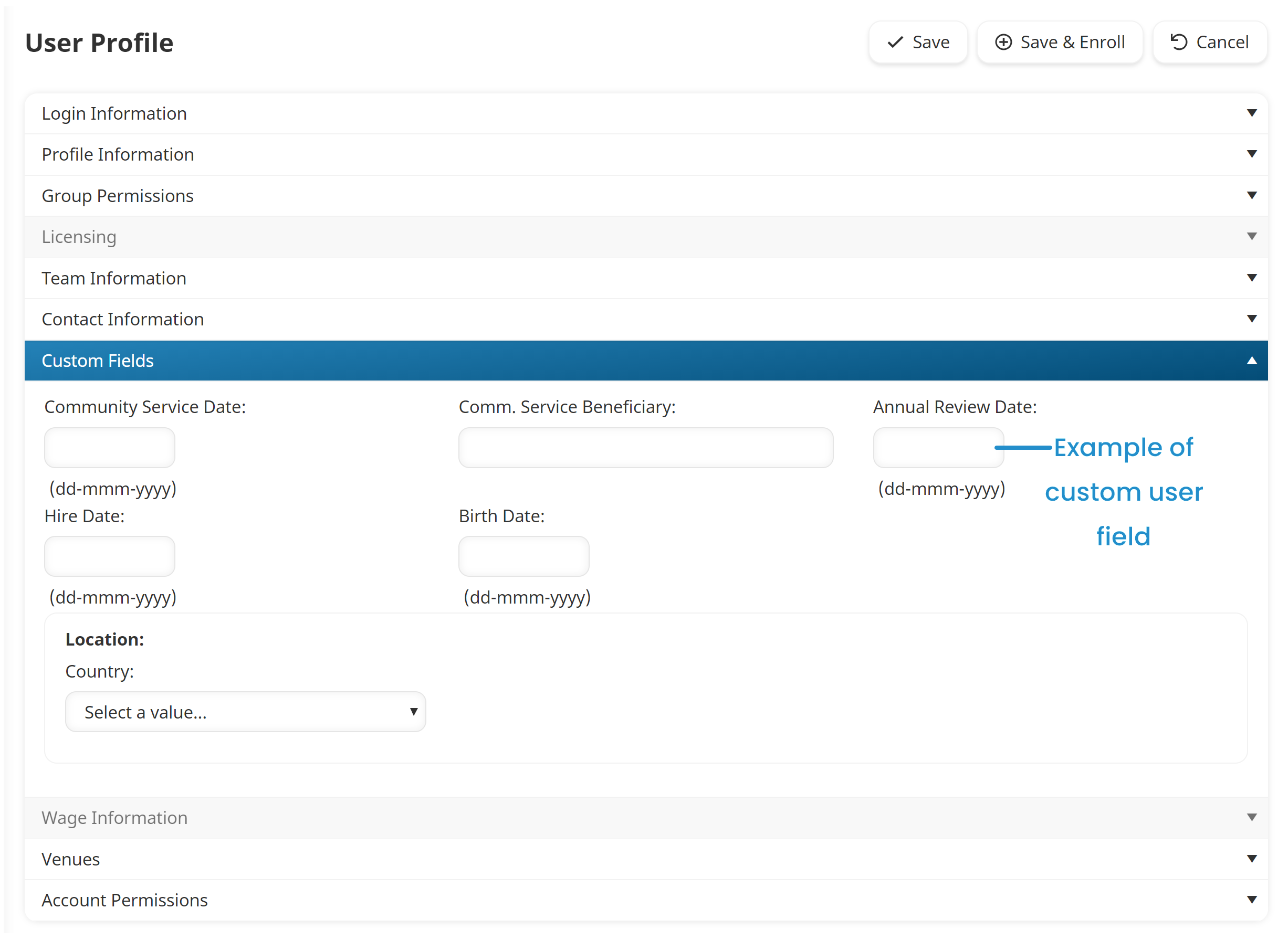
When you edit your account's settings, the Custom User Fields accordion of the Account Profile workscreen displays the custom fields that have been added to your account.
Adding a Custom User Field
To add a custom user field:
Expand the Custom User Field accordion.
Click Custom Field.

Settings for the new custom user field display.

Specify the settings for the custom user field.
Repeat steps 3 and 4 for each custom user field you would like to add.
On the Account Profile workscreen, click Save.
If you added a custom data field with a data type of "Hierarchy", you will need to add levels and values.
To remove a custom user field, click Remove Custom Field beside the custom user field you would like to remove.
Settings
Name
The name of the custom user field.
Data Type
Select the type of data that the custom user field will contain.
Date - Dates must be in dd-mmm-yyyy format.
Text
Hierarchy - A custom user field that is capable of storing several levels of data. For example, you want want to create a custom user field for U.S. Locations that contains data for a user's state, county, city, town, and so on.
The field's data type may not be changed if data has been entered for the field.
User Editable
If checked, non-admin users will be able to modify information for the custom user field. If unchecked, only administrative users will be able to edit the field's data.
Certificate Display
This setting is only applicable if the custom user field is added to the certificate.
If checked, the data in the custom user field displays in the completion certificate. If this setting is not checked, the custom user field's data will be obscured using "****".
Encrypted
Select to encrypt the value of the custom user field. When the value is encrypted, only admins and owners can view it.
If you choose to encrypt the value, you will not be able to sort or filter the custom user field's values.
Home Group Permission Required to View or Edit
This setting enables you to limit who can view or edit the data to the user's supervisor, or to users with Group Manager, View Learner Results, or Manage Users permission on a user's home group. If a user does not have the required permission to view the custom user field's data, the data will be obscured using "****".
Adding Levels and Values to a Hierarchical Custom User Fields
When adding levels to a hierarchical custom user field, you should add the the levels in order from top to bottom.
You may add up to 10 levels.
Labels and values added to a hierarchical custom user field are automatically saved.
Each level in a hierarchical custom user field consists of a label and its associated values. For example, you might have a label named, "State". The "State" label's associated values would be the names of the states.
To add levels and values to a hierarchical custom user field:
Click the
 located above the Hierarchy Labels field. A blank row displays.
Enter the name of the level in the field and either press ENTER or click outside the field.
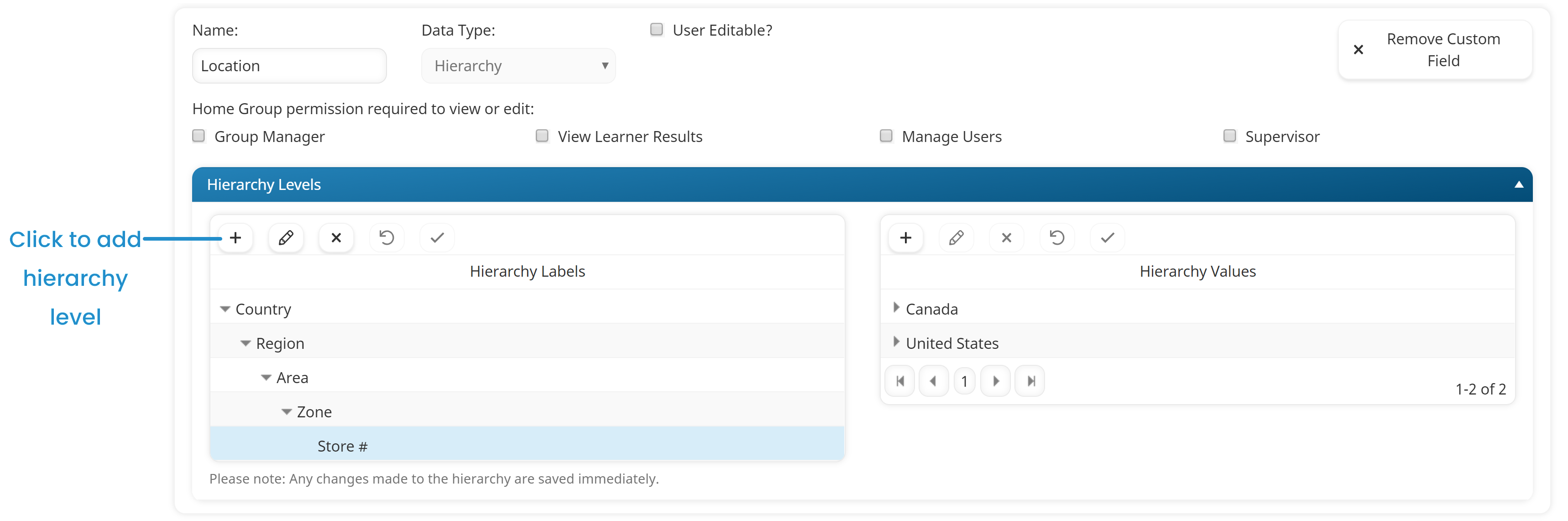
To remove a level, be sure it is selected and click  . Note that the selected level, its values, sub-levels and their values will also be removed.
For each value you would like to add to the level:
Click the
in the Value box.Enter the a value for the level in the field labeled "Add <LevelName>".
Repeat steps 3a-b for each value you would like to add to the label.
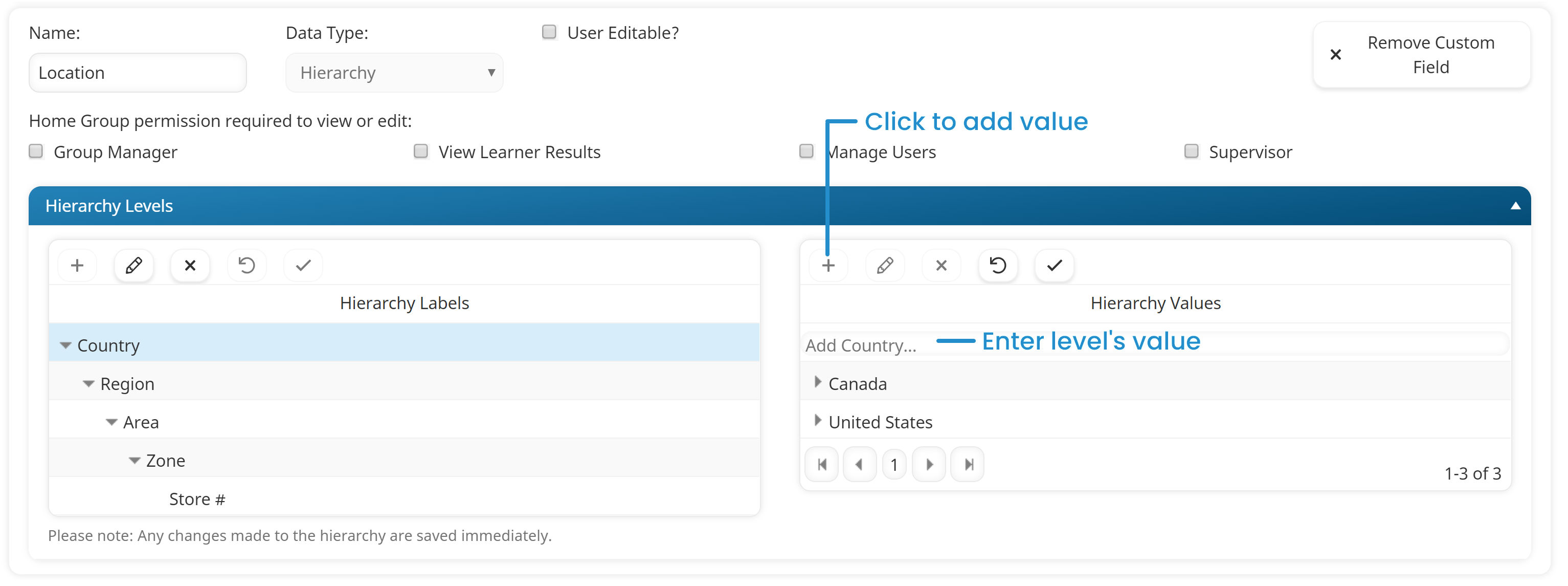
Repeat steps 1-3 for each level you would like to the hierarchical custom user field. When adding sub-values to an existing value, be sure that the value to which the sub-values are to be added is selected.