Having all of your learners' training history stored in SmarterU LMS gives you complete, accurate visibility over your team's development. But what about the learning that took place before you switched to SmarterU, or the training that happens offline? That’s where historical training comes in.
Historical training is designed for past learning events completed outside of SmarterU. You can log completed sessions retroactively, so no past achievements are left behind.
While instructor-led courses and external courses can also handle offline learning, they serve very different purposes:
Instructor-led courses vs. historical training: Instructor-led courses are designed for managing active or upcoming live events, such as a scheduled in-person workshop or a webinar hosted by your organization. Historical training, by contrast, is strictly for completed events.
External courses vs. historical training: External courses are used when learners complete training outside your organization (such as an industry webinar) and need to report their completion. Historical training is used to log completed records in bulk without requiring learner submission.
Here’s how adding historical training to SmarterU ensures your records reflect the full picture of your organization’s learning.
Want SmarterNews delivered to your inbox? Subscribe today!
Why Add Historical Training
For learners, the benefit of historical training is the ability to see that all of their training has been tracked. This visibility is particularly important when professional development is required for their job.
For you, the payoff is accurate training records in one place. With historical training, you can see the full scope of your organization’s learning and development, including training that happened before you started using SmarterU. Whether you are performing an audit, running an Enrollment Report in SmarterU, or viewing an individual learner's profile, you can see everything together.
Another reason to add historical training is to capture offline training. It’s not always feasible to set up an instructor-led session and enroll learners in advance. For example, when learners’ availability is affected by shifting workloads, an instructor might gather whoever is available, conduct an informal training session, and track completion on a sheet of paper. By logging the names from this sheet as historical training in SmarterU, you can track who has completed the training, recognize learners' achievements, and keep your reports up to date.
That same flexibility makes historical training the ideal solution for bridging larger gaps in your records. For example, if you need to bring over training data from before you adopted SmarterU, or integrate the prior training history of new team members joining through an acquisition.
How to Add Historical Training
Recording historical training happens in three parts:
If you have an extensive training history to add to your account, you don’t need to add it manually. Reach out to our Success Desk to discuss automated options.
Set Up the Course
Because historical training entries must be associated with an instructor-led course, you first need to set up the course. If the instructor-led course is already in your account, continue to setting up the session.
To add the instructor-led course:
From the Admin menu, select Course Admin.
Select Courses to open the Courses Dashboard.
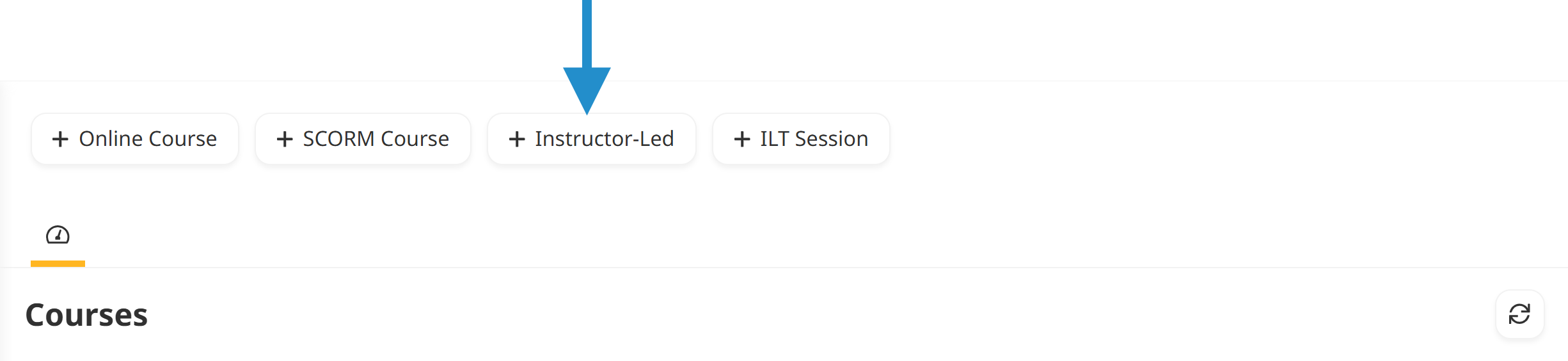
Click Instructor Led.
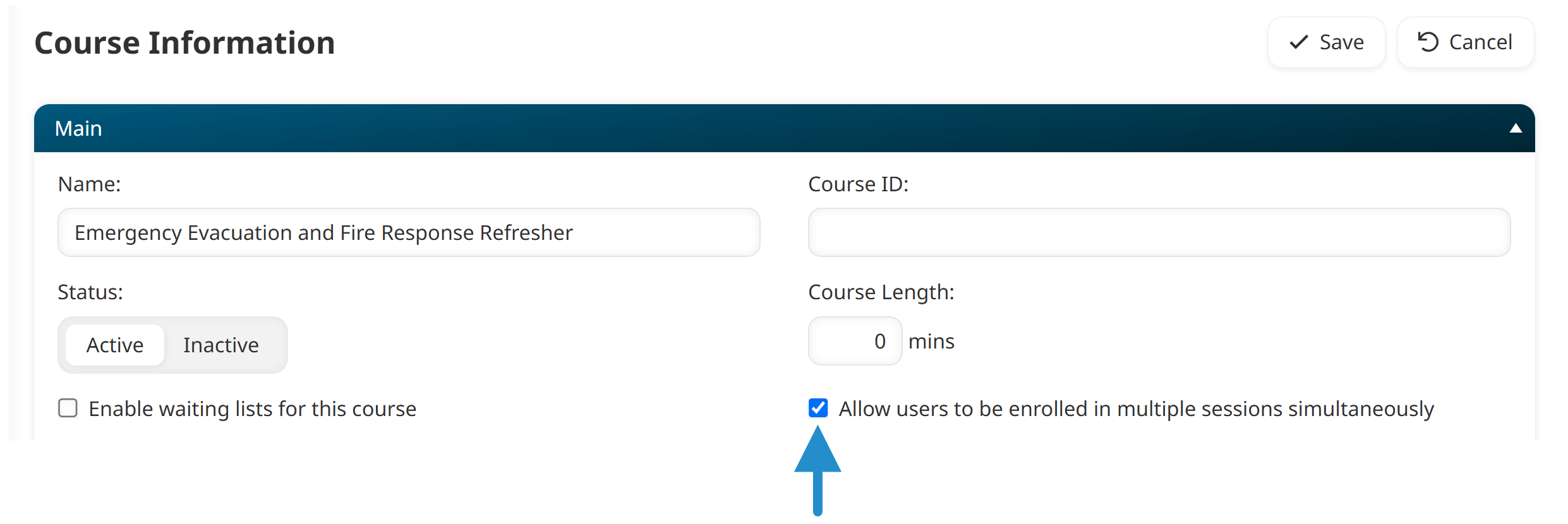
If the course is no longer offered, go to the Main accordion and set the Status to Inactive. This lets you log the historical training while hiding the course from learners.
If you want to record more than one session of the course, select the Allow Users to Be Enrolled in Multiple Sessions checkbox. This is useful for training that learners complete more than once, such as an annual skills review.
Add the course to your learners’ home group. If the learners have different home groups, you’ll need to select each group or assign the course to all groups, which also covers any groups you create later.
Click Save.
Set Up the Session
Now that you've added the course, add the session for the day that the training occurred:
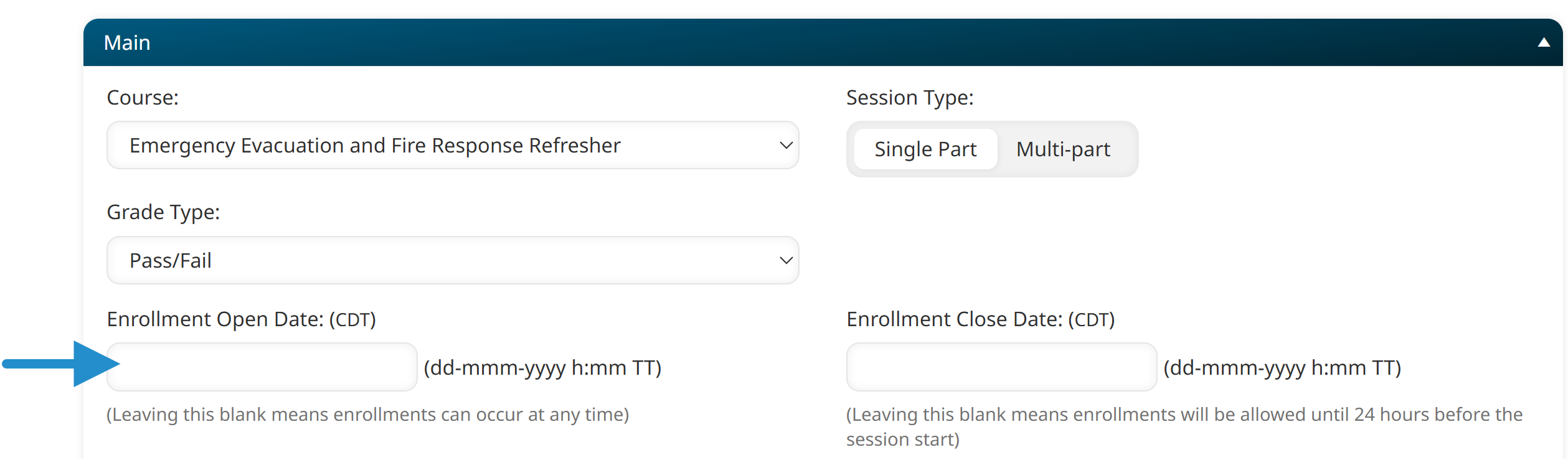
If the session is graded, set the Grade Type in the session's Main accordion.
Because the session occurred in the past and you won’t be opening it up for enrollments, clear the date in the Enrollment Open Date field.
In the Session Details accordion, enter the Start Date and End Date when the training occurred.
Click Save.
Click Finish.
Record Who Attended
With the course and session in place, record who attended:
From the Admin menu, select User Admin.
Select Enrollments to open the Enrollments Dashboard.
Click Historical Training.
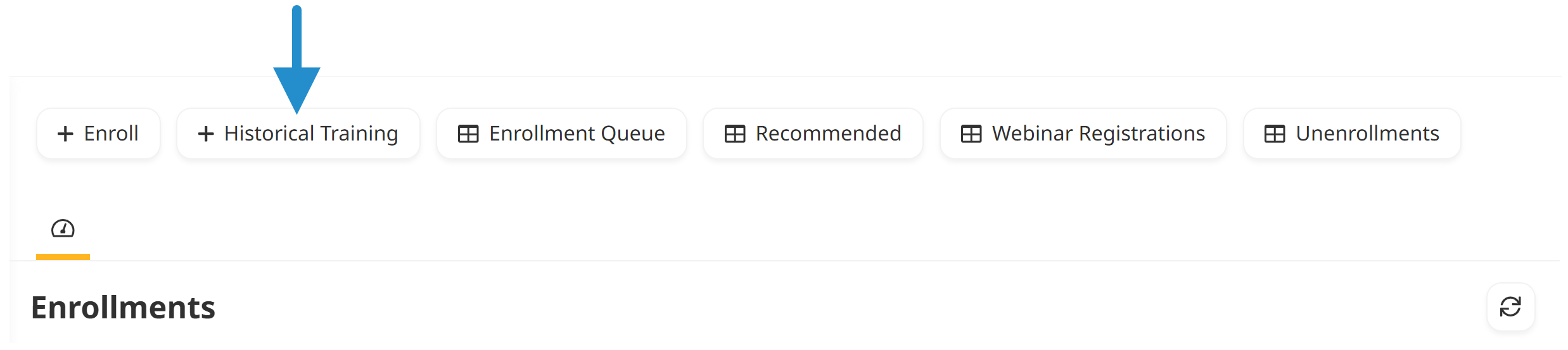
The Instructor-Led Training Historical Entry workscreen opens in a new tab.
From the Course list, select your course, then choose the session from the Session list.
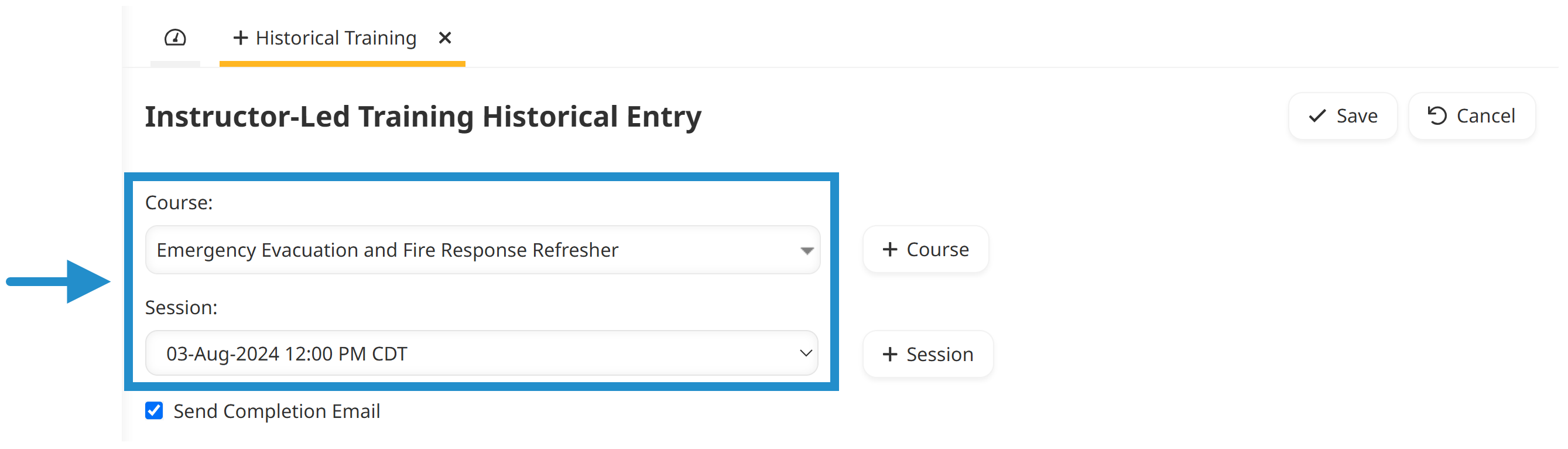
You can also add a course and session from the Instructor-Led Training Historical Entry workscreen. Adding a course or session from here only provides access to a subset of course and session settings, and the course will automatically be given an Inactive status.
If you want to send a course completion email to learners, select Send Completion Email.
Add the learners who attended. You can either search for specific learners by entering three characters of their name, email address, or employee ID, or click Select to pick names from a list.
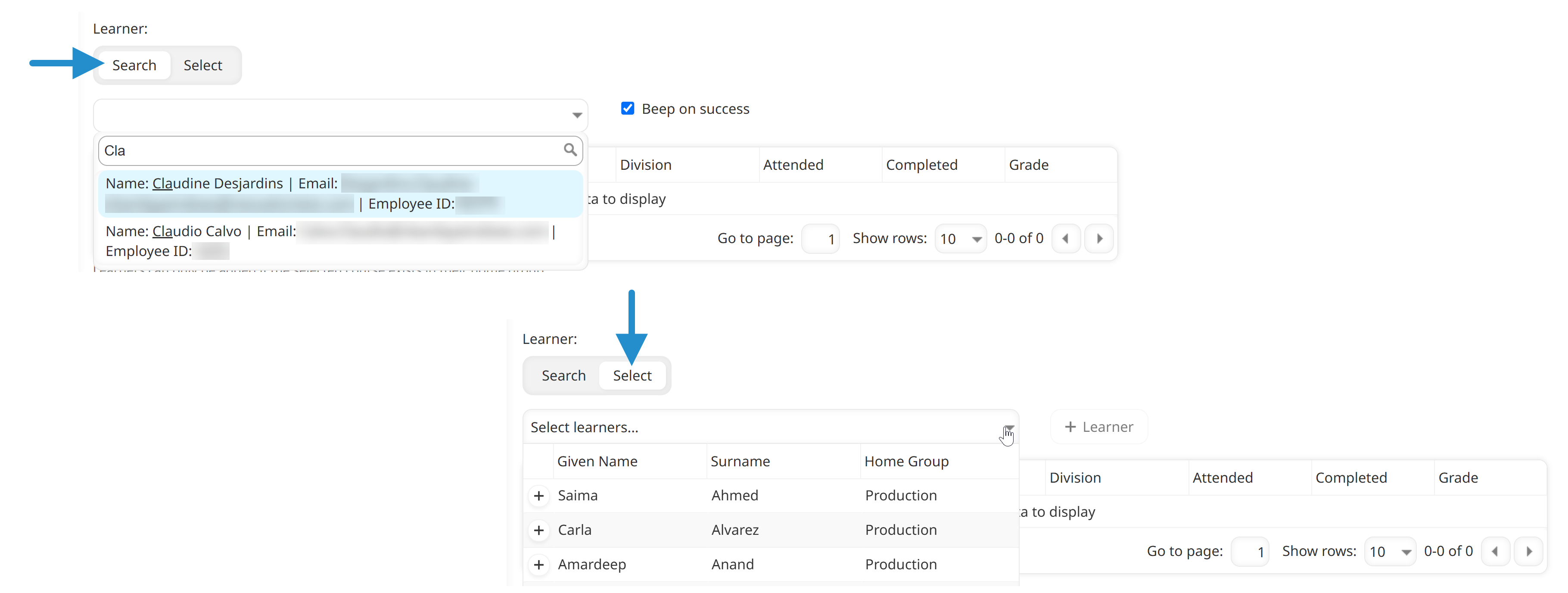
By default, the Attended and Completed checkboxes are checked for each learner.
If the session was graded, enter each learner's grade.
Click Save.
You can update a historical training entry by selecting the course and session from the Instructor-Led Training Historical Entry workscreen. To remove someone from a session, clear their Attended and Completed checkboxes, then click the remove icon next to their name and save.
Start Logging Your Historical Training
You don't have to log all your training history at once. Start by picking just one past training session and add it to your training records in SmarterU this week. Each session you add makes your reports a little more accurate and gives your learners a more complete record of their training.
Questions? Contact our Success Desk.