If you've spent any time building out your SmarterU account, you already know groups are the backbone of how learners get access to courses, subscriptions, and learning plans. But groups aren't the only way to organize your users, and they're not always the right way, especially when you need to slice and dice your account in ways that have nothing to do with course access.
That's where teams and organizations come in. Both let you bundle users together for reporting and enrollment purposes, without touching the permissions and course access that groups control. Here's what they do, when to use them, and where you'll run into them elsewhere in SmarterU.
What are Teams?
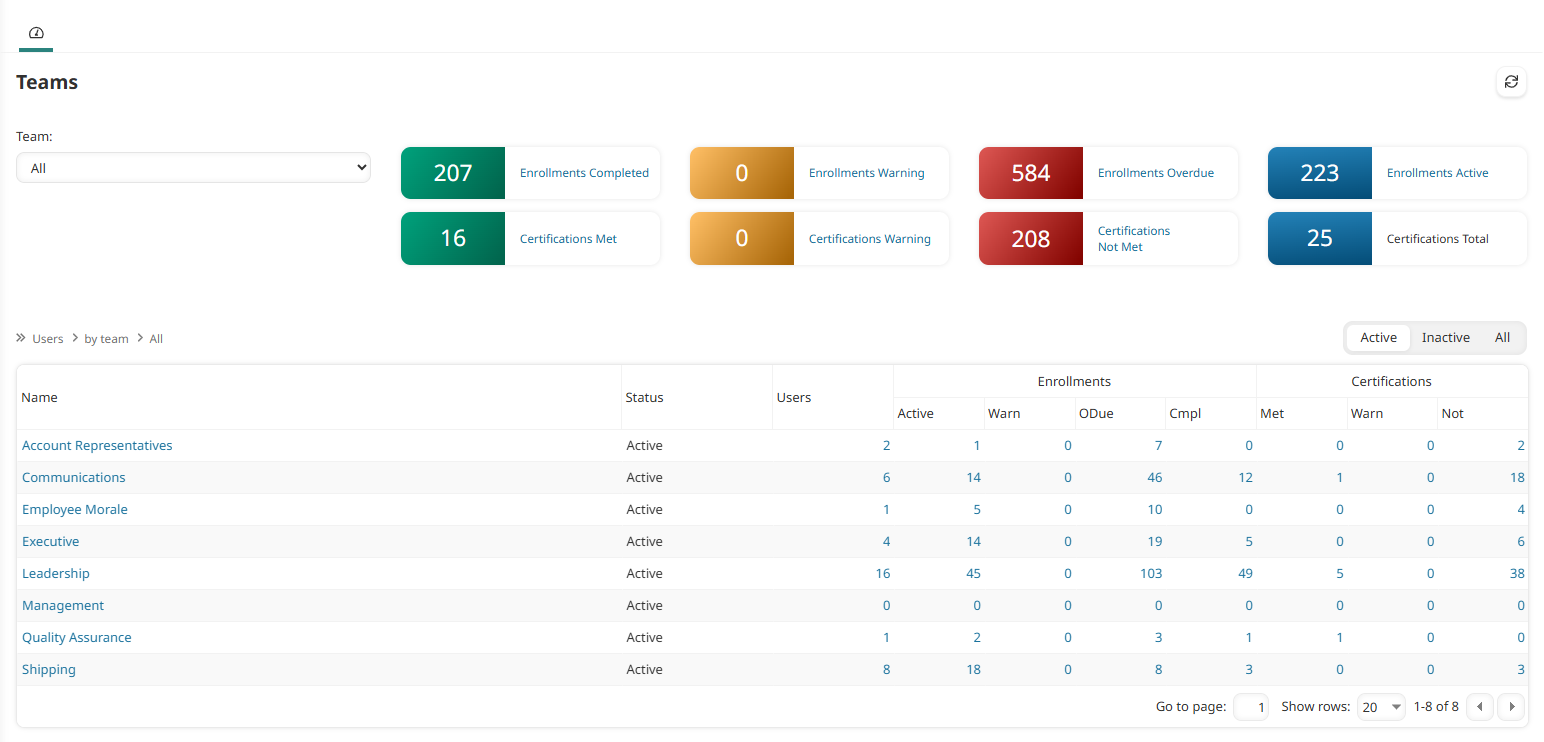
A team is simply a way to bundle users together, independent of their group membership. Think of a team as a cross-cutting label you can apply to users regardless of which group they belong to.
Common examples:
An Experts team made up of instructors pulled from several different groups.
A Leadership team consisting of managers spanning multiple departments or locations.
A New Hires (Cohort August 2026) team for tracking everyone being onboarded during a specific period.
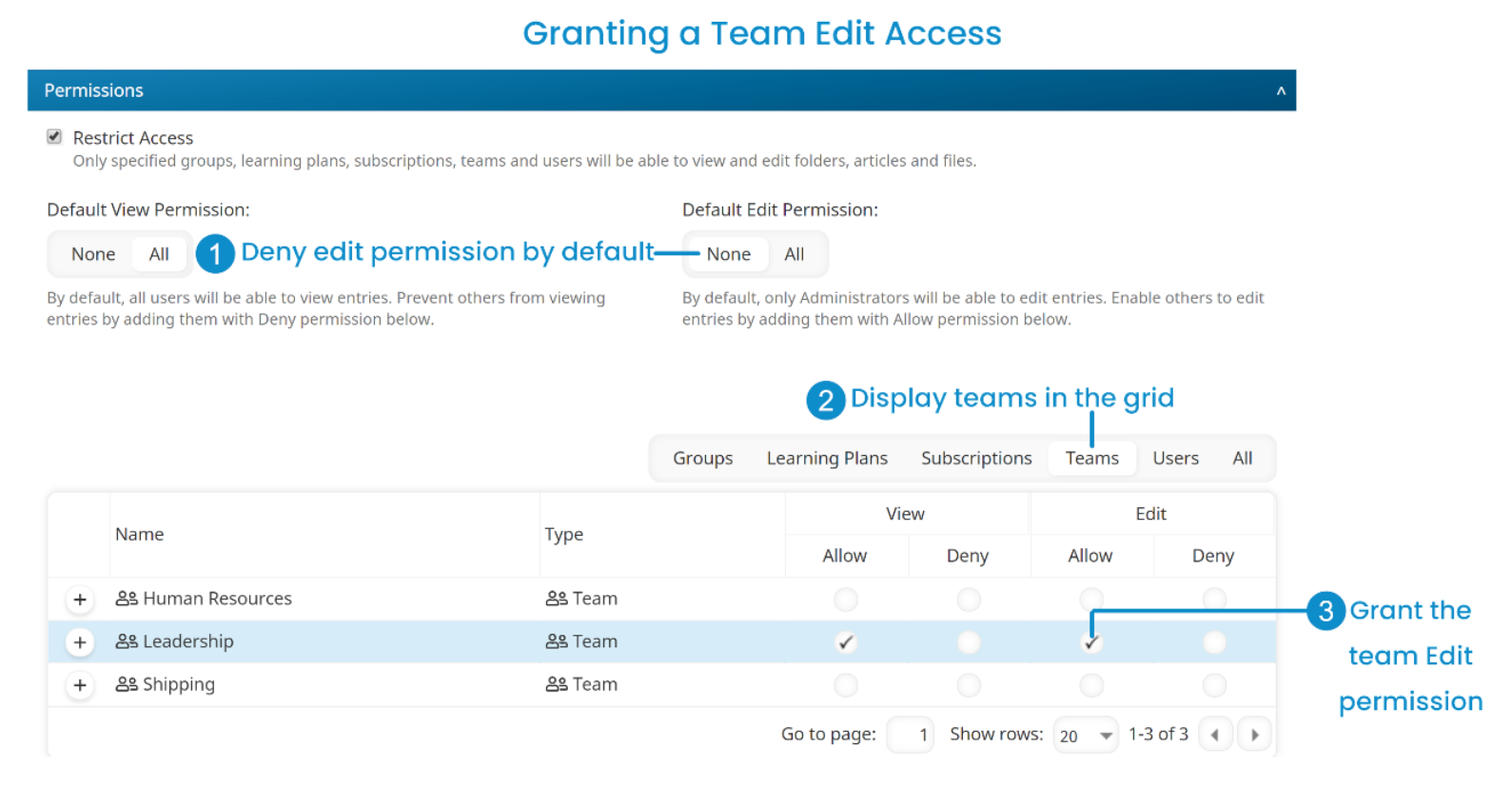
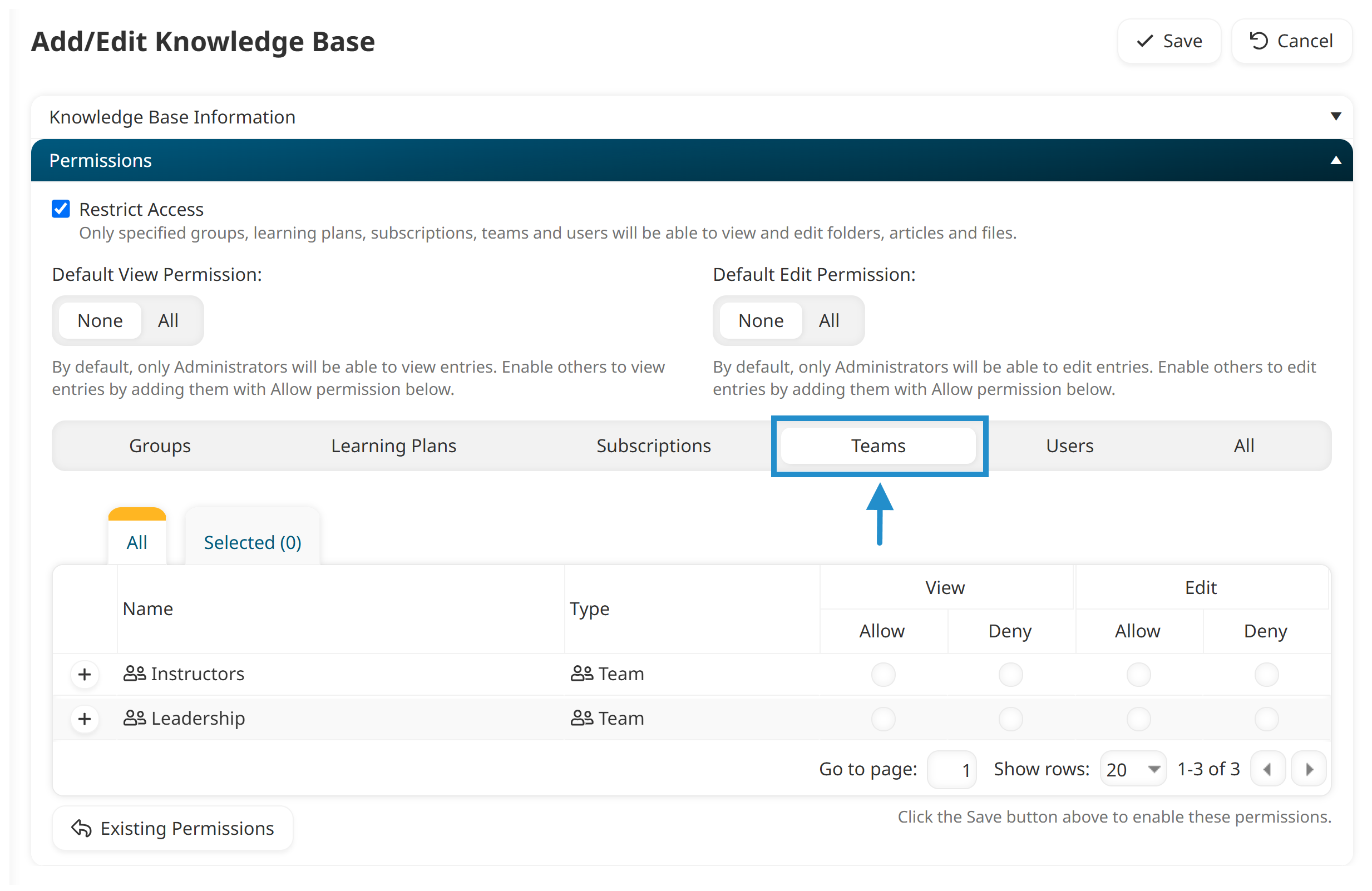
Teams can be used to control access to a knowledge base and to manually enroll users in courses, but, unlike groups, they can't grant permissions or control which courses, subscriptions, or learning plans users have access to. You'll need the Manage Teams account permission to create one, and you can assign users to a team from the Teams Dashboard, the Users Dashboard, or right from a user's profile (Team Information accordion).
What are Organizations?
An organization associates users with an entity outside your account, typically one that needs its own contact information, like an address, phone number, or main contact.
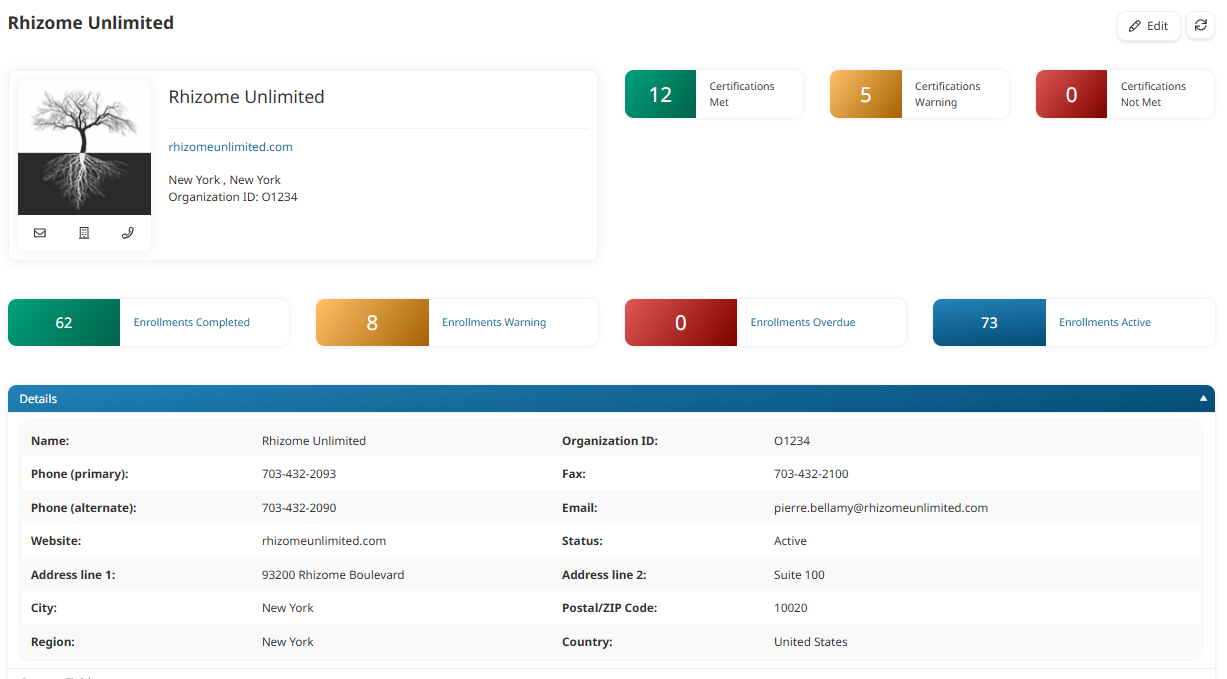
The classic example: if your account delivers training to members of outside associations, you can create an organization for each one (e.g., a local Chamber of Commerce or a professional association). As you add or edit users, you associate each one with the organization they belong to.
A few things to keep in mind:
Organizations can't control course, subscription, or learning plan access, that's still a group's job.
Each user can belong to only one organization at a time (unlike groups or teams, which allow multiple memberships).
Organizations can carry their own custom fields and contact details, and you can track an organization Activity Log.
Why not just use groups for everything?
Groups are purpose-built to control access and permissions, every user's home group determines what they can see and do. Teams and organizations exist for the situations where you need to organize or report on users in ways that cut across that access structure, without restructuring your groups or duplicating course assignments.
Need to… | Group | Team | Organization |
|---|---|---|---|
Grant permissions to perform functions | ✔ | ||
Control course/subscription/learning plan access | ✔ | ||
Control knowledge base access | ✔ | ✔ | |
Store contact info (address, phone, etc.) | ✔ | ||
Manually enroll users | ✔ | ✔ | ✔ |
Filter reports | ✔ | ✔ | ✔ |
Use Case: Filtering Reports with Precision
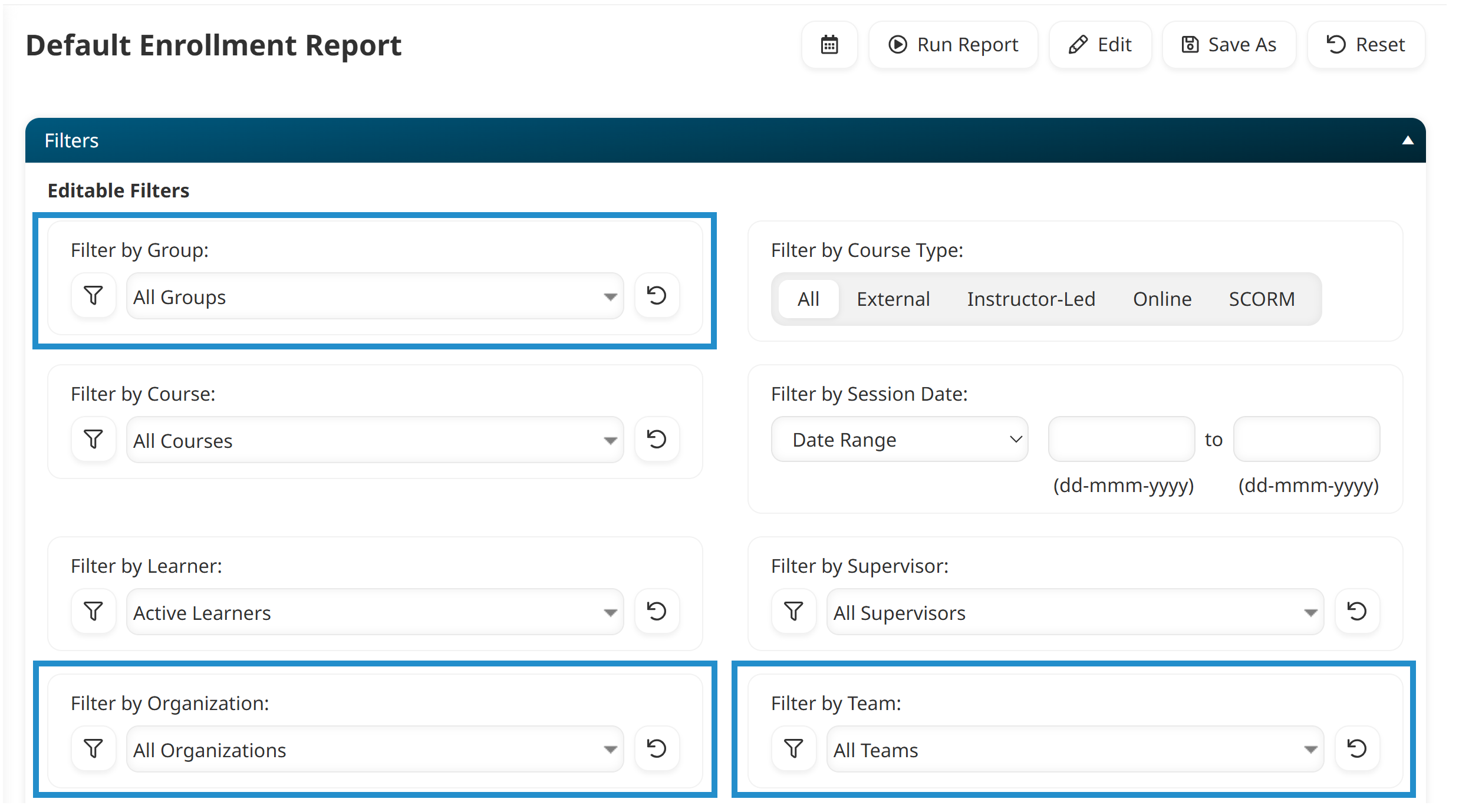
This is where teams and organizations really earn their keep. Because every user can belong to a group and a team and an organization simultaneously, you can filter reports, like the Enrollment Report, by any combination of the three to get exactly the slice of data you need.
A few examples:
Pull completion data for your Instructors team, even though those users live in a dozen different groups.
Run an Enrollment Report scoped to a single organization (say, one association or employer client) to share results back with that specific stakeholder, without exposing data from your other groups or organizations.
Combine filters to check how your Leadership team within a specific organization is progressing through a compliance course.
This gives administrators a much more precise view into training data than group filtering alone can offer, particularly for accounts that serve multiple external stakeholders or that manage cross-functional groups like instructors or leadership.
Where Else You'll see Teams and Organizations in SmarterU
Once set up, Teams and Organizations show up in several places across the account:
User Profile: the Team Information accordion (for assigning/removing teams) and the Organization field appear directly on each user's profile.
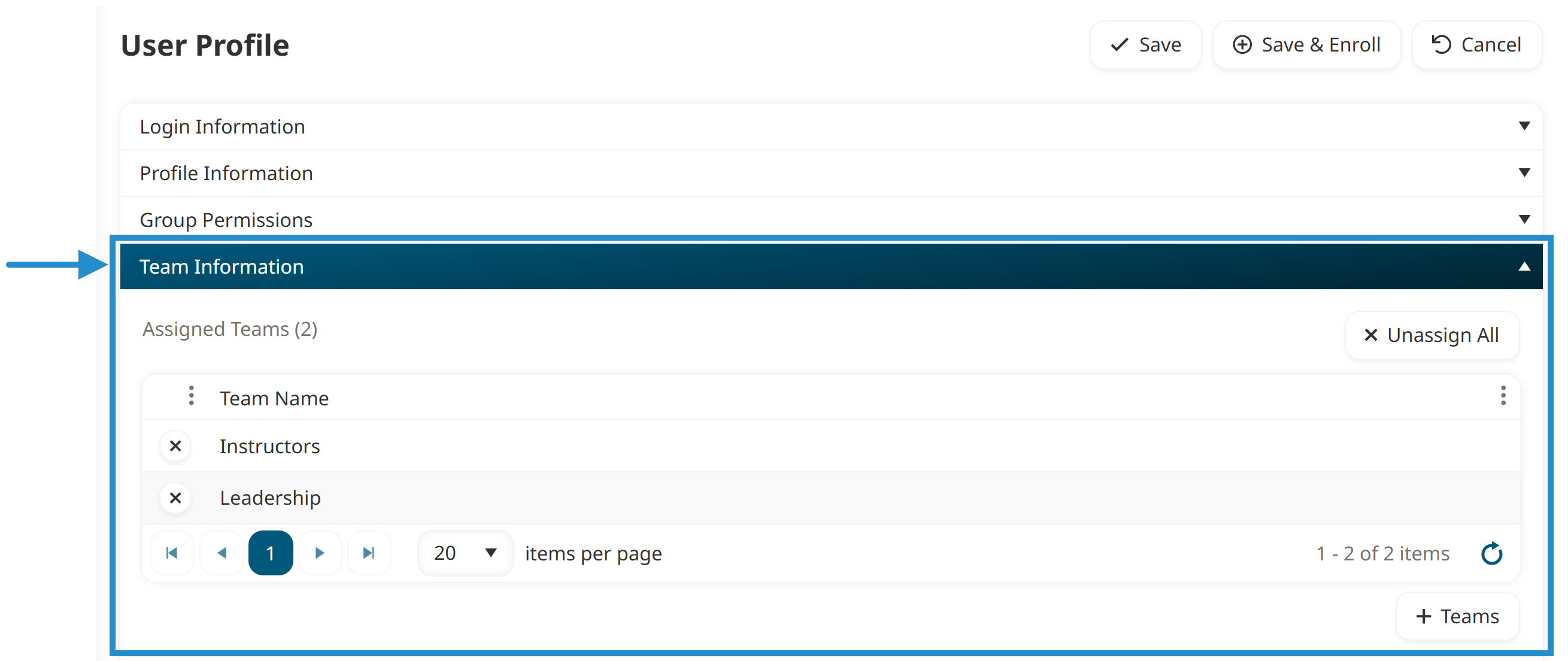
Teams Dashboard / Organizations Dashboard: dedicated dashboards for adding, editing, and viewing all your teams and organizations, and for managing which users belong to each.
Knowledge Base permissions: Teams (like groups) can be used to control who can view or edit a knowledge base.
Getting Started
If your account structure has started to feel like it's straining under group logic alone, too many near-duplicate groups just to report on a subset of users, or a need to track outside entities, Teams and Organizations are worth a look. Head to the Teams Dashboard or Organizations Dashboard to create your first one, and check out the Group FAQs and Organization FAQs for more guidance on when to use each.
As always, our Success Desk is happy to help you think through the best way to structure your account, reach out at success@neovation.com.