When learners earn points for completing training, the learning process becomes more engaging and motivating, especially when they can see their progress. If your team has to dig around to find out how they're doing, the excitement of earning points fades fast. That's where SmarterU's new Point Total widget comes in.
A widget is a building block you can add to a custom Learner Dashboard page to display specific information. The Point Total widget gives each learner a simple, at-a-glance view of how many points they've earned. It does the math automatically, so the learner can always see an up-to-date total without running a report or doing a manual count.
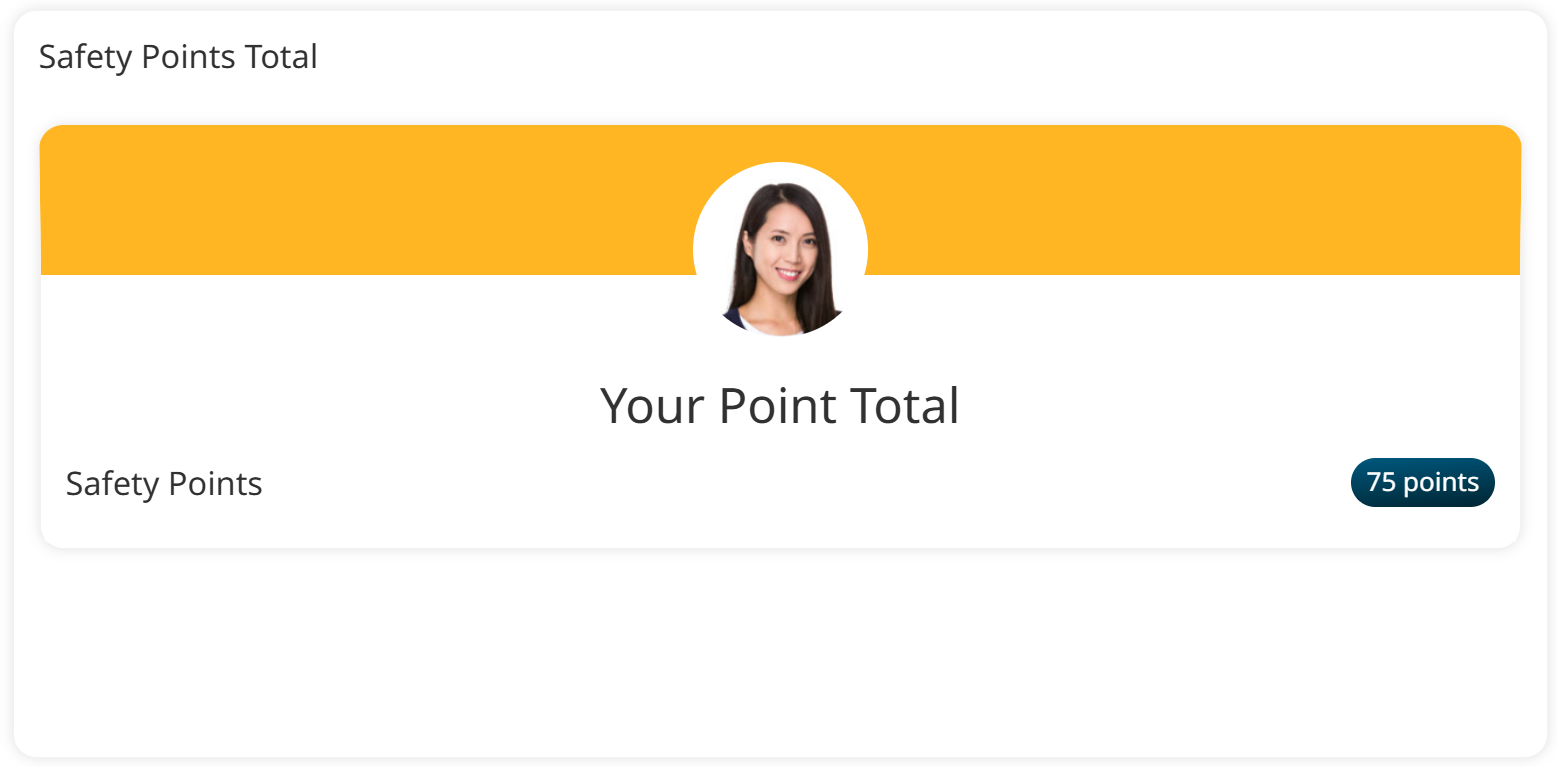
The Point Total widget works on its own, and it's even more powerful when you pair it with the Point Ranking and Point History widgets on the same page.
A point tracker is a tool in SmarterU that tallies the points learners earn as they complete courses. This information feeds into the Point Total widget. For a deeper look at point trackers and leaderboards, check out our Boost Learner Engagement with Leaderboards in SmarterU LMS article.
Want SmarterNews delivered to your inbox? Subscribe today!
Let’s look at an example of how you might use the Point Total widget. Meet Jamie, a warehouse associate at a manufacturing company. Jamie and her teammates earn "Safety Points" every time they complete a safety training course in SmarterU LMS. The admin in the account has built a custom Learner Dashboard page that combines three point-based widgets: the Point Total widget shows Jamie's total points, the Point Ranking widget shows where Jamie stands compared to other learners, and the Point History widget lists each course that earned Jamie points.
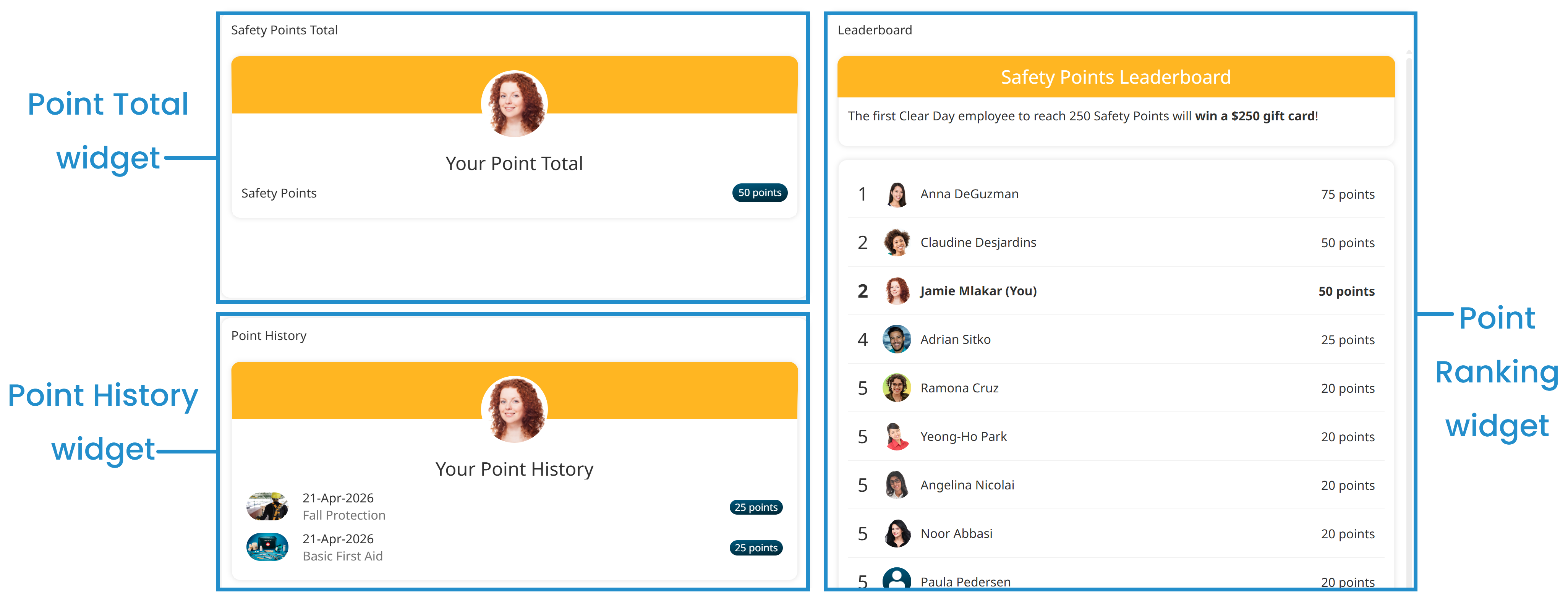
When Jamie finishes a forklift safety refresher and logs in the next day, the custom page already reflects her new points. Jamie can see the updated total, check whether the new points moved her up in the rankings, and review the full history of what she’s earned. All of that information lives on one page, and Jamie didn't have to ask anyone for it.
Why the Point Total Widget Matters for Learners
The biggest benefit of the Point Total widget for learners is clarity. When your team can see exactly how many points they've earned, they feel a sense of accomplishment and know how close they are to reaching a goal. That simple feedback loop encourages them to keep going. For example, if your organization requires learners to earn a set number of points each year, the widget helps them gauge their progress.
The Point Total widget also pairs well with any rewards or recognition programs you're running. If learners know that reaching 500 points earns them a reward, seeing "430 points" on their dashboard creates a natural pull to complete that next course.
Why the Point Total Widget Matters for Admins
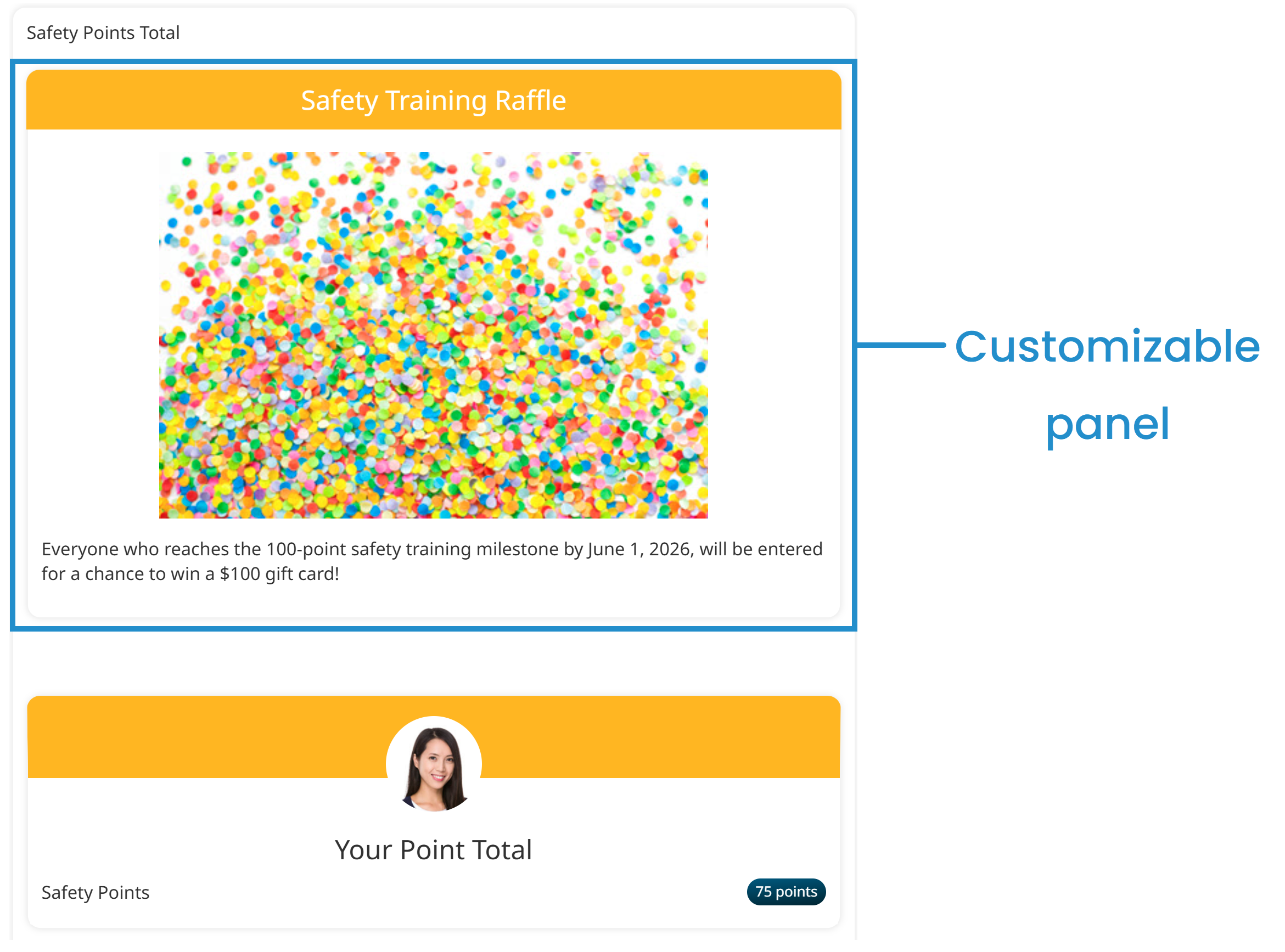
From an administrative perspective, the Point Total widget saves time and keeps your learners informed without extra effort. Once you add the widget to a custom Learner Dashboard’s page, it runs on its own. Points are tallied automatically based on the point trackers you choose. You can even set a date range to control which points are included in the total (e.g., points earned in the current year) or enable a customizable panel on the Point Total widget to share additional context with your learners, like a note about an upcoming reward deadline or a quick congratulatory message.
The Point Total widget is most powerful when you pair it with the Point Ranking and Point History widgets on a custom Learner Dashboard page. As you saw in the example earlier, combining all three gives learners a complete picture of their progress, standing, and earning history in one place. Each widget answers a different question: how many points have I earned, how do I compare to others, and which courses got me here? Together, they tell the full story.
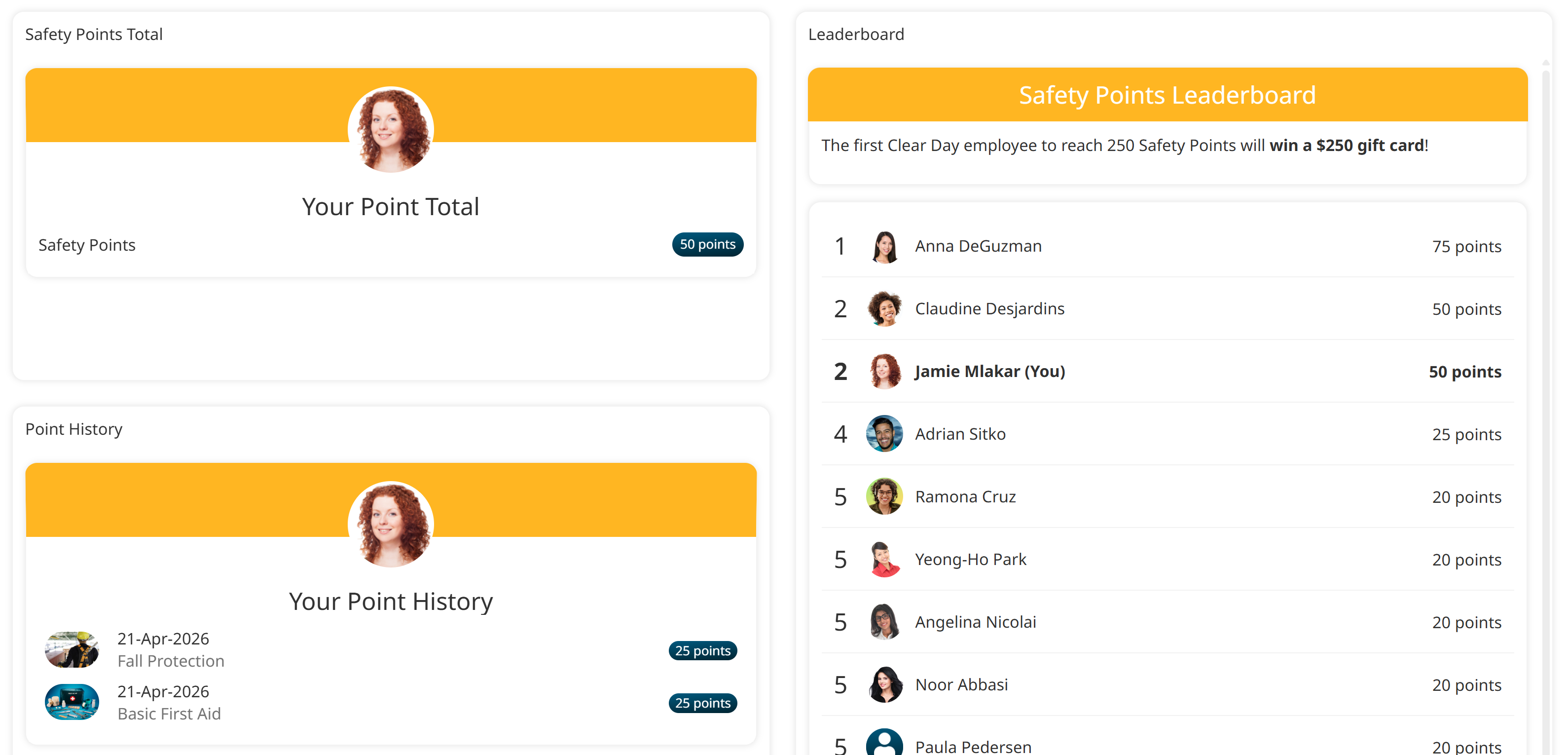
SmarterU’s Custom Page Builder makes it easy for you to add widgets to a page. Check out our Custom Page Examples article for more ideas on how you can use custom pages.
Keep Your Date Ranges Consistent
When you include multiple points-based widgets on a custom page, make sure you use the same date range for all of them.
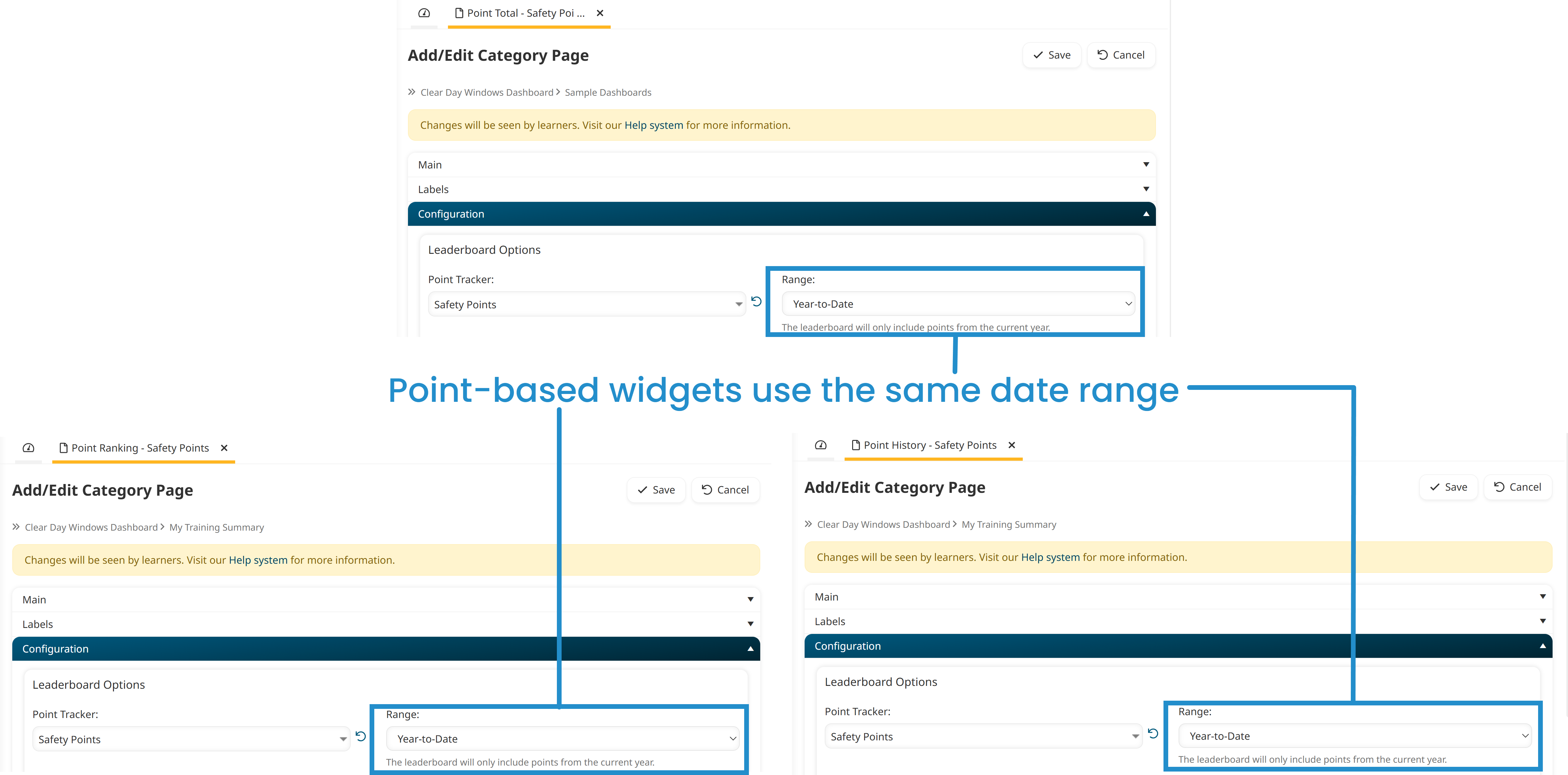
Each widget has its own date range setting, and if they don't match, your learners will see conflicting numbers. For example, if the Point Total widget shows year-to-date points but the Point History widget shows only the current month, the history won't add up to the total, which will confuse people.
Here are two scenarios where consistent date ranges really matter:
Incentivized training initiatives. Suppose you're running a three-month training challenge where learners earn points for completing product knowledge courses. You'd set each widget's date range to span the challenge's start and end dates. That way, the total, ranking, and history reflect only the points earned during the initiative.
Continuing education requirements. Some industries require learners to earn a certain number of continuing education units (CEUs) to maintain a certification. If your organization tracks CEUs as points in SmarterU, set each widget's date range to cover the certification period, whether it's 1 year, 3 years, or another timeframe. Learners can then see at a glance how many CEUs they've earned, how they compare to their peers, and which courses counted toward their certification.
How to Add the Point Total Widget to a Custom Page
Let's look at how to add the Points Total widget to a custom page. Before doing so, make sure points and rewards are enabled in your account settings. Then, follow these steps:
Navigate to the Learner Dashboard Builder.
Add a page and set its Type to Custom Page.
Click Save, then click Edit to open the Custom Page Builder for your new page.
From the list of widgets on the left, drag the Point Total widget onto the workspace.
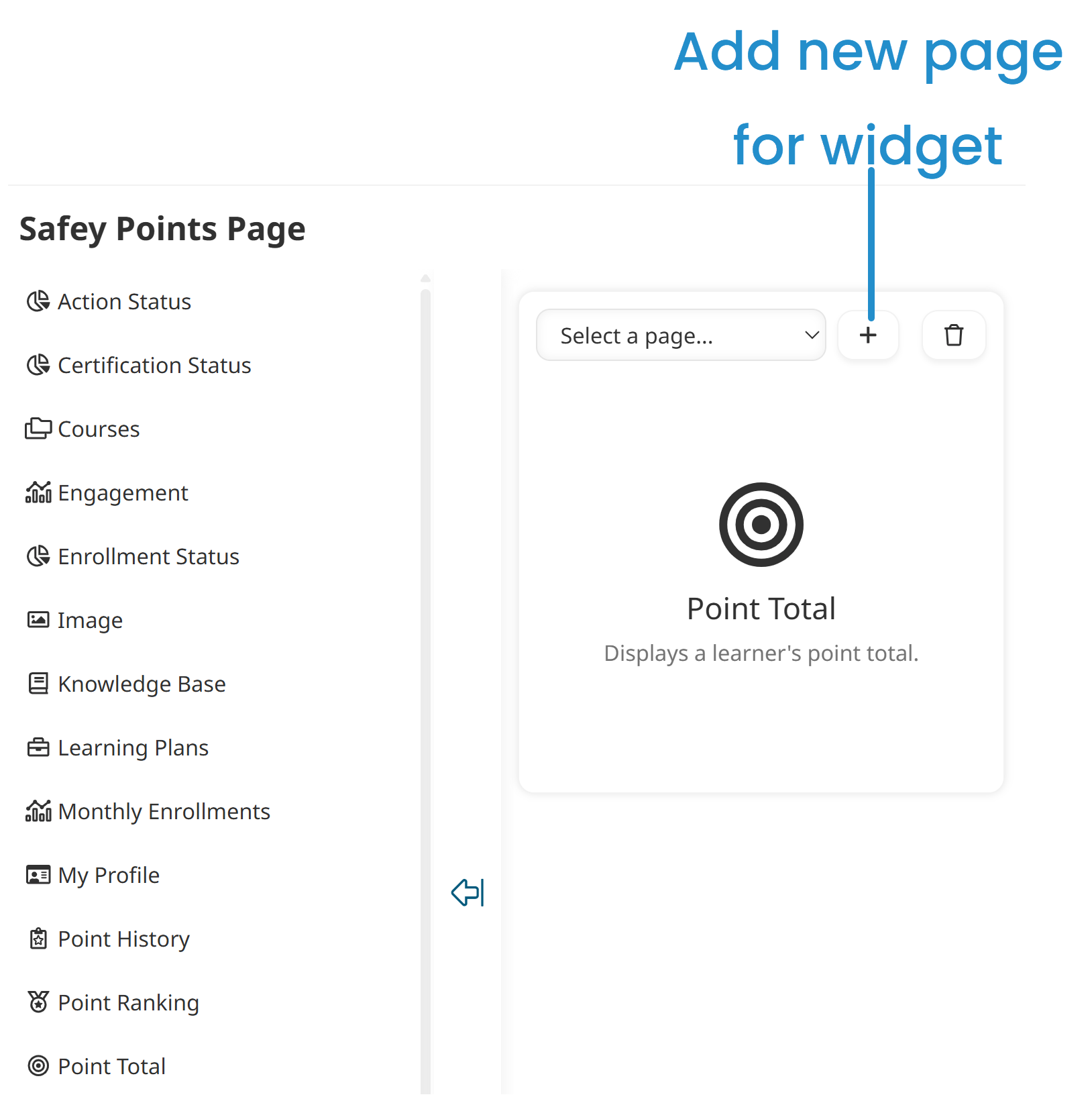
Add a new page for the widget by clicking
 .
.
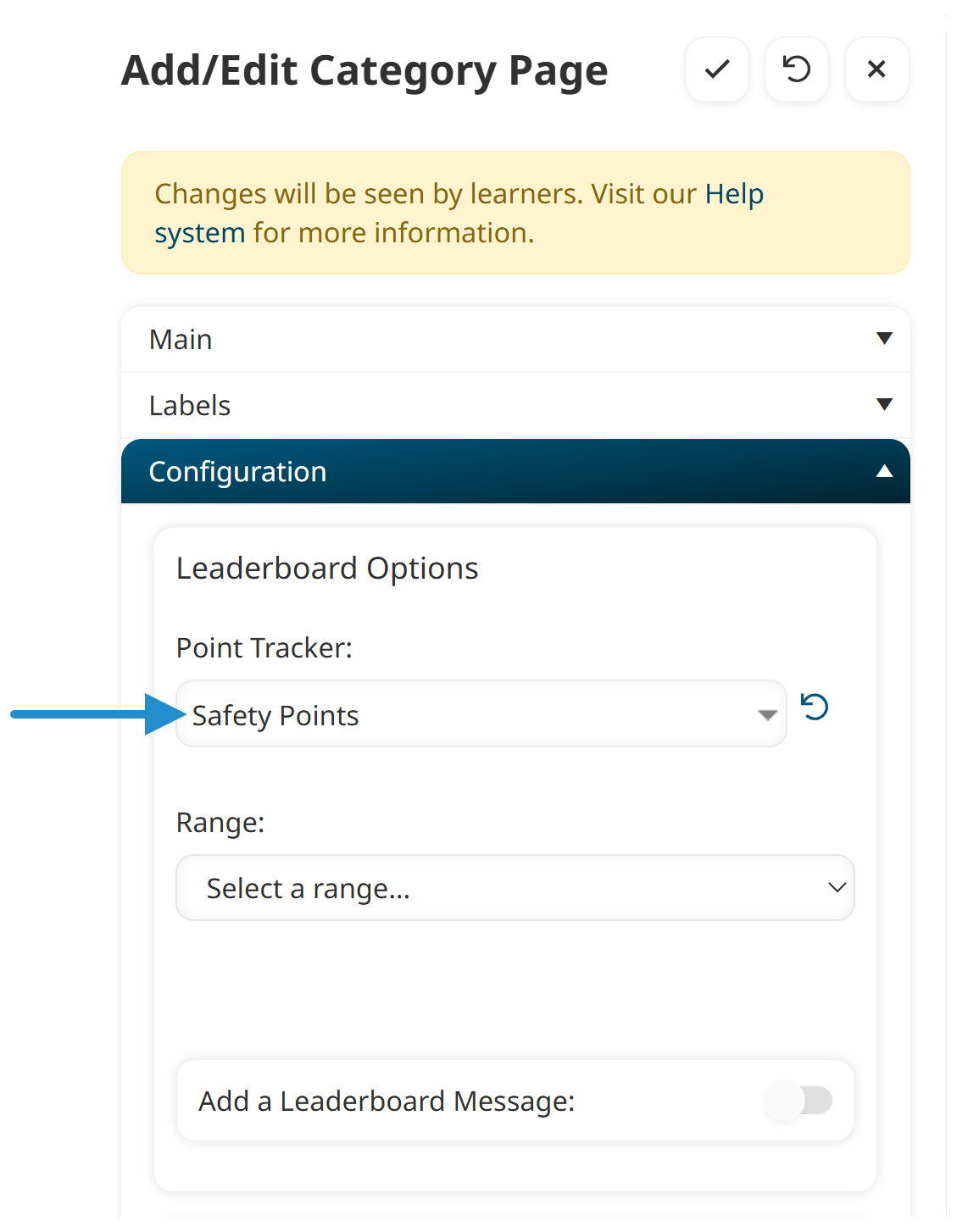
In the Configuration accordion, select the point trackers you want the widget to display. You can include one or more point trackers depending on what you'd like your learners to see.
Choose the date range for the points included in the total.
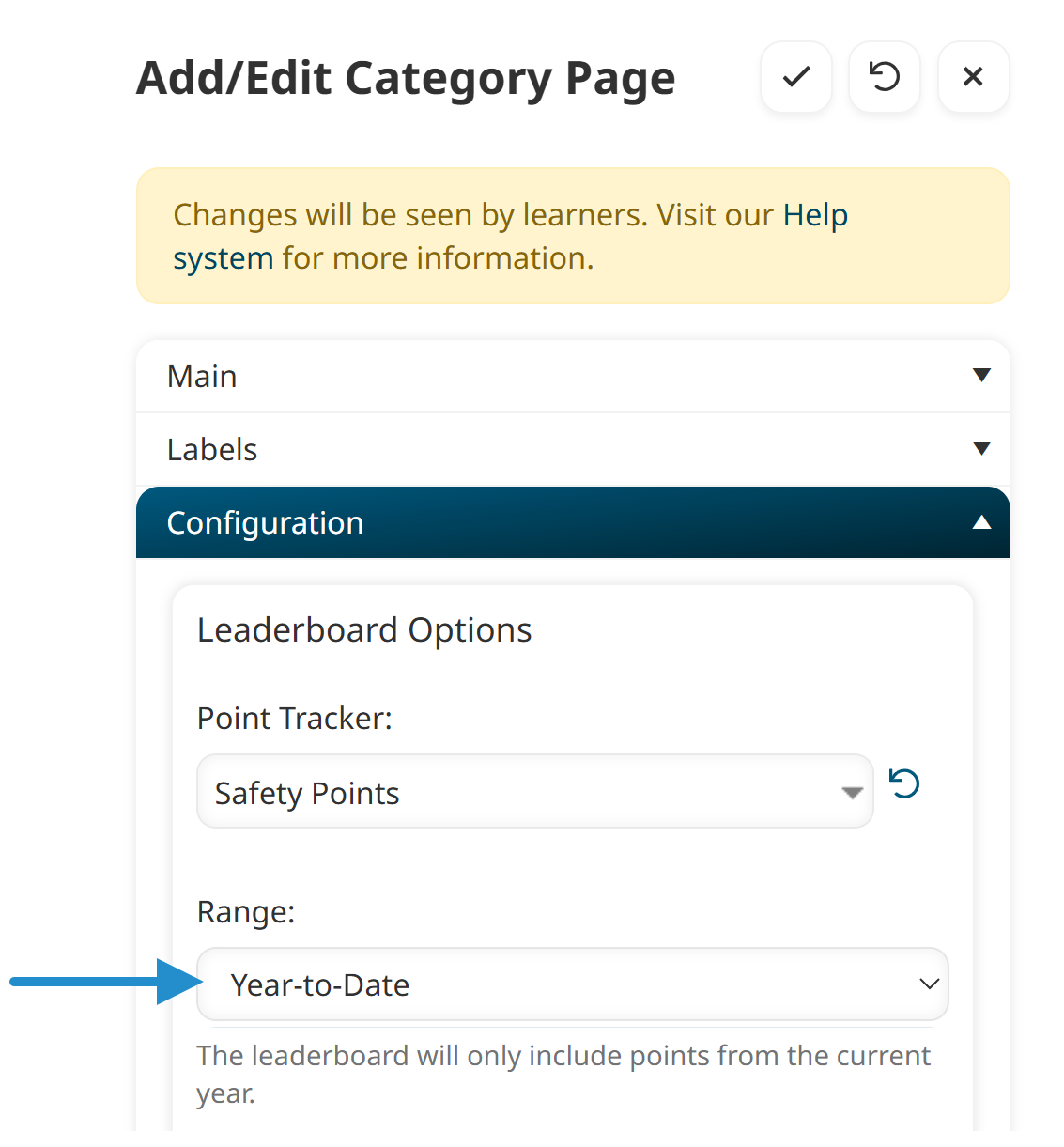
For example, you might choose Year-to-Date to show everything earned this calendar year, or Month(s)-to-Date to focus on the current month. You can also select a specific start and end date if you're running a time-limited campaign, or select custom user fields in your account to show points based on specific criteria, such as the learner’s hire date or annual review date.
Optional settings:
Leaderboard message: Enable Add a Leaderboard Message to display a message above the widget. This is useful for short announcements, like the details of a training challenge.
Customizable panel: Enable the customizable panel to display a title, image, and/or message alongside the point total. It's a good spot for a congratulatory note or a reminder of what learners are working toward.
The Point Ranking and Point History widgets have these same two optional settings. You don't need to enable them on every widget — pick the one where a message or panel fits best visually, and leave the others turned off. Otherwise, your page can end up with three stacked messages competing for attention.
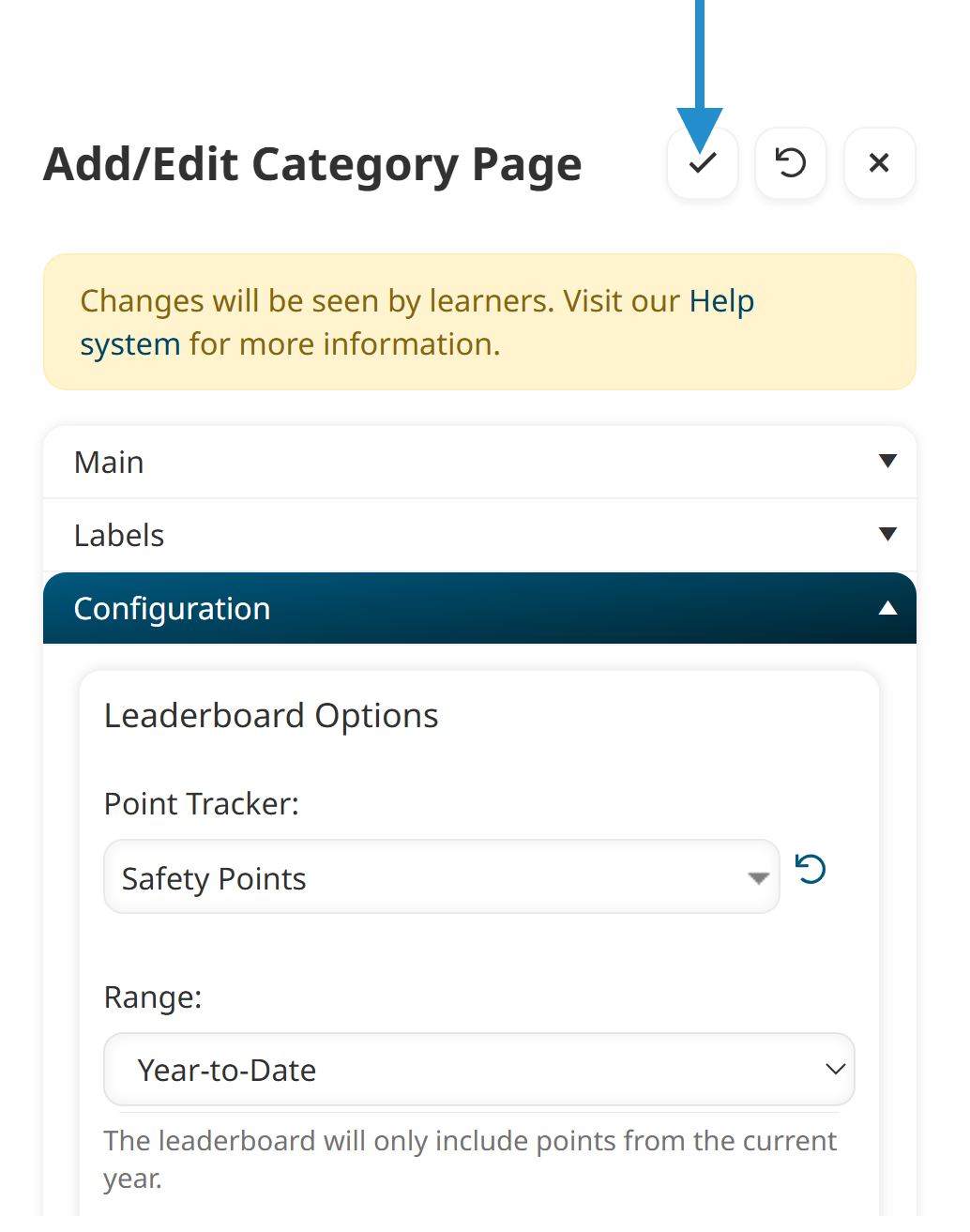
Click
 to save your changes.
Repeat steps 4-10 for the Point Ranking widget and the Point History widget. Be sure to use the same date range for all three widgets.
For the full list of configuration options for each widget, visit our help pages for the Point Total, Point Ranking, and Point History widgets.
Start Showing Your Learners What They've Earned
A little visibility goes a long way. When your learners can see their points adding up in real time, training starts to feel less like a checklist and more like a journey with real milestones. Try adding the Point Total widget to a custom Learner Dashboard page and see how it changes the way your team engages with their training.
Questions? Contact our Success Desk.