Small customizations can make a big difference in how well SmarterU fits your team. Custom user fields are one of the easiest to set up. They give you a place inside SmarterU to track the specific details that matter most to your team, right alongside the rest of a user’s information. Whether it's a hire date, a branch number, or a workstation number, custom fields give you a single place to store this information so you don't have to manage it somewhere else.
Want SmarterNews delivered to your inbox? Subscribe today!
Learn What Custom User Fields Can Do
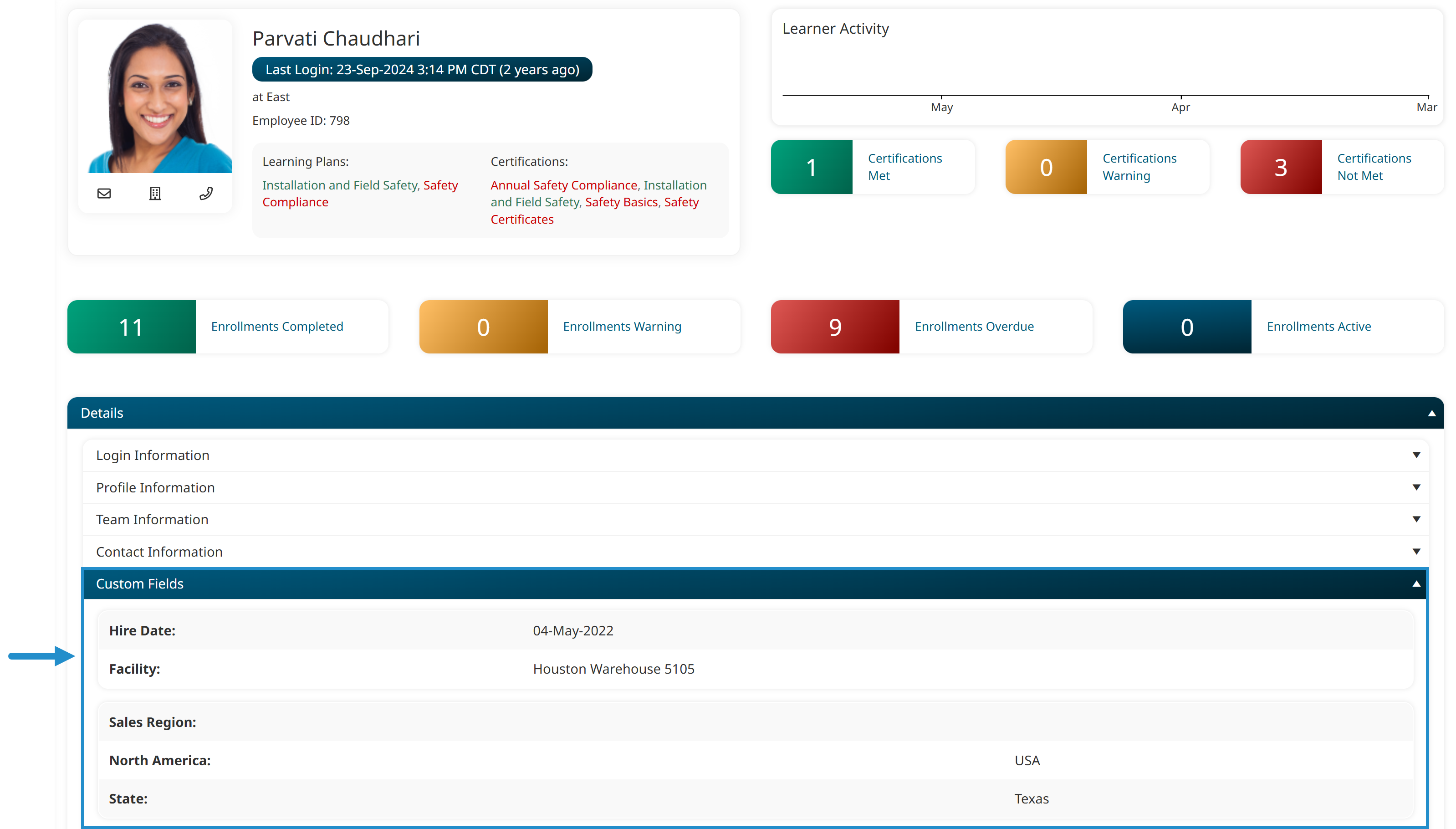
Custom user fields let you capture specific information about your users. This information appears in the Custom Fields accordion for each user, where you can fill it in and view it later on the user's profile and in reports. You decide what kind of information each field holds (a date, text, or several related levels of information), and you control who can view and edit it.
Add a Custom User Field
Now that you know what custom fields can do, here's how to add one to your account:
- Navigate to your account settings.
- View the Custom User Fields accordion.
- Click Custom Field to add a new field.

- Give the field a name (such as Hire Date or Sales Region) that will appear on the user's profile and in reports.
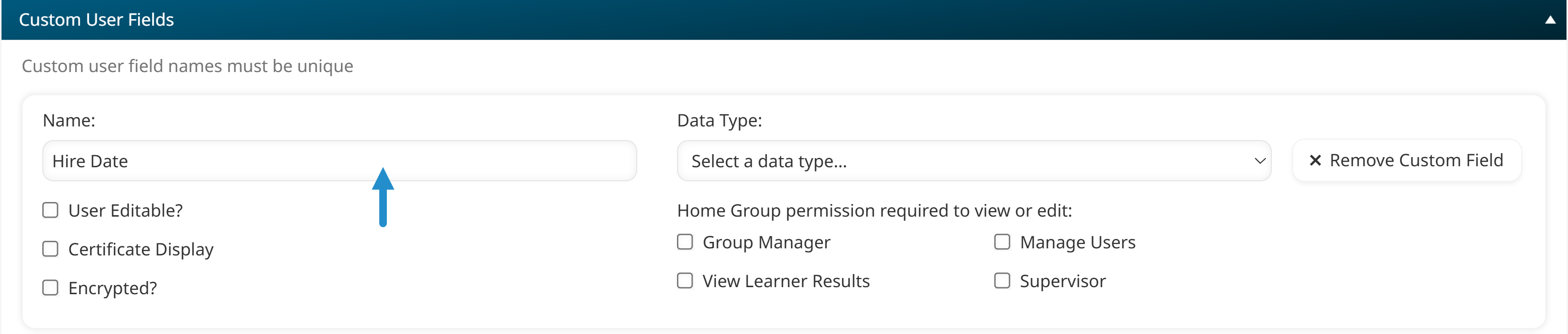
- Pick the data type.
- Choose Date for fields that store calendar dates, such as hire date or performance review date.
- Choose Text for fields that store numbers, words, or phrases, such as department name or badge number.
- Choose Hierarchy for fields that capture multiple related levels of information, such as country, region, and city. In this example, based on the country you pick, different region options will be available. Based on the region you pick, different cities will be available.
Hierarchical fields are an advanced option we won’t cover here. For more on this, see our Custom User Fields article.
- Decide who's allowed to view or edit the field. For example, you can limit access to those with specific permissions within the user’s home group, so sensitive details are only visible to the right people.
- Adjust any other settings you'd like, such as whether the field should appear on completion certificates or be encrypted so only admins and owners can view it.
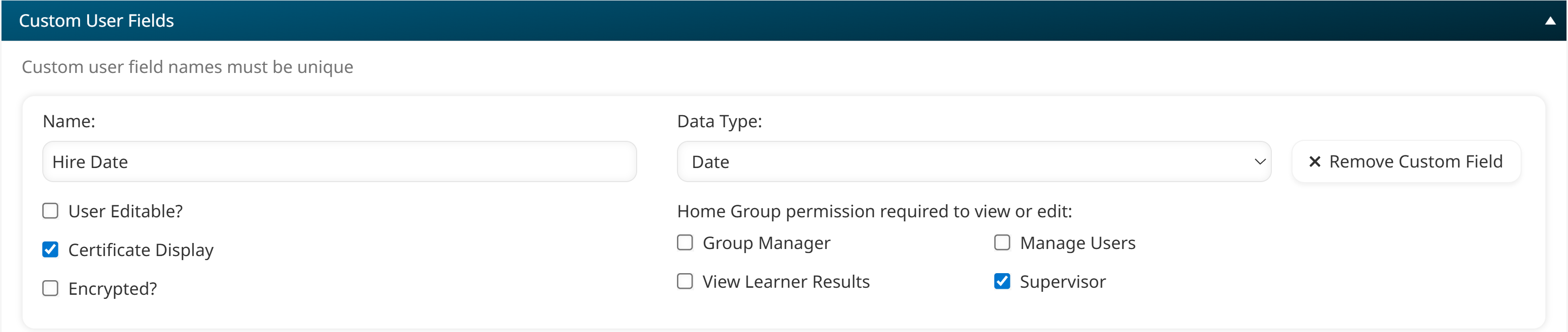
- Click Save.
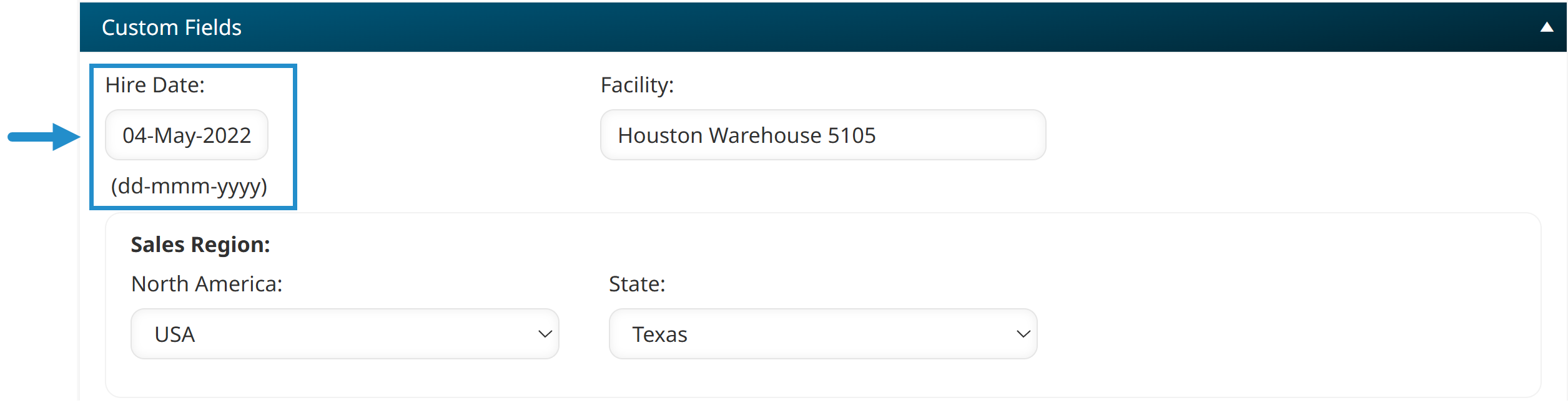
The new field will appear on every user's profile and on the screens for creating and editing a user. You can also fill in or edit custom fields when doing a user import.
Make the Most of Your Custom Fields
The real value of custom fields shows up over time. Because the information lives inside SmarterU, it's connected to everything else you do there.
- On user profiles, custom fields keep all the information about a learner in one place, so you don't have to look anywhere else to find what you need.
- On some grids, custom fields can be added as columns using the Customize Grid Columns setting, surfacing details such as store number or contract end date alongside your other user information. For example, add custom fields to the grid on the Users Dashboard to review that information at a glance and filter to a specific group of users.
.png)
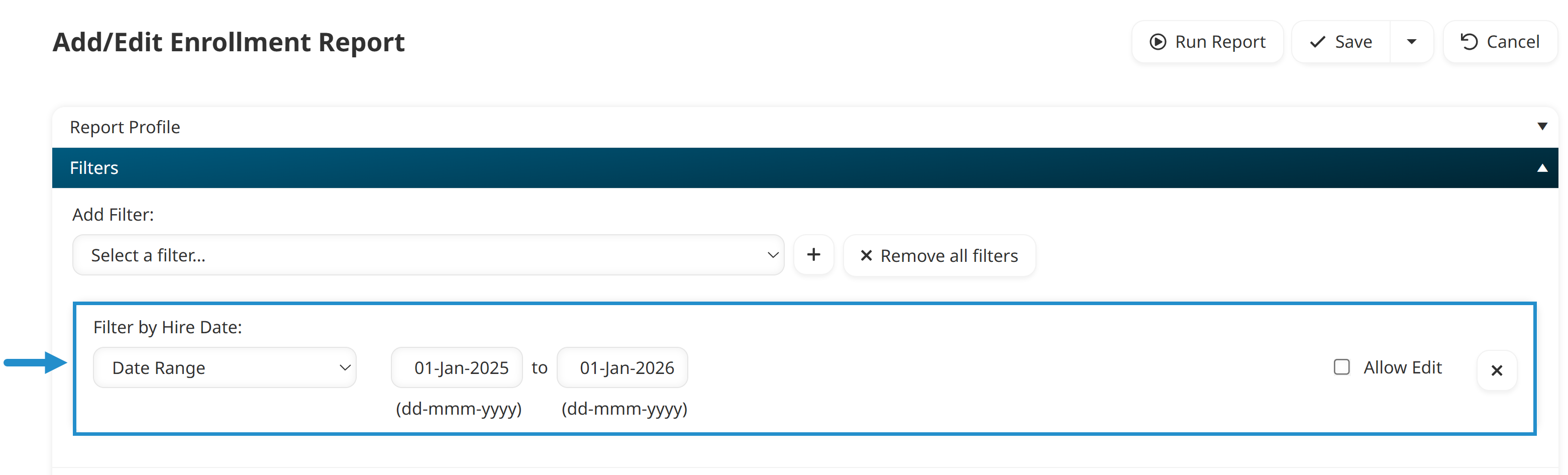
- In reports, custom fields can be used as filters, so you can quickly find information related to users from a specific store number, based on union membership status, or who were hired after a specific date.
- In exports, custom fields can be included alongside the rest of a user's information, so the file you download reflects the full picture. For example, you can include custom fields when exporting a list of users from the Users Dashboard.
- On completion certificates, custom fields can be added to provide additional details, such as a learner's badge number alongside their name.

The bigger picture is that custom fields give you a central place in SmarterU to track everything that matters to you and your organization. A small setup step now pays off every time you pull a report, check a profile, or hand out a certificate.
Tailor SmarterU to Your Organization
The nice thing about custom fields is that they quietly do their job in the background, once you take the time to set them up. Pick a detail your organization already uses to identify or categorize learners or plan their training. Add it as your first field, and let SmarterU handle the rest. It's a small step that keeps paying off.
Questions? Contact our Success Desk.