As an LMS administrator, you’re often the first person people turn to when an email doesn’t seem to arrive. A learner can’t find their enrollment notification, a manager is still waiting on the report you exported this morning, or someone wants to know exactly what a reminder said.
That’s where the email queue comes in! It shows you every email SmarterU LMS has sent, or tried to send, so you can find out what happened in a few clicks.
Want SmarterNews delivered to your inbox? Subscribe today!
What Is the Email Queue?
The email queue is a running log of the emails SmarterU generates for your account, such as enrollment notifications, training reminders, and report exports. For each email, you can see who it went to, when it was last updated, and whether it was sent.
The email queue helps you:
Confirm delivery: Check whether an email was sent before resending anything or changing settings.
Troubleshoot missing emails: See why an email wasn’t sent and how to fix it.
Recover download links: Open past emails to find links to exported reports and certificates.
Stop mistakes: Pause the queue and remove an email before it reaches anyone’s inbox.
View the Email Queue
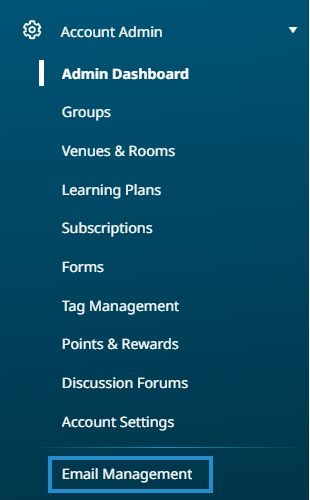
Owners and administrators can view the email queue from the Email Management Dashboard. To view the email queue:
From the Admin menu, select Account Admin.
Select Email Management.
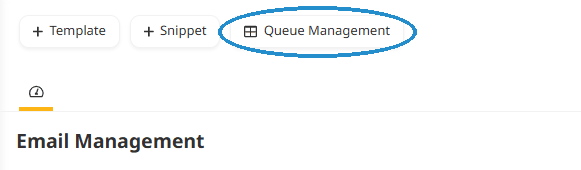
Click Queue Management.
You’ll see a table of emails from the last three days. Each row contains information such as the email template, recipient, sender, and subject line, along with any CC or BCC addresses.
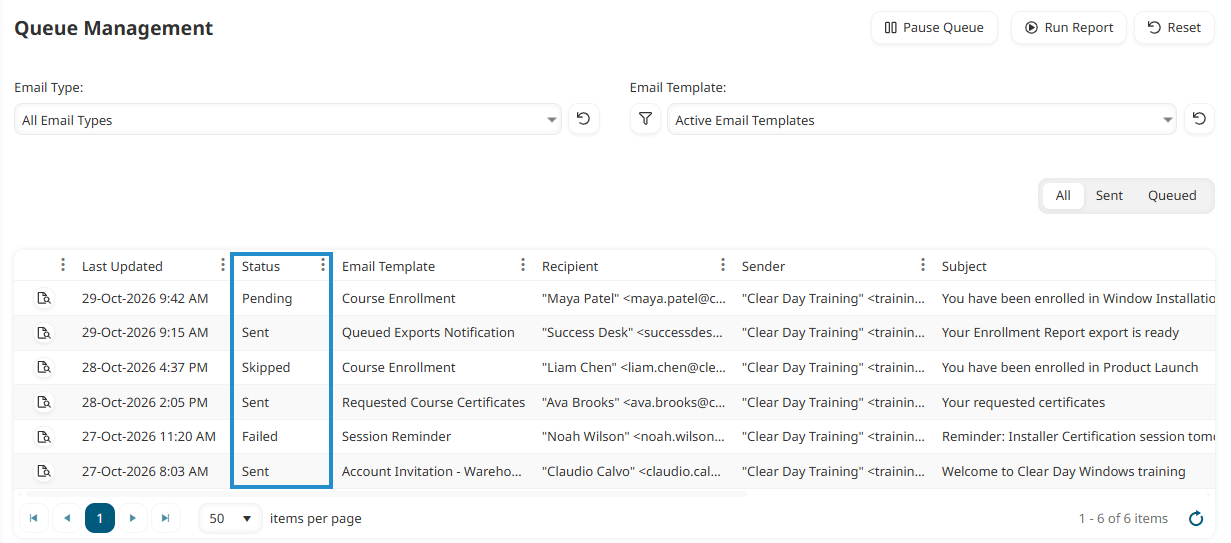
The Recipient column shows the address where the email was actually sent. If a user’s Send Email To setting points to their supervisor or an alternate address, you’ll see that address here.
Check an Email’s Status
The Status column tells you what happened to each email:
Sent: SmarterU sent the email to the recipient.
Pending: The email is waiting in the queue and hasn’t been sent yet.
Failed: An error prevented the email from being sent. The Notes column explains what went wrong.
Skipped: SmarterU created the email but didn’t send it. This happens when the email has no content to share (such as an empty weekly reminder) or when the user’s Enable Email Notifications setting is turned off.
Removed: An administrator removed the email from the queue before it was sent.
For example, Priya, a SmarterU administrator, hears from a new hire who never received their course enrollment email. Priya finds the learner’s name in the email queue and sees that the status is Skipped. She opens the learner’s profile, finds that email notifications are turned off, and turns them back on. If the status had been Sent, Priya would have known the email left SmarterU and asked the learner to check their inbox again.
Some emails, such as Password Recovery and Queued Exports Notification, are sent even when a user’s email notifications are turned off. Check out Emails That Are Always Sent for the full list.
Find Download Links in Email Previews
Click the preview icon beside any email to view its contents. This is handy when someone asks what a notification said, or when you want to confirm the date an email was sent.
The preview is also a quick way to recover download links. Emails for report exports and certificates include a link to the file, and you can open that link right from the preview. The Linked File and Attachment columns show which emails include a file.
Download links only work during the file’s availability window. For example, the link to an exported Enrollment Report is valid for 24 hours. If a link has expired, run the export again.
Pause the Queue to Stop an Email
Mistakes happen. Say Marcus, another administrator, enrolls the wrong group in a course and realizes it the moment he clicks Save. Because enrollment emails wait a few moments in the queue before they’re sent, Marcus can quickly stop them before they reach anyone’s inbox.
To remove an email from the queue:
On the Queue Management screen, click Pause Queue.

Find the email you want to stop. Only emails with a Pending status can be stopped.
Click the remove icon beside the email, then click OK. The status changes to Removed, and the email won’t go to the recipient or to any CC or BCC addresses.
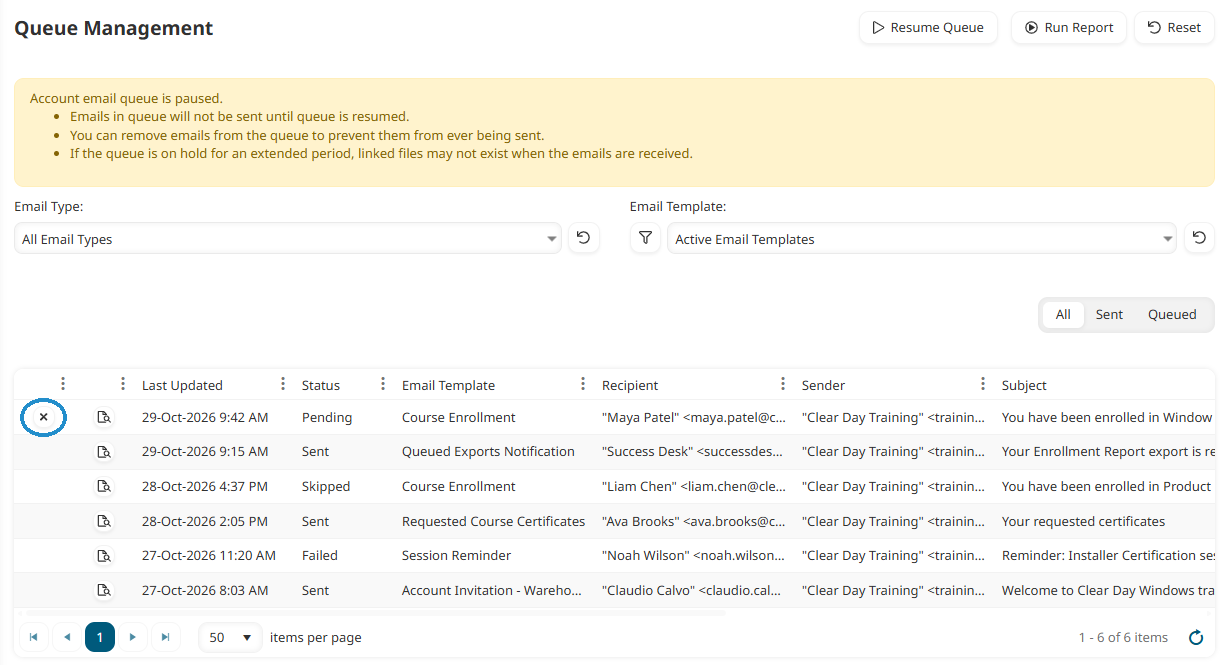
Click Resume Queue so SmarterU can start sending emails again.

Pausing the queue holds every pending email in your account, including password recovery emails and report exports. Be sure to restart the queue as soon as you’re done. A long pause can also cause time-limited download links to expire before recipients receive them.
Answer Email Questions with Confidence
The email queue takes the guesswork out of email troubleshooting. It gives you a central place to confirm what was sent, understand why something wasn’t, find the files your team needs, and catch mistakes before they reach your learners.
Take a few minutes this week to explore the Queue Management page. That way, the next time someone asks about a missing email, you’ll know exactly where to look.
Questions? Contact our Success Desk.