Managing your organization's learning and professional development means keeping a lot of moving parts organized. From sending training reminders to tracking down completion records, even quick tasks can add up fast. We want to ensure you have clear, reliable tools that make managing these daily responsibilities easier.
That’s why our team has released several practical updates in SmarterU LMS, designed to simplify your everyday admin tasks and create a smoother experience for your learners.
Want SmarterNews delivered to your inbox? Subscribe today!
Easier Learner Timeline Filtering with Date Pickers
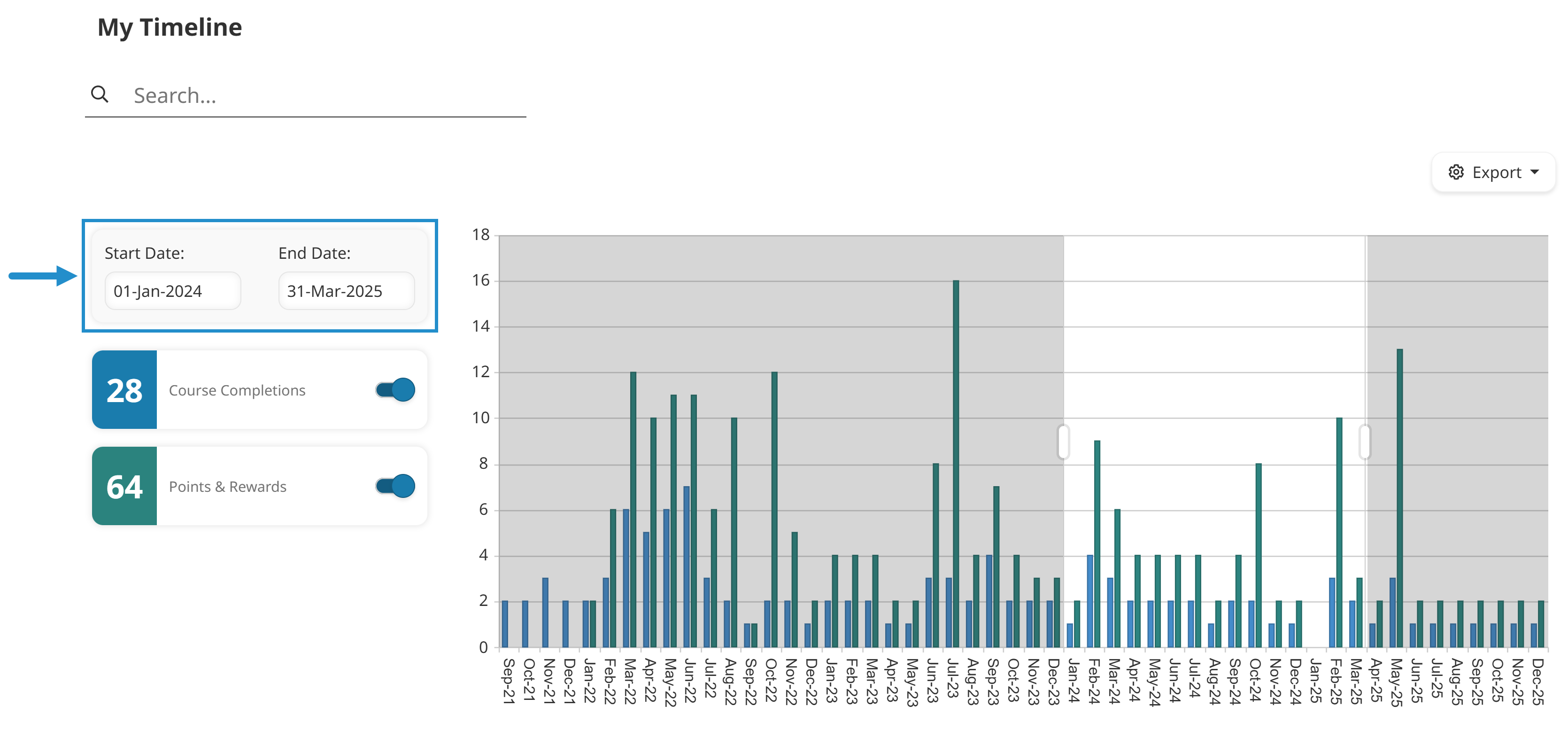
Seeing completed courses at a glance helps learners celebrate their accomplishments and track their training progress. By default, the Timeline page on the Learner Dashboard displays course completion records from the last three months. In the past, viewing completions outside of that timeframe required adjusting the date slider, which could make pinpointing specific training periods tricky.
To give learners greater control and visibility over their completion records, we added dedicated date pickers to the Timeline page. Learners can now select exact start dates and end dates to filter their completed course history. This update makes it easier for team members to locate past completion records, review long-term progress, and download accurate transcripts without needing extra administrative support.
Greater Visibility into Accomplishments with the Point Total Widget
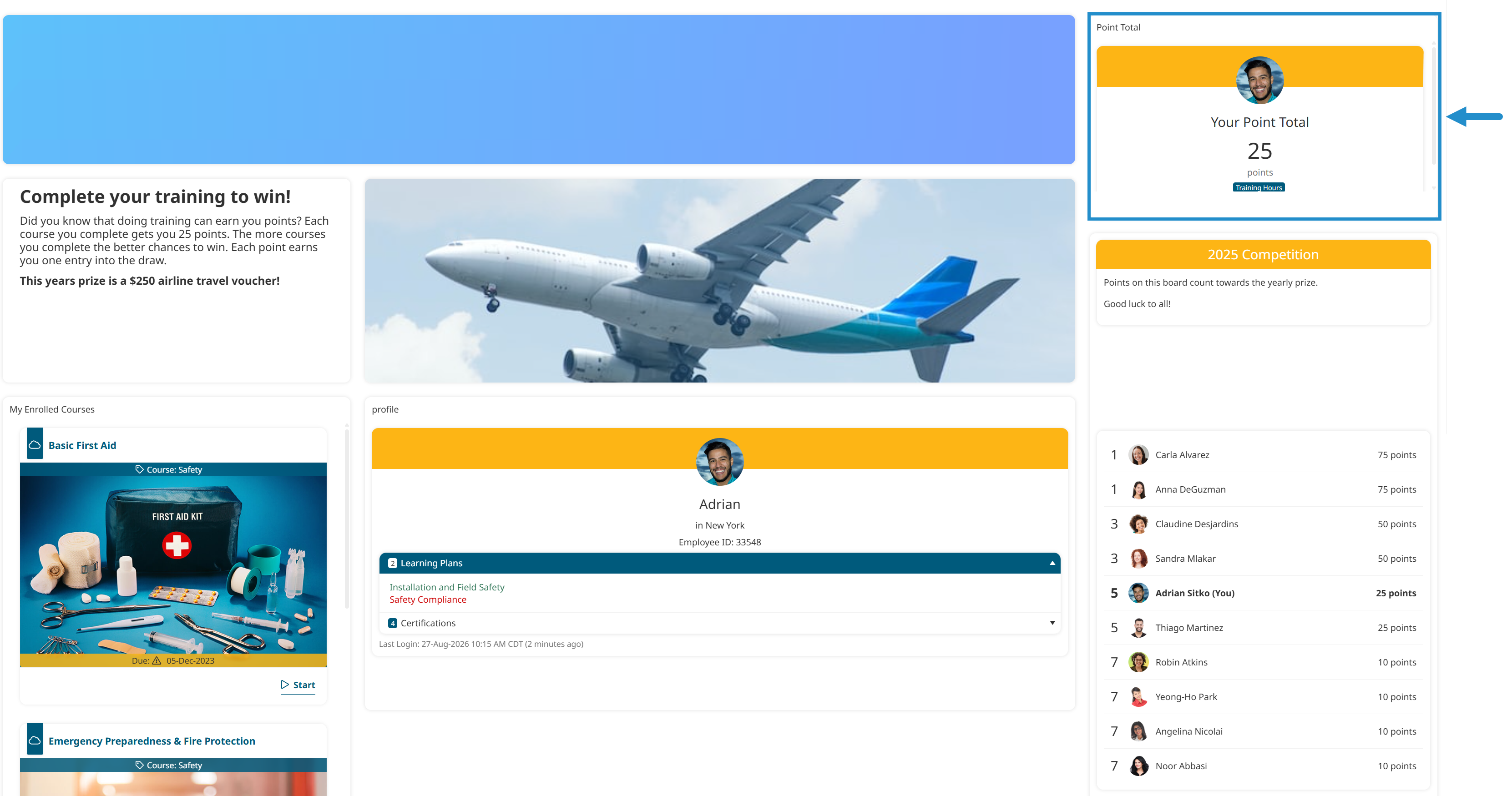
Gamification elements help keep team members motivated and engaged as they complete their training. Previously, learners could easily see their points but had to manually add them up to determine the total, or ask and administrator to run a report. This lack of visibility made it difficult to showcase total progress at a glance.
To streamline this process and better celebrate learner success, we introduced the Point Total widget. You can place this widget on custom pages across on the Learner Dashboard to display a learner’s cumulative points directly. Showing total achievements up front offers positive feedback every time a learner logs in, encourages friendly competition, and keeps training goals top of mind.
How to Add the Point Total Widget
To add the Point Total widget to a custom page, follow these steps:
Navigate to Learner Dashboard Builder.
Find the custom page you want to update.
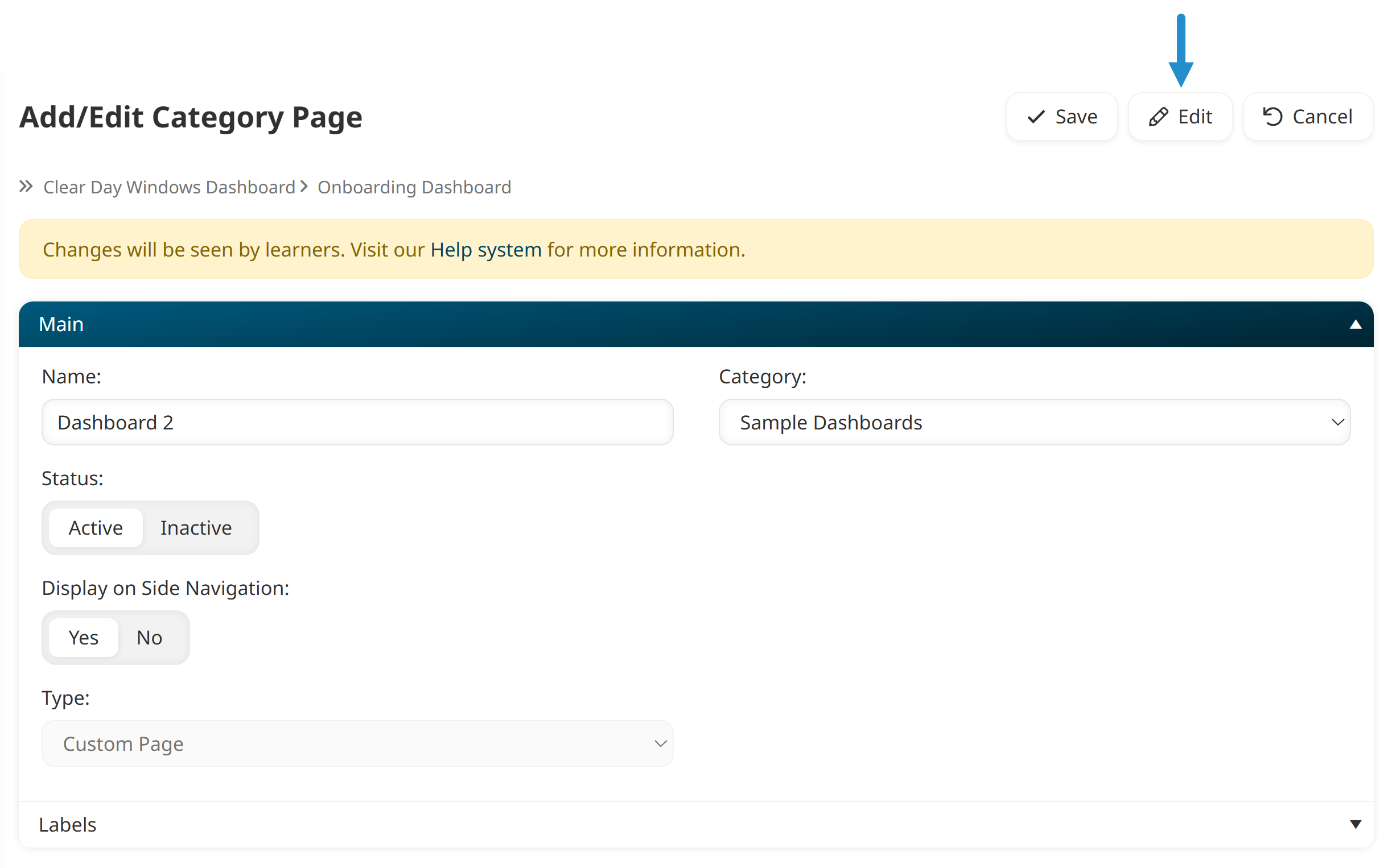
Edit the custom page.
Add the Point Total widget to the page.
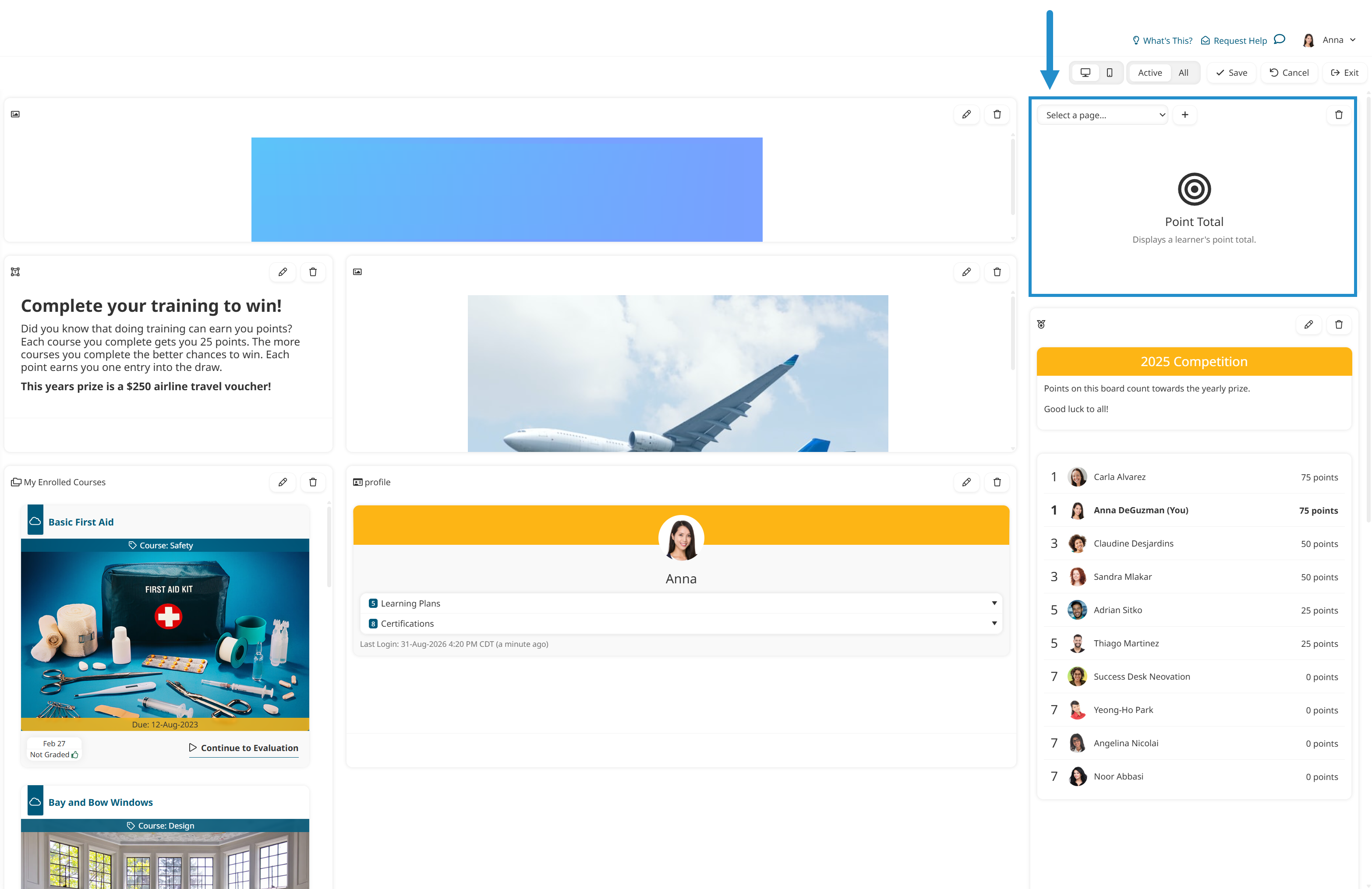
Select the Point Total widget you want to show. If you already created a Point Total widget, choose it from the dropdown. If you haven’t, select the
 icon to create a new one. We’ll create a new widget.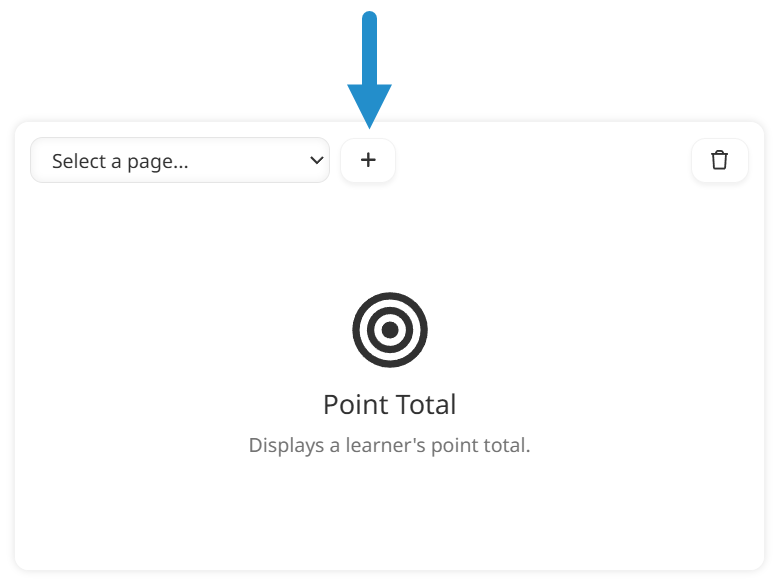
Click Save.
More Flexible Learning Plan Assignment Notifications
Clear communication and timely notifications keep your learners on track with their training. That’s why SmarterU now automatically sends the learning plan assignment email for every assignment, including when a learning plan is assigned to a user who was previously unassigned.
Previously, reassigned learners didn't automatically receive this notification, often requiring manual follow-ups outside the system. With this update, your learners get the information they need within moments of your reassigning the learning plan, keeping communication consistent while saving you administrative time.
How to Enable Learning Plan Assignment Emails
To automatically send an assignment email whenever a learning plan is assigned or reassigned, follow these steps:
Navigate to the Learning Plans Dashboard.
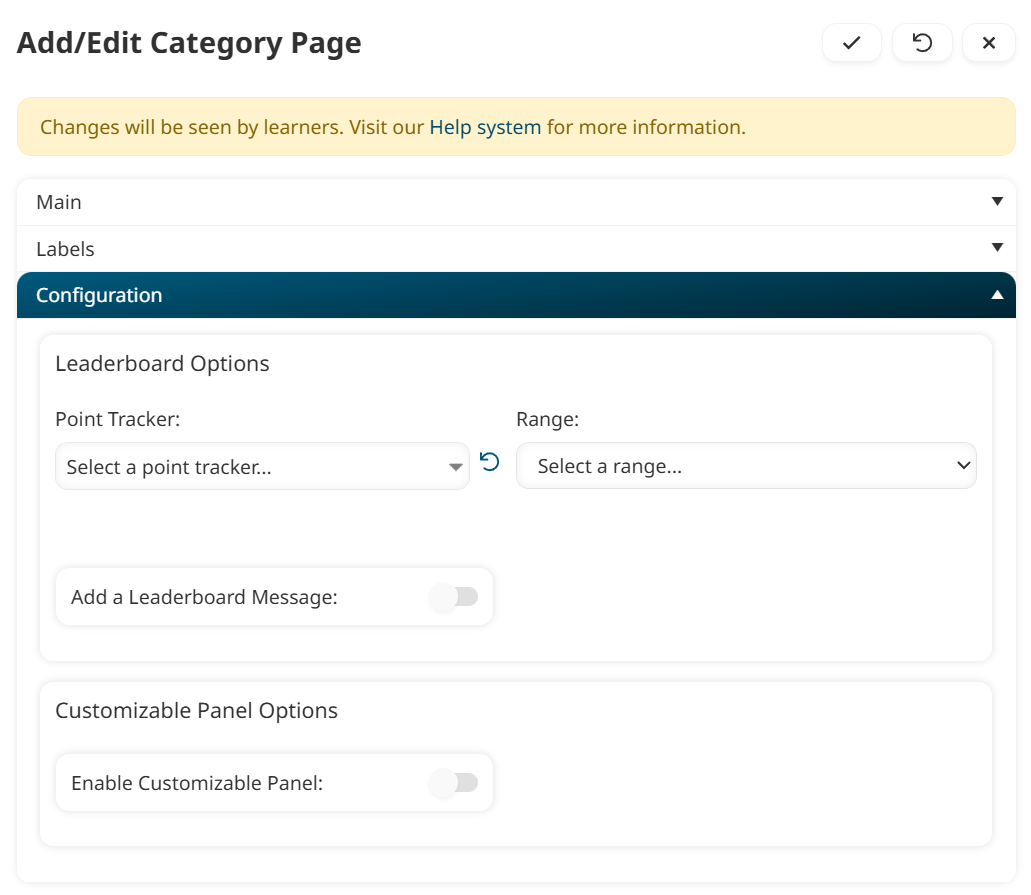
Open the Notifications accordion.
Check the Send Learning Plan Assignment Notification checkbox.

Click Save.
Need to resend a learning plan assignment email to a single learner? Edit their user profile, remove the learning plan, save, then reassign the learning plan and save again. This series of actions will automatically trigger SmarterU to send a new assignment email.
Improved Historical Training Upload Errors with Detailed Feedback
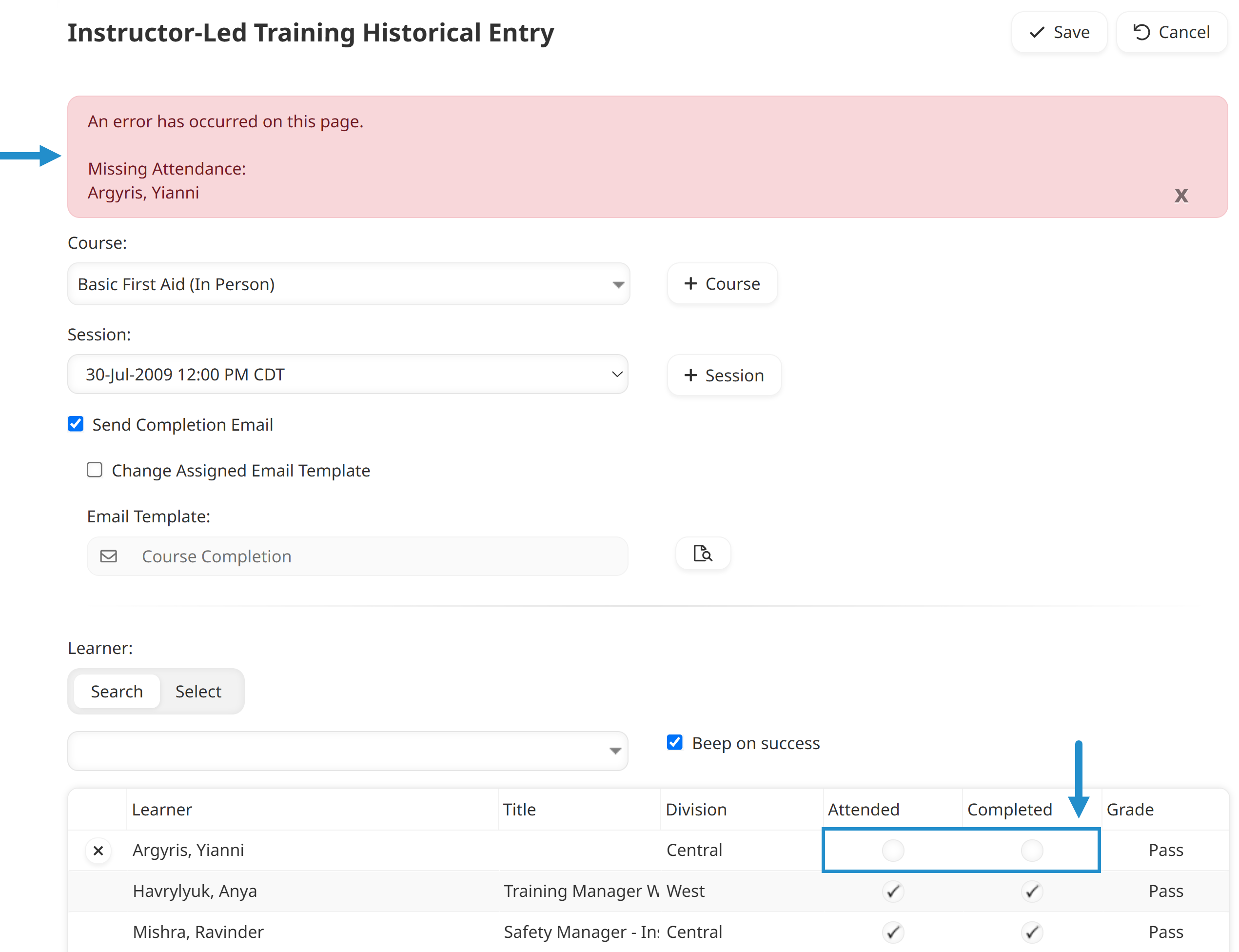
Keeping accurate records of past or offline training is essential for your organization's compliance. However, when you are adding historical training records for multiple team members at once, running into an issue can slow you down. In the past, a single mistake on a page could prevent all of your entries from saving, making it difficult to figure out what went wrong.
With our latest update, we’ve expanded these error messages to provide clear, actionable feedback and automatically save all valid entries. Now, even if one or two rows contain errors—such as a missing grade or unselected attendance—you can quickly fix the mistake in seconds and keep your workflow moving smoothly.
To learn more about historical training, check out Never Lose a Record: Logging Past Training in SmarterU LMS.
Streamline Your Workday
These four updates were designed to remove friction from your daily administrative tasks and create a clearer, more engaging experience for your learners. Whether you are resending an assignment email or looking up your points total, these tools give you time back in your workday.
Try out these features in your SmarterU LMS account today!
Questions? Contact our Success Desk.