When a learner finishes a course in SmarterU LMS, the completion email is one of the last touchpoints they'll have with that training. It's a small moment, but it's also a real opportunity. Instead of letting that email be a generic "you finished" note, turn it into a useful guide that points learners to what comes next.
SmarterU’s default Course Completion email is fully customizable, so you can shape it into a message that helps learners feel proud of what they've accomplished and confident about what to do next.
The email is built from a template, which is a reusable layout that controls the email's subject line, body content, and design.
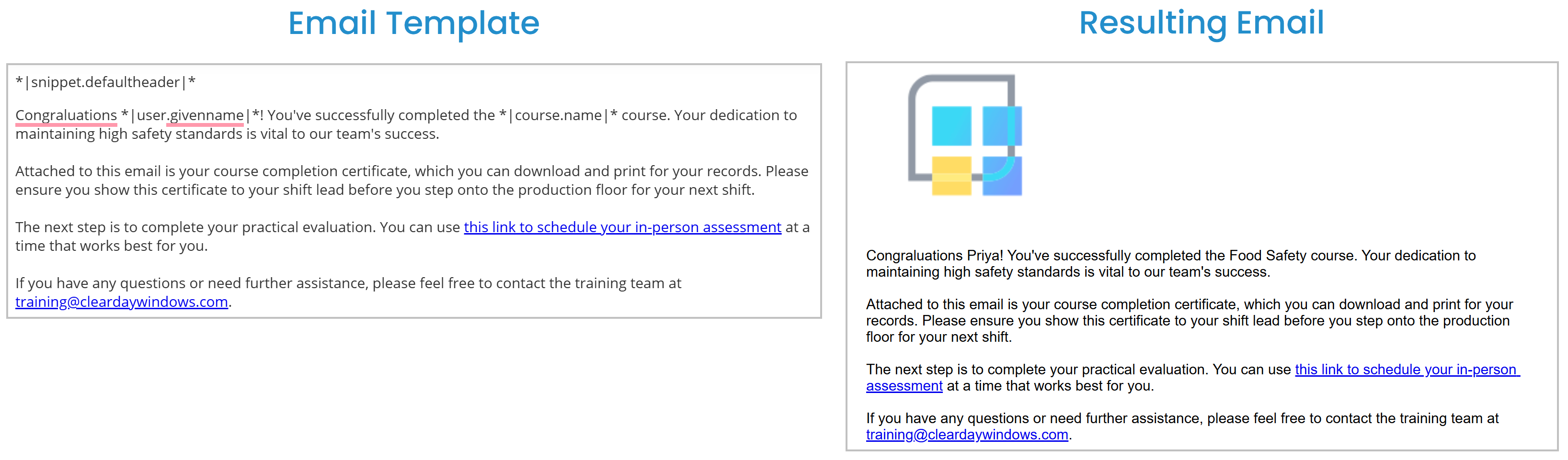
Depending on what you want to do, you can simply edit the default template, copy the default template and modify the copy, or create a new template from scratch.
Anything you read here about customizing the Course Completion email also applies to the Certification Completion email.
Want SmarterNews delivered to your inbox? Subscribe today!
Why Customizing the Course Completion Email Matters for Learners
A thoughtfully written completion email gives your learners a clear path forward. Here are some of the things you can include to make the email more useful to learners:
A reminder to print their certificate if they need to share it outside of SmarterU.
Details on next steps outside SmarterU, like an in-person practical, a ride-along, or a skills check with a supervisor.
A link to job aids that they can use to keep their knowledge fresh.
A note about what happens next, such as "Your Training Manager will be in touch to book a kickoff meeting" or "Your Supervisor will give you a tour of the production floor."
The contact information and email link for the person they can reach out to with questions.
A short list of related courses they might want to take next.
A link to a feedback form where they can share insights on their experience.
The Course Completion email automatically includes a link to the learner's completion certificate.
Let’s look at an example. Priya is a new hire at a food production company. She just finished her online food safety course in SmarterU. A few minutes later, a completion email lands in her inbox. The email congratulates her by name, explains how to find and print her completion certificate, reminds her to show her certificate to her shift lead before stepping onto the production floor, and includes a link to schedule her in-person practical assessment. At the bottom, there's an email link for the training team if she has any questions.
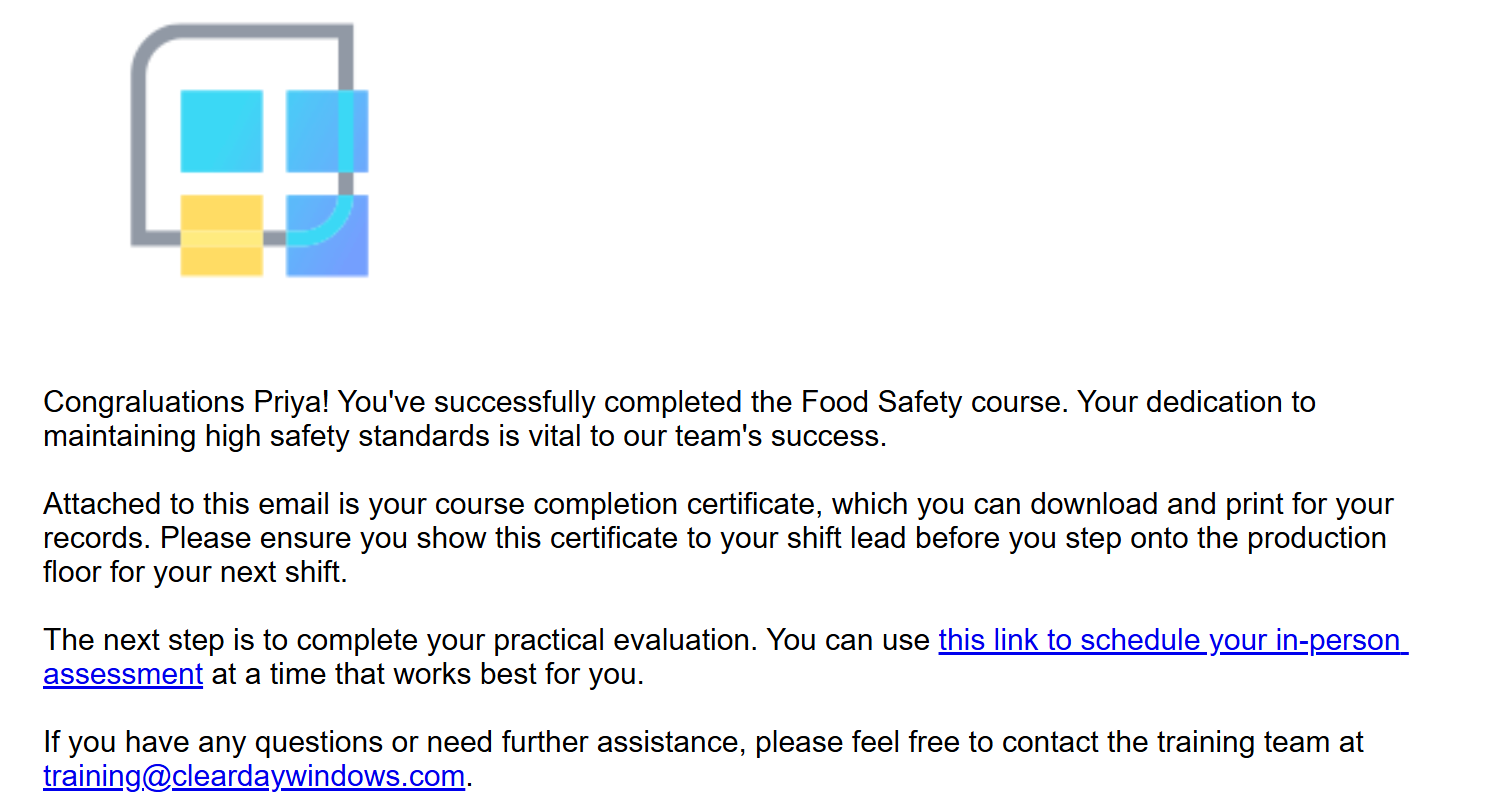
Priya knows exactly what to do next without asking anyone. Her supervisor doesn't get a flurry of "what now?" questions. That's the value of a customized completion email.
Why It Matters for Admins
For admins, customized course completion emails save time and reduce repetitive questions. When the email already explains how to print the certificate, where to find the next course, or who to contact for next steps, your inbox stays quieter, your training feels more polished, and learners get a consistent message every time without you having to send manual follow-ups.
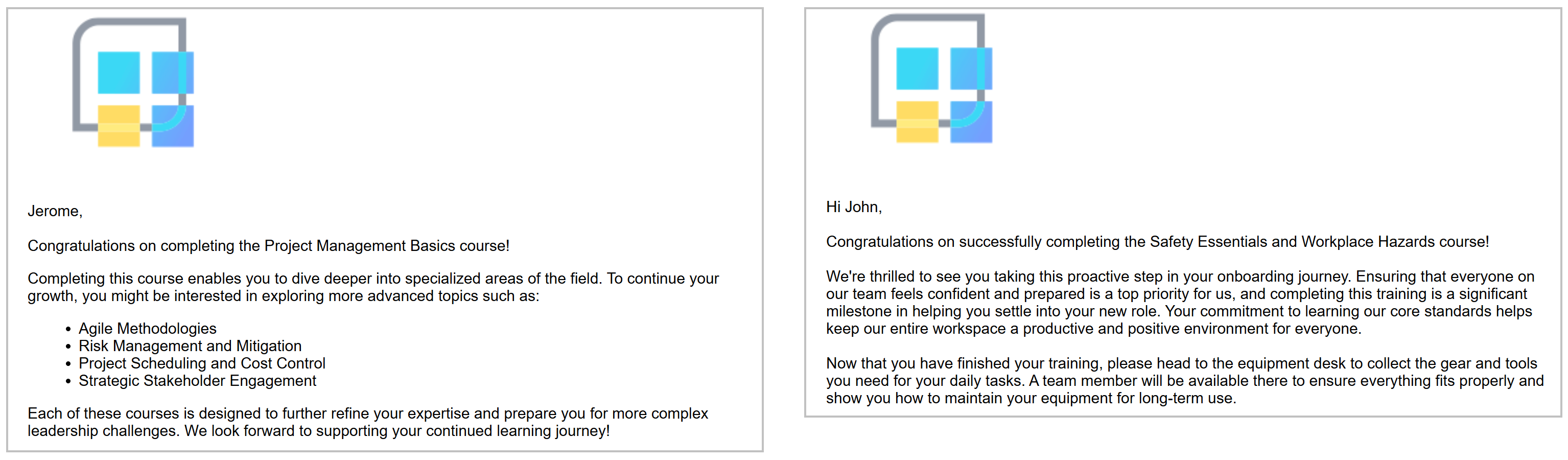
The good news is that you only need to set up the template once. After that, SmarterU automatically sends the email based on the template whenever a learner completes the course. You can even set up multiple templates if the information you want to provide for a course differs. For example, you may want to recommend training when a learner completes the Project Management Basics course, but tell them where to collect their safety gear after completing the Safety Essentials and Workplace Hazards course.
How to Customize the Course Completion Email Template
Let’s look at how you can customize the course completion email template.
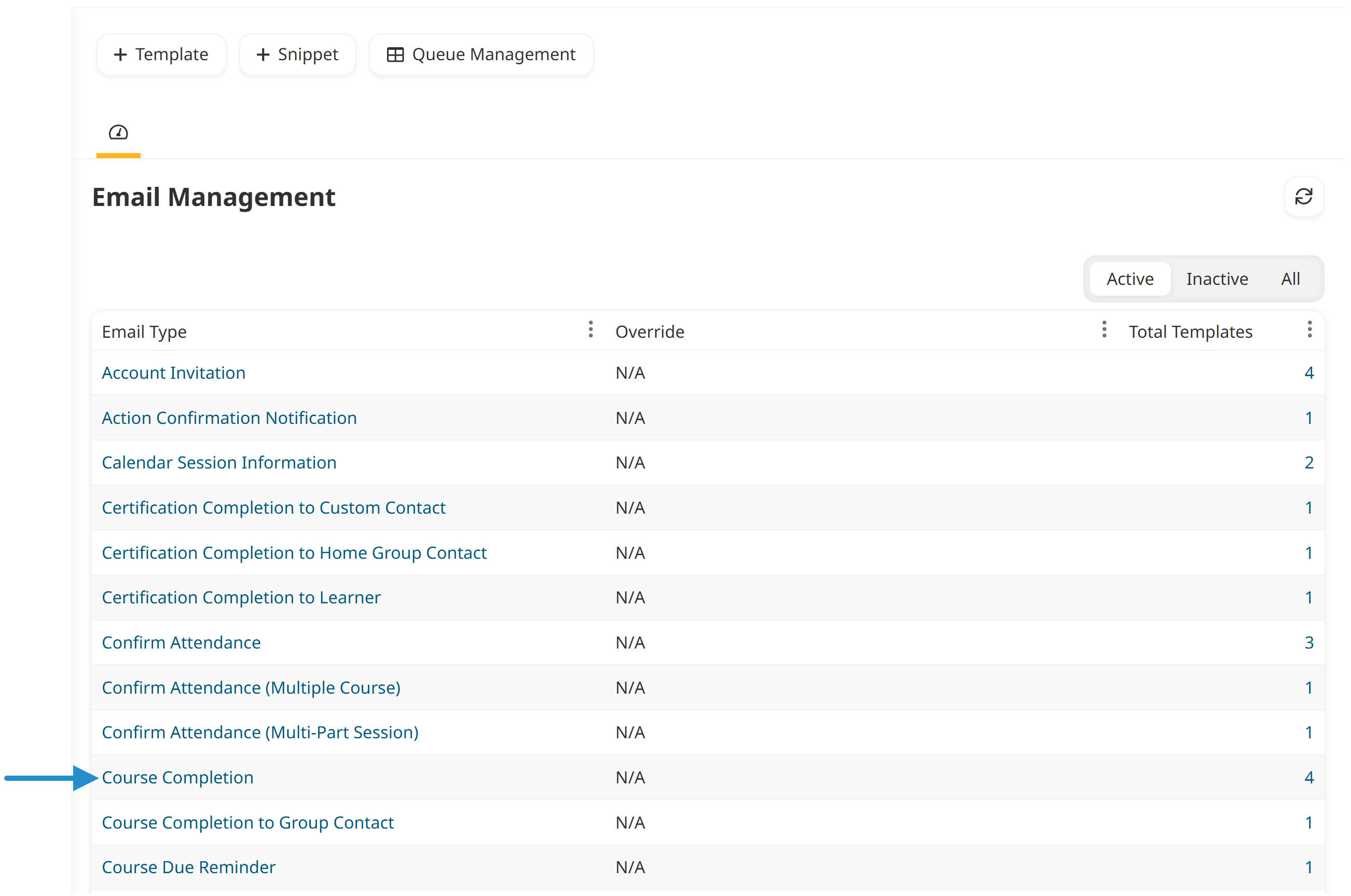
From the Admin menu, select Account Admin, then select Email Management to open the Email Management Dashboard.
Find the Course Completion template, and click it to open it.
Click Copy to create your own editable version of the template.
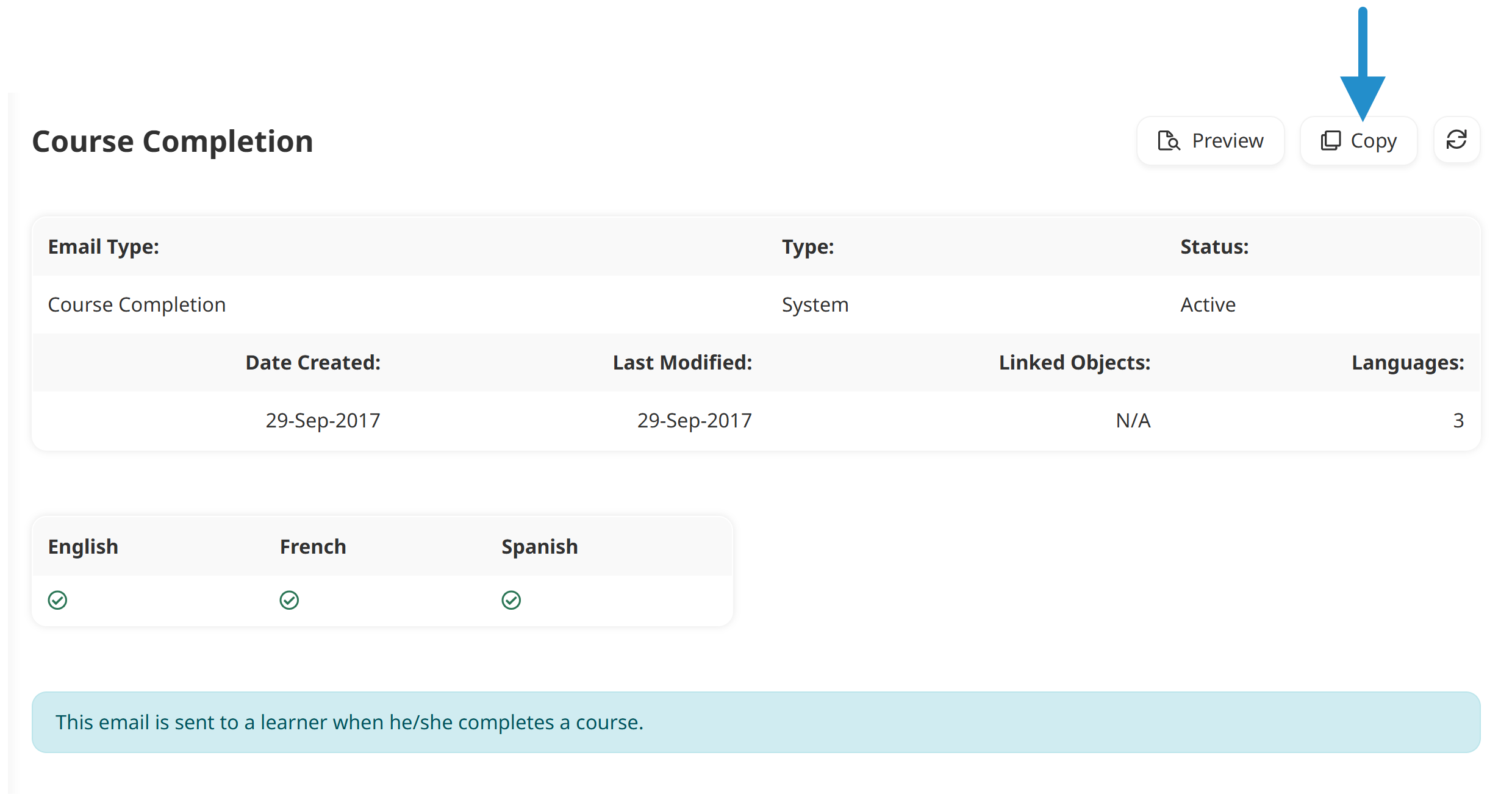
SmarterU opens the new copy in the Add/Edit Email Template workscreen where you can edit it.
We recommend starting from a copy so the original email template stays untouched as a safe fallback, and you can experiment freely with your version. For more on this, see our Copying an Email Template article.
In the Main accordion, give your template a clear name (for example, "Course Completion for Food Safety") so you can easily find it later.
In the Content accordion, edit the subject line and body to include whatever guidance your learners need.
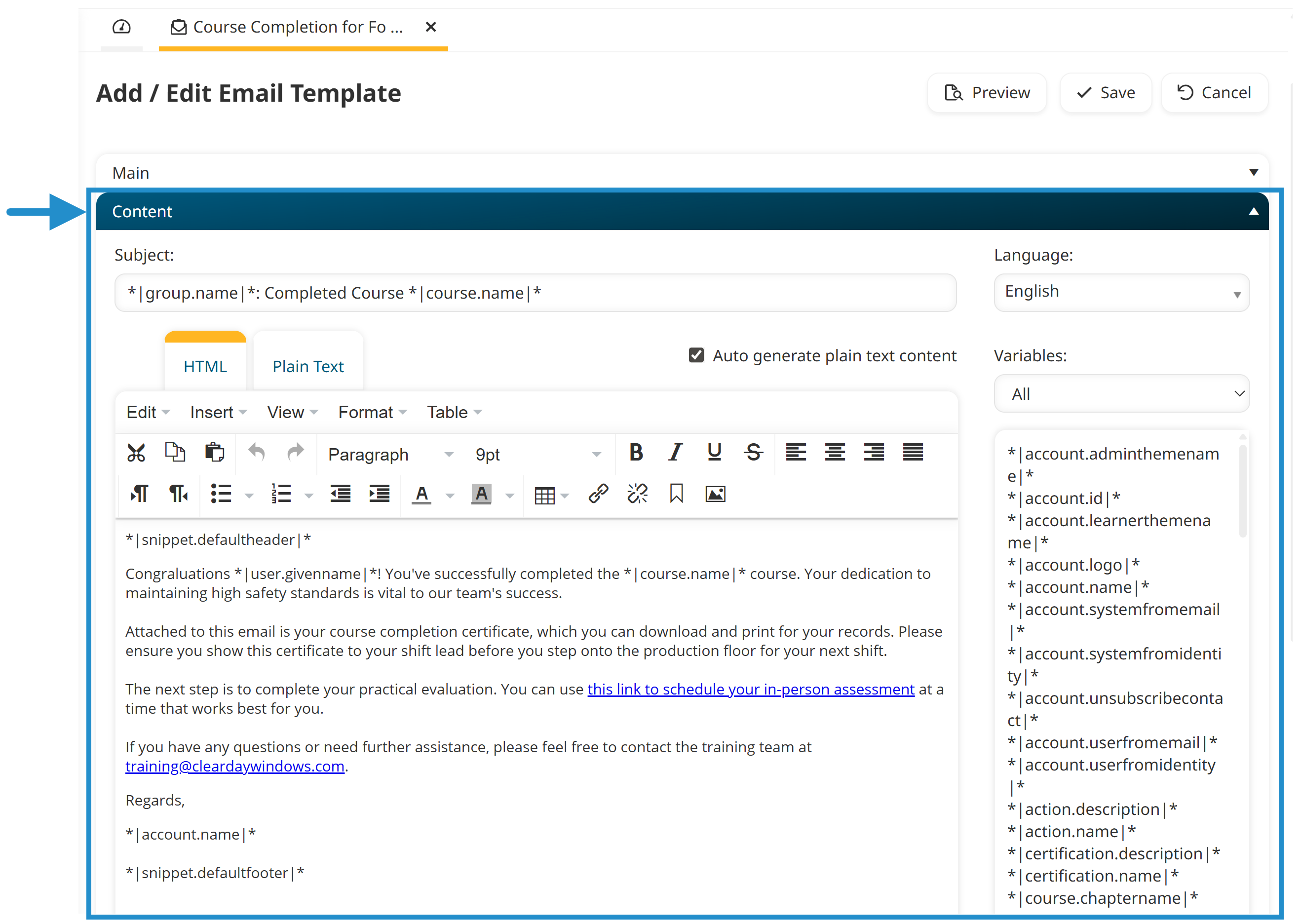
For example, you can add instructions for printing the certificate, links to next steps, a mailto link, related courses, or a feedback form link.
To automatically pull in personalized details such as the learner's name or course name, use email template variables. For reusable chunks of content, such as a list of recommended courses, use email template snippets.
Click Save to save your customized template.
Now that you have your customized email template, you can assign it to a specific course or set it as the default email template for all the courses in your account.
The process for customizing and assigning the Certification Completion email is similar. After editing the email template, you can assign it to a specific certification, or use it as the default for all certifications.
Make That Last Touchpoint Count
A customized course completion email is a small change with a big payoff. Your learners feel guided, your inbox stays calm, and your training program feels more put-together from start to finish. Pick one course or certification this week, copy its completion template, and add a single line that tells the learner what comes next. You'll be surprised how much smoother things feel right away.
Questions? Contact our Success Desk.