As a SmarterU administrator, you know that your learners are busy. Between meetings, projects, and daily tasks, finding time for professional development can be a challenge. One of the most common questions learners ask before starting a course is, "How long will this take?"
When learners don’t know the time commitment upfront, they might hesitate to start a course or, worse, stop halfway through when they realize it's longer than expected. To help you solve this, we’ve introduced the course length feature. With this feature, you can now set and display the estimated time required to complete a course, giving your learners the clarity they need to manage their schedules effectively. In addition, we’ve updated the admin tools so you can create duration-specific course catalogs for your learners and report on course lengths.
Why use the course length feature?
Adding an estimated duration to your courses isn't just a "nice-to-have"—it’s a powerful way to improve the training experience for everyone.
Empower Learner Planning: When learners see how long a course takes, they can decide whether to tackle it during a quick break or block off dedicated time.
Improve Completion Rates: By setting clear expectations, you reduce the likelihood that learners will abandon a course due to time constraints.
Enhance Searchability: Learners can use the course length filter to find training that fits their available time.
Better Reporting for Admins: You can now filter Custom Enrollment and Learning Plan Reports by course length, making it easier to audit your curriculum and see how much training time is being assigned across your organization.
How to Set a Course's Length
You can specify the course length when you create or edit a course.
Create or edit an online, SCORM, or instructor-led course.
In the Main accordion, enter the course’s duration in the Course Length field.
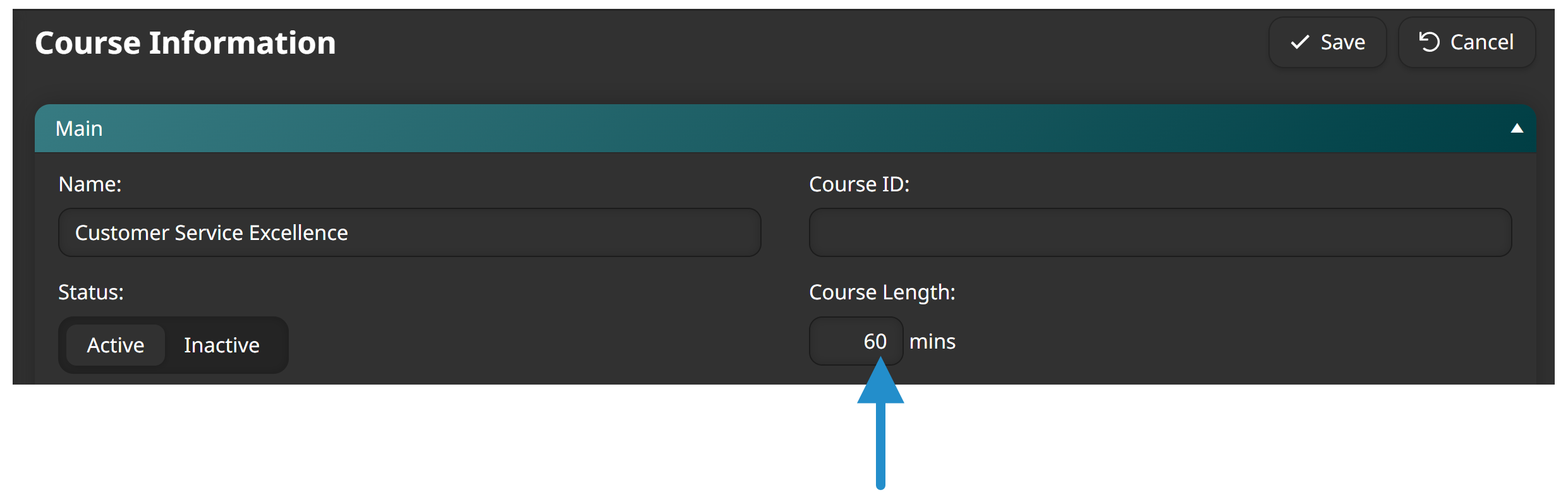
Click Save.
After you save the course, learners will see the duration when they view the course’s details.
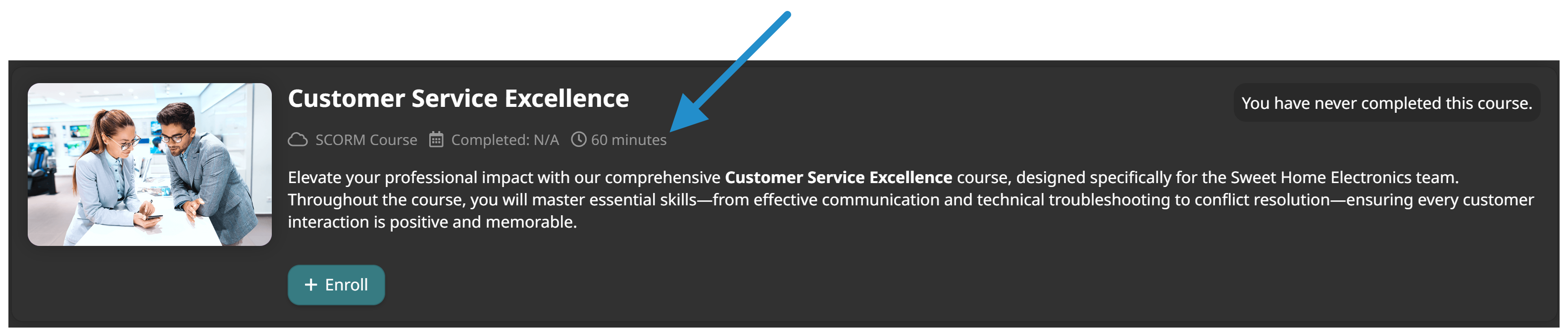
Finding the Right Course
You can also customize a course catalog to make it easier for learners to find courses that fit their schedules. For example, you can create a Quick Tips course catalog that shows courses that take 15 minutes to complete. Or you can include a filter that lets learners find courses by estimated duration.
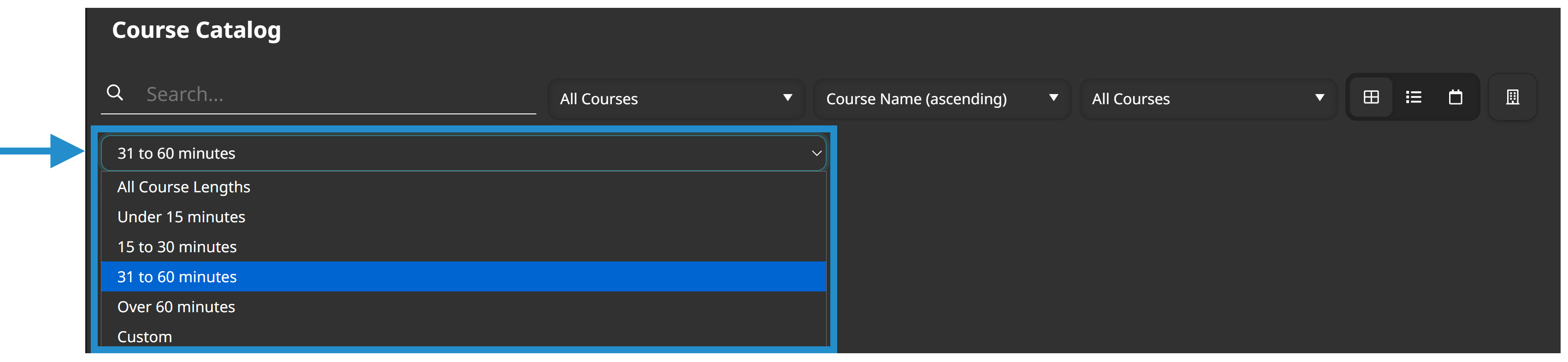
Whether learners have a whole afternoon or just a few minutes between calls, they can find the perfect training for the moment.
Enhanced Reporting for Administrators
When running a Custom Enrollment Report or Custom Learning Plan Report, you can use the course length filter to narrow your results. You can also include the Course Length column in your report's output to see the duration of every course.
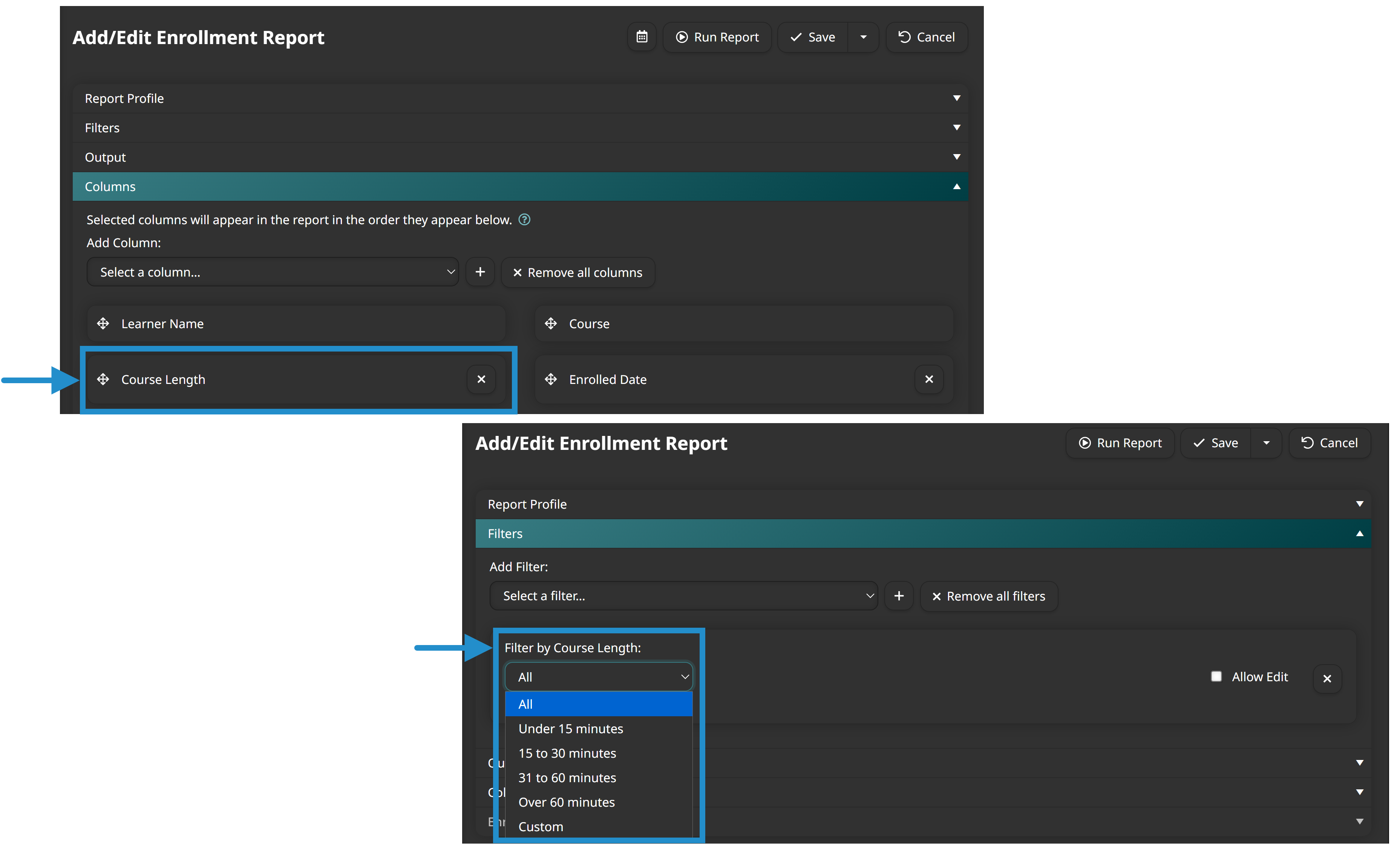
Putting it into Practice: Sarah’s Success Story
Sarah, an LMS administrator for a fast-paced retail company, noticed that her Customer Service course had a high enrollment rate but a low completion rate. After chatting with a few employees, she realized they were starting the course during short breaks between meetings and other tasks, only to find out the course actually took 60 minutes to complete.
Sarah decided to add course lengths to all her courses to empower her learners to plan their day. For the Customer Service course, she set the duration to 60 minutes. She also created a Quick Tips catalog to make it easy for learners to find courses under 15 minutes—a great way to fill pockets of time in a busy day.
The result? Higher completion rates. Learners could better plan when to take the Customer Service course and completed shorter modules when they had small gaps in their schedule.
By setting clear expectations with course lengths, you’re not just managing data—you’re respecting your learners’ time and helping them make professional development a seamless part of their day.
Questions? Contact our Success Desk.