Once your courses are assigned, most enrollments look after themselves. Every so often, though, something changes for a learner, and their enrollment needs a small adjustment to keep up. The good part is SmarterU LMS lets you make these adjustments directly, right on the enrollment, ensuring your records remain up-to-date.
Better still, every adjustment happens in the same place and takes only a moment once you know where to look. Whether you're giving a learner more time, clearing them to move ahead, or changing a "fail" to a "pass," the process is nearly the same.
Want SmarterNews delivered to your inbox? Subscribe today!
Edit an Enrollment in SmarterU
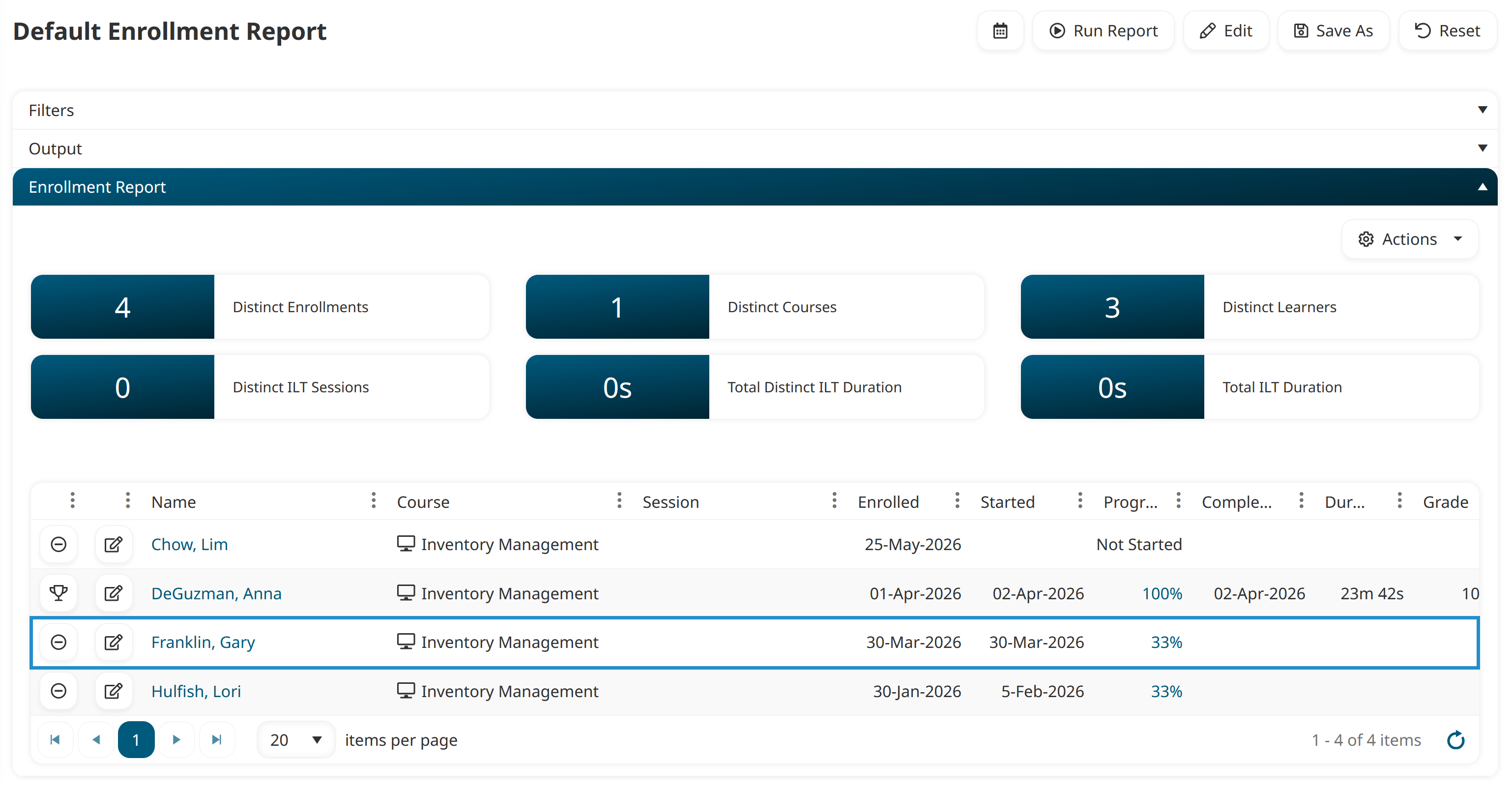
Every adjustment begins with the Enrollment Report, which lists your learners' course enrollments along with their progress.
To open an enrollment for editing:
Run the Enrollment Report. You can use the default report or build a custom one, adding filters and columns to narrow the list to the enrollment you need.
Find the enrollment you want to change.
Click
 beside the enrollment you would like to edit.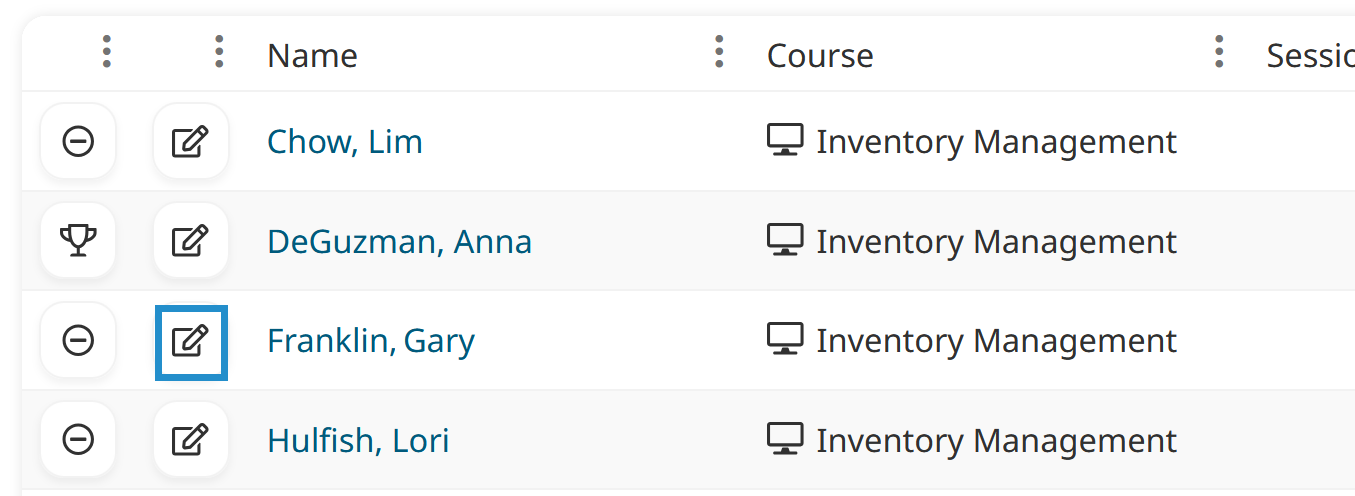
This opens the Edit Enrollment window, where you can update details like a due date, grade, and grace period.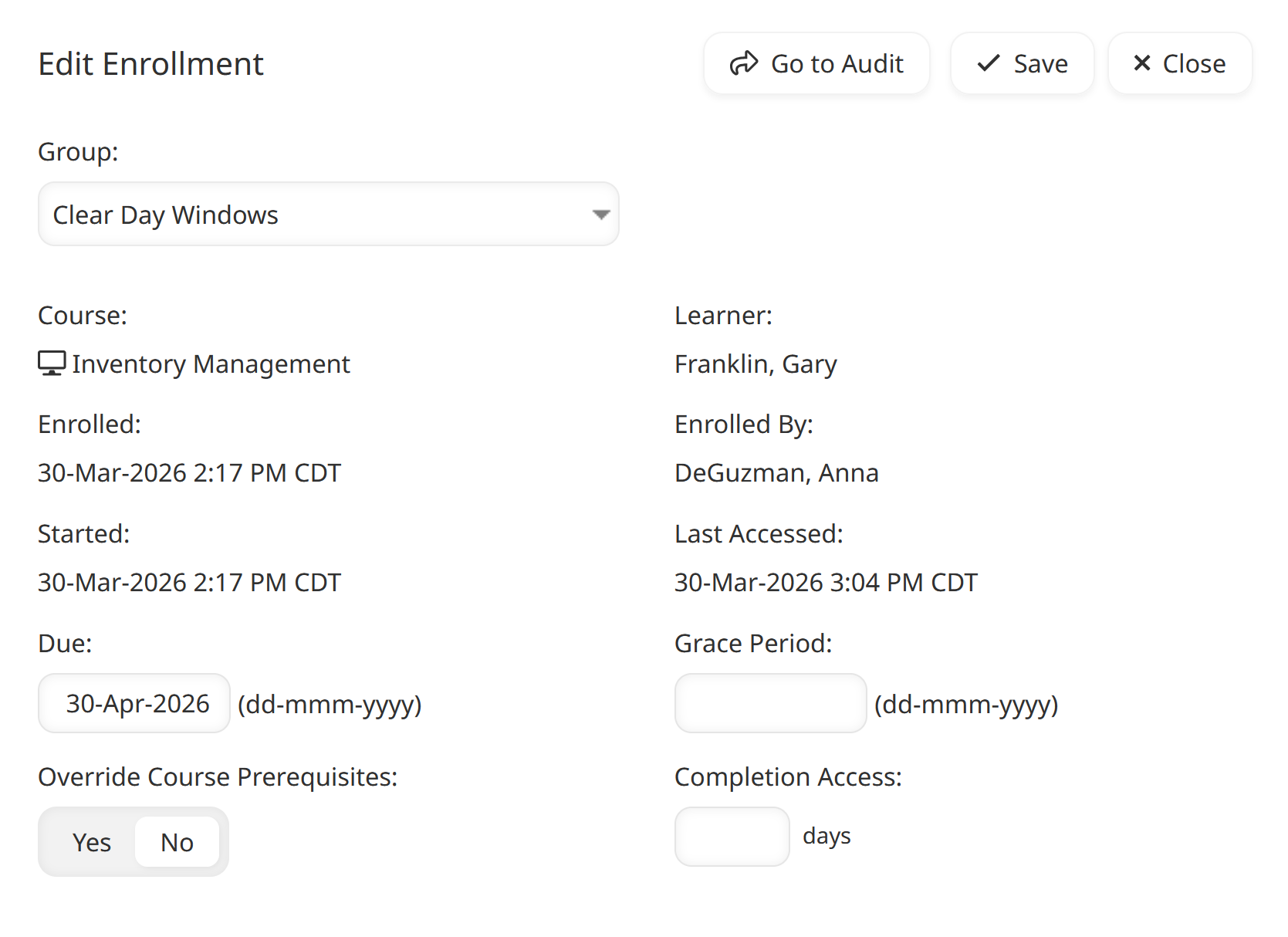
You’ll see different settings depending on the course type (external, instructor-led, online, or SCORM) and the learner's progress. For example, a learner's grade and pass/fail status can be changed only after they have completed the course.
Only owners, administrators, and users with the Edit Enrollment account permission can make changes to enrollments.
Change the desired setting(s).
Click Save.
The enrollment updates right away, and SmarterU automatically records the change in the Enrollment Audit Log.
Let’s look at some common examples of when you might want to edit an enrollment.
Adjust a Due Date
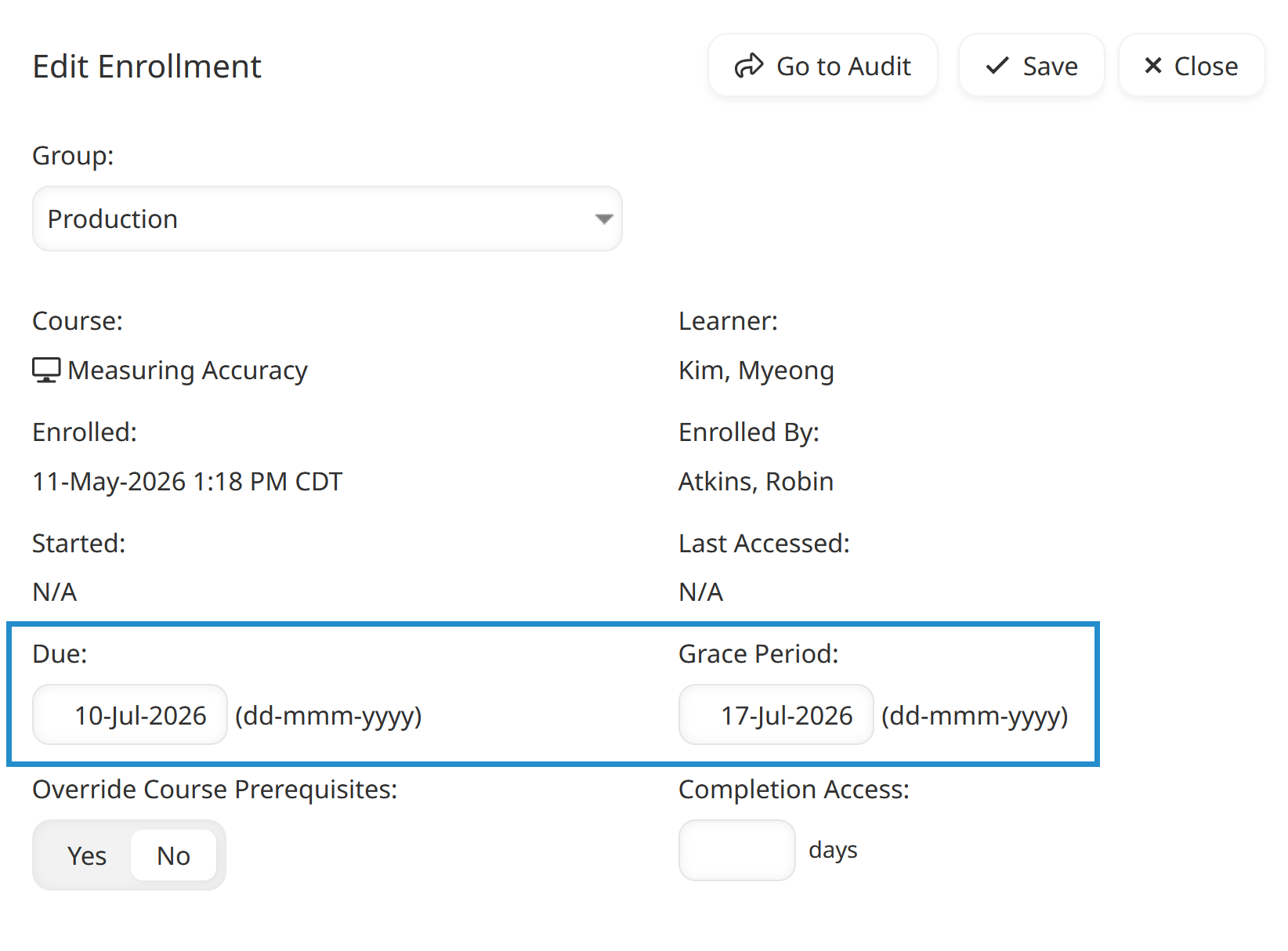
Sometimes a deadline needs to shift. Maybe a learner was away when the course was assigned, or their schedule changed after they enrolled. In the Edit Enrollment window, set the Due Date to a new date that works better for the situation at hand.
If you'd like to allow a little flexibility past that date, you can also set a Grace Period, the extra time a learner has to finish once the due date has passed.
Waive a Prerequisite
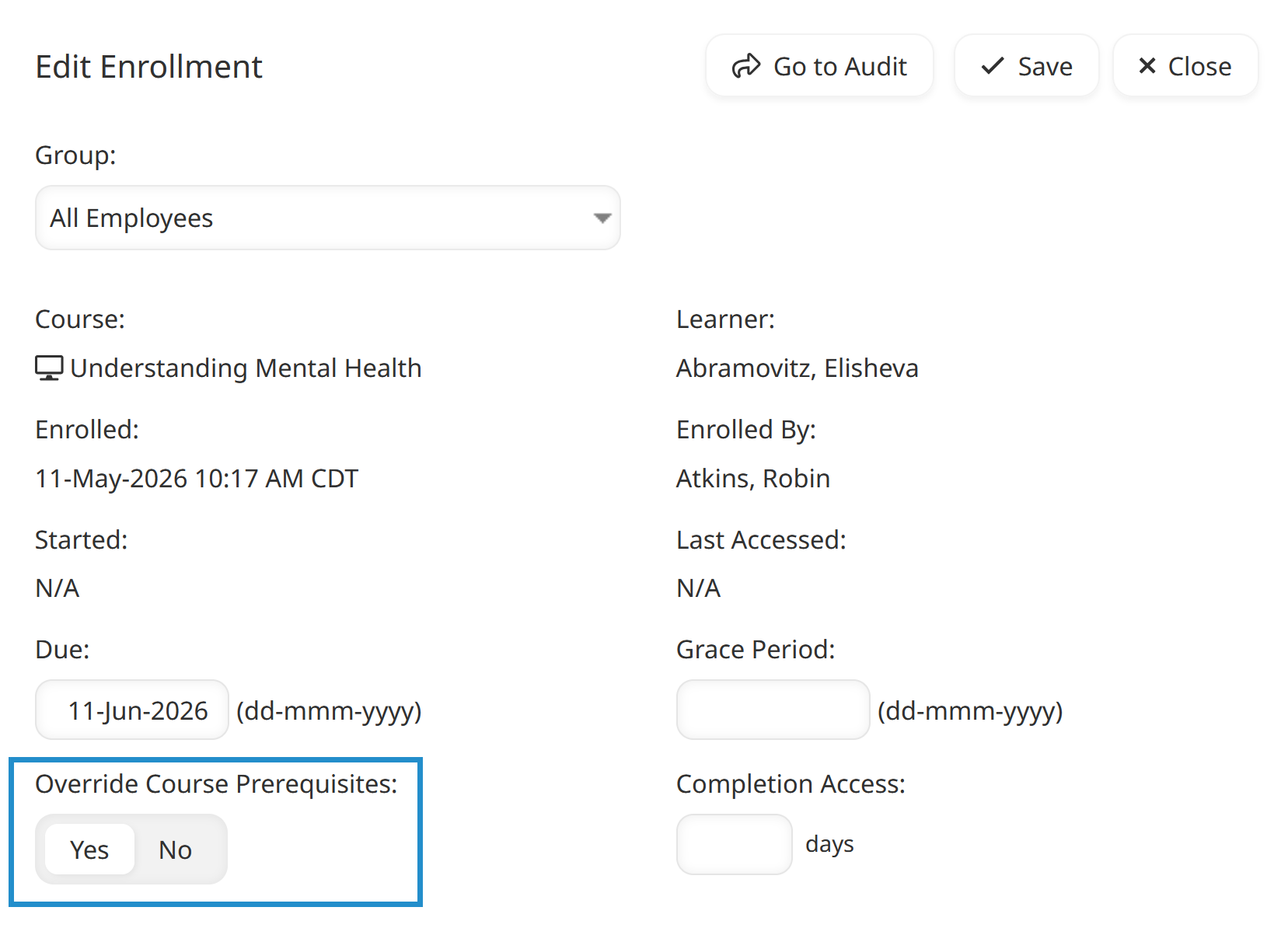
A prerequisite is a course that a learner must complete before they can begin another one. Most of the time, this keeps learning in a logical order. Now and then, though, a learner is ready to move ahead early, perhaps because they completed similar training elsewhere or joined from a team where they already learned the material.
To let a learner skip ahead, edit their enrollment and select Override Course Prerequisites. As soon as you save, they’ll be able to start the course without repeating something they've already learned.
Update a Grade or Status
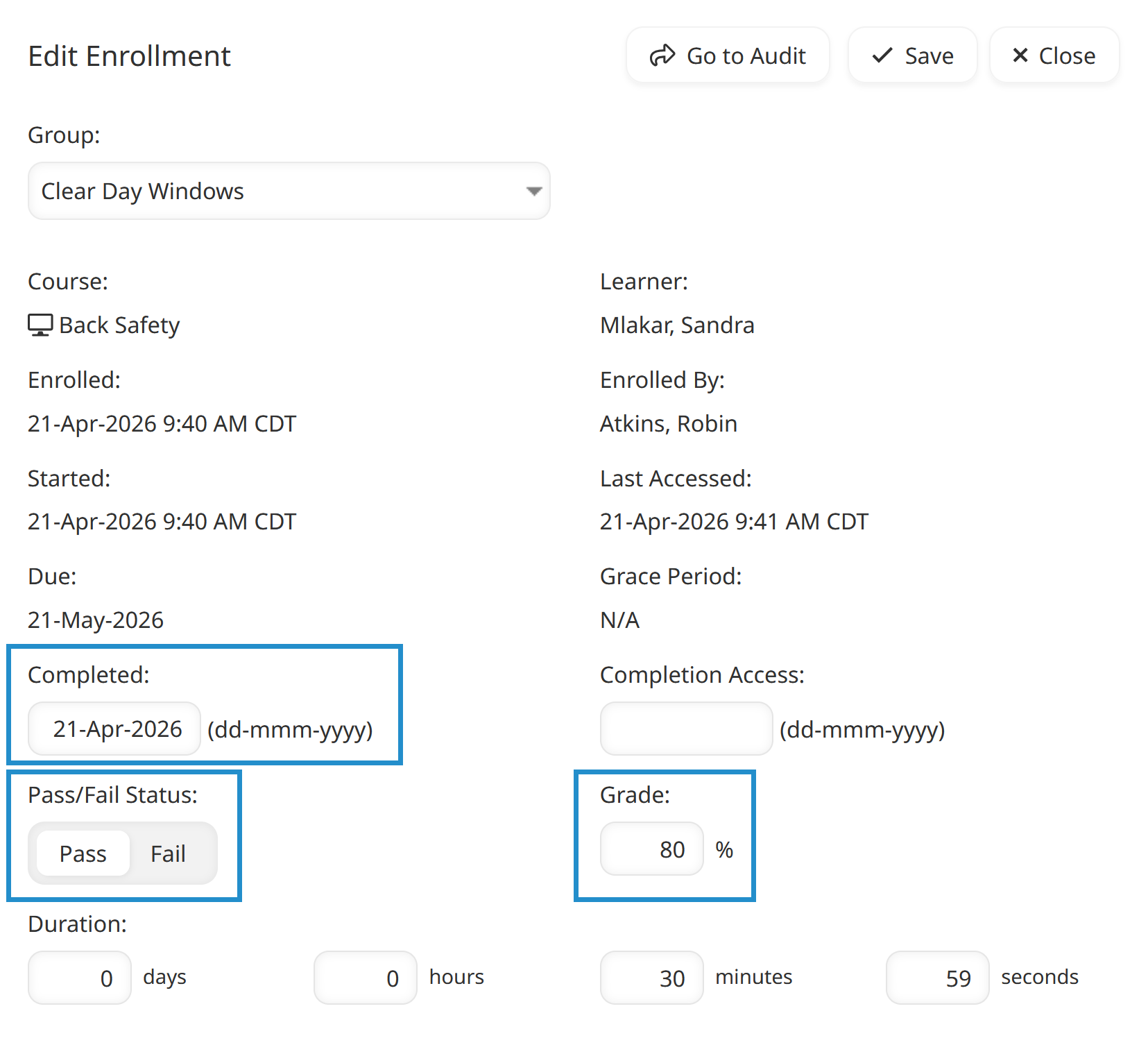
After a learner finishes a course, you may need their record to show a different result. For example, an instructor might review an assessment again, a learner might pass a make-up session, or you might want to make adjustments based on learning demonstrated another way.
Even though the learner already completed the course, you can still edit the enrollment and update their Grade, the Pass/Fail Status, or the Completed date so the record matches what the learner achieved.
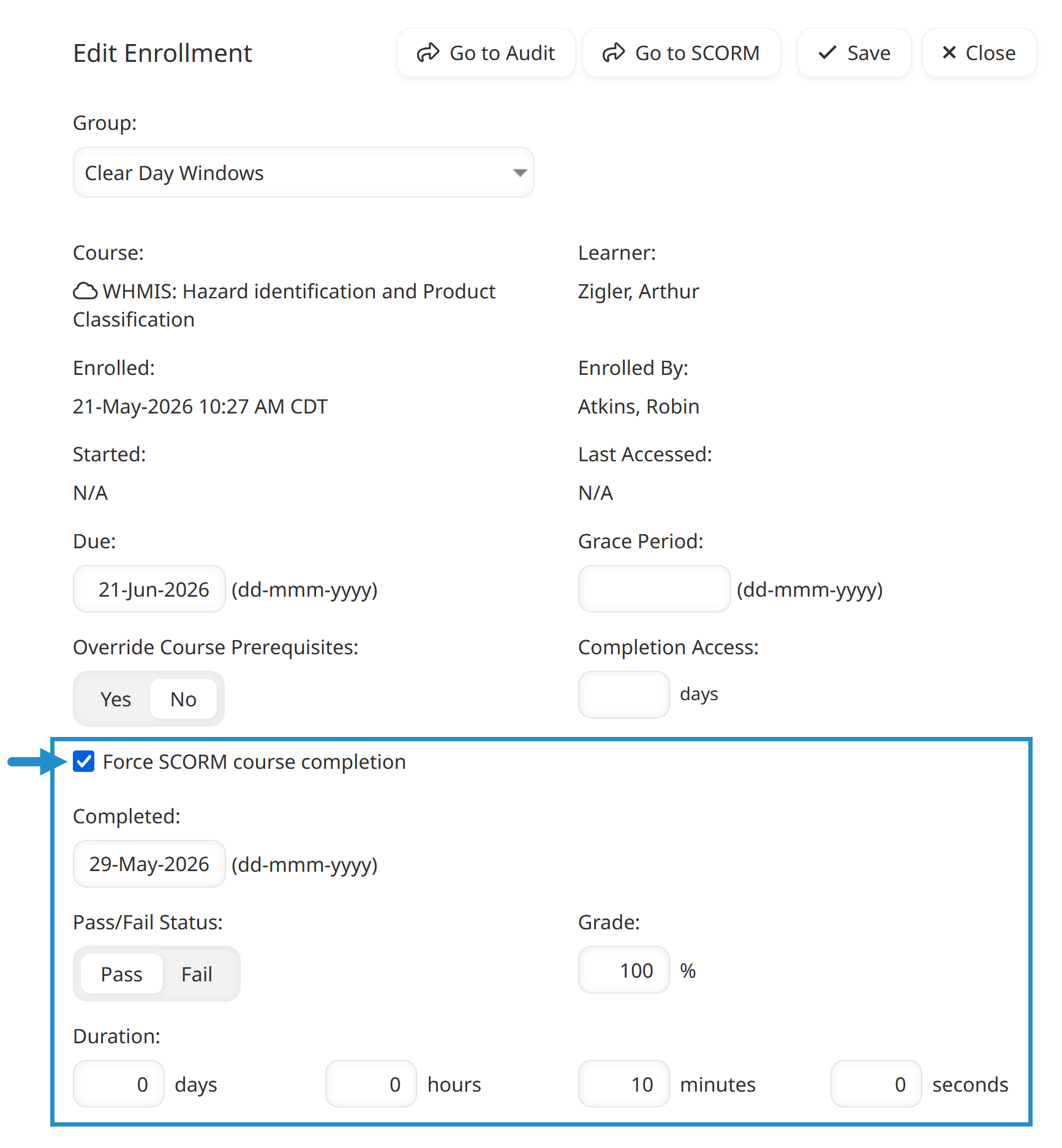
When editing a learner’s enrollment in a SCORM course — specifically one they haven’t finished yet —you’ll see an extra option: Force SCORM Course Completion. You can use this setting to mark the enrollment as complete. This setting is useful when a learner has clearly mastered the material another way, such as by finishing an equivalent course or demonstrating their skills on the job.
When force completing a SCORM course, you’ll also need to enter some other information, such as the Completed date, Pass/Fail status, Grade, and Duration (how long the training took).
Make Adjustments with Confidence
As you can see, with SmarterU’s edit enrollments feature, you can quickly adjust deadlines, bypass prerequisites, and keep learner records accurate as circumstances change. No need to work around the system or redo enrollments from scratch.
You can also feel good about each edit, because SmarterU notes it in the Enrollment Audit Log. Every adjustment stays transparent and easy to explain later, whether you're reviewing a record yourself or answering a question from someone on your team.
So the next time a learner's plans shift, open their enrollment and make the change. It's a small step that keeps your training records reliable and your learners moving forward.
Questions? Contact our Success Desk.