External Authorization allows you to configure a Single Sign On (SSO) connection between a third-party system (e.g., Google, Microsoft ADFS, Okta, or any SAML 2.0 compatible identity provider with IDP-initiated SSO) to SmarterU. By establishing SSO, your learners will not need to have separate login credentials for SmarterU.
SSO only refers to authentication. There are also options to establish automatic user provisioning/de-provisioning.
When you edit your account's settings, the External Authorization accordion of the Account Profile workscreen includes the following settings.
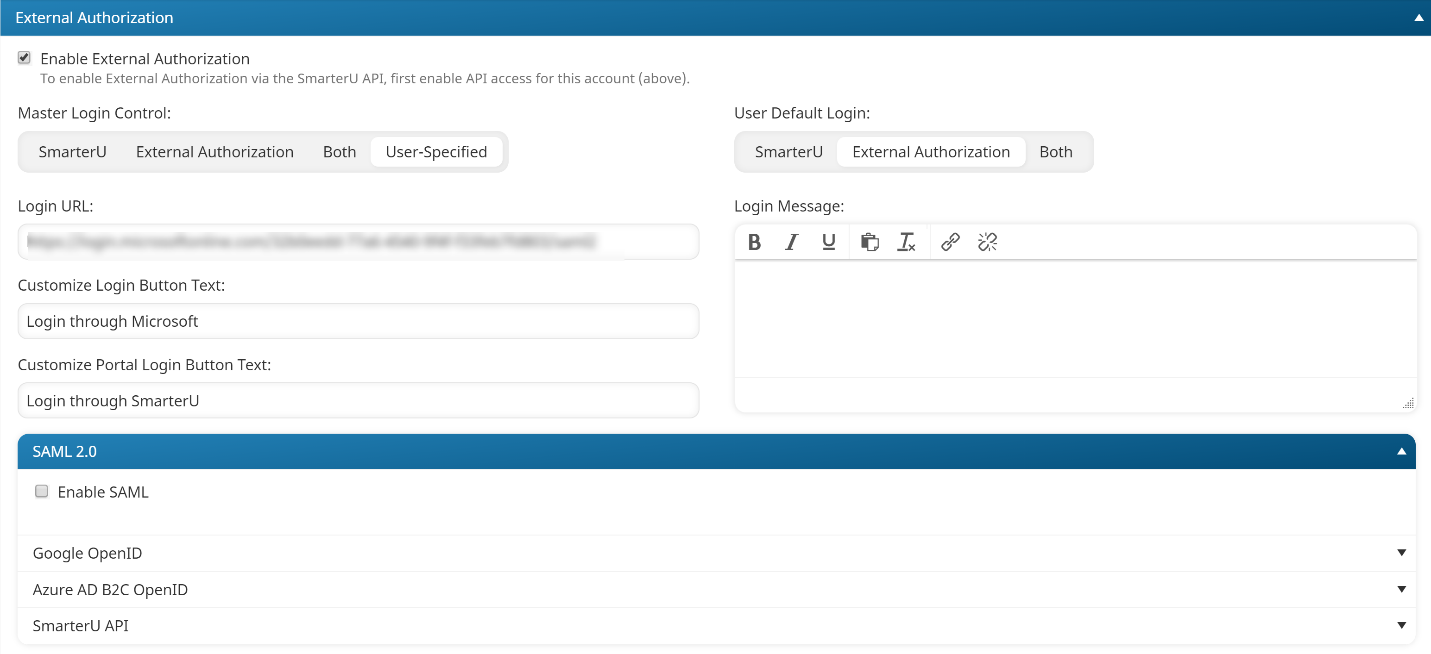
Settings
Enable External Authorization
Check to allow Single Sign-On from a third-party system to SmarterU.
SmarterU currently supports Single Sign-On through a number of providers. Each provider must be enabled in your account separately. The currently supported Single Sign-On providers are:
A separate section will appear for each Single Sign-On provider enabled for your account.
Master Login Control
Controls how users are allowed to log in to your SmarterU account .
This setting is only applicable if the Enable External Authorization setting is checked. Select one of the following options:
- SmarterU - Users can only log in from your portal login page using their SmarterU credentials (email address or Employee ID and password).
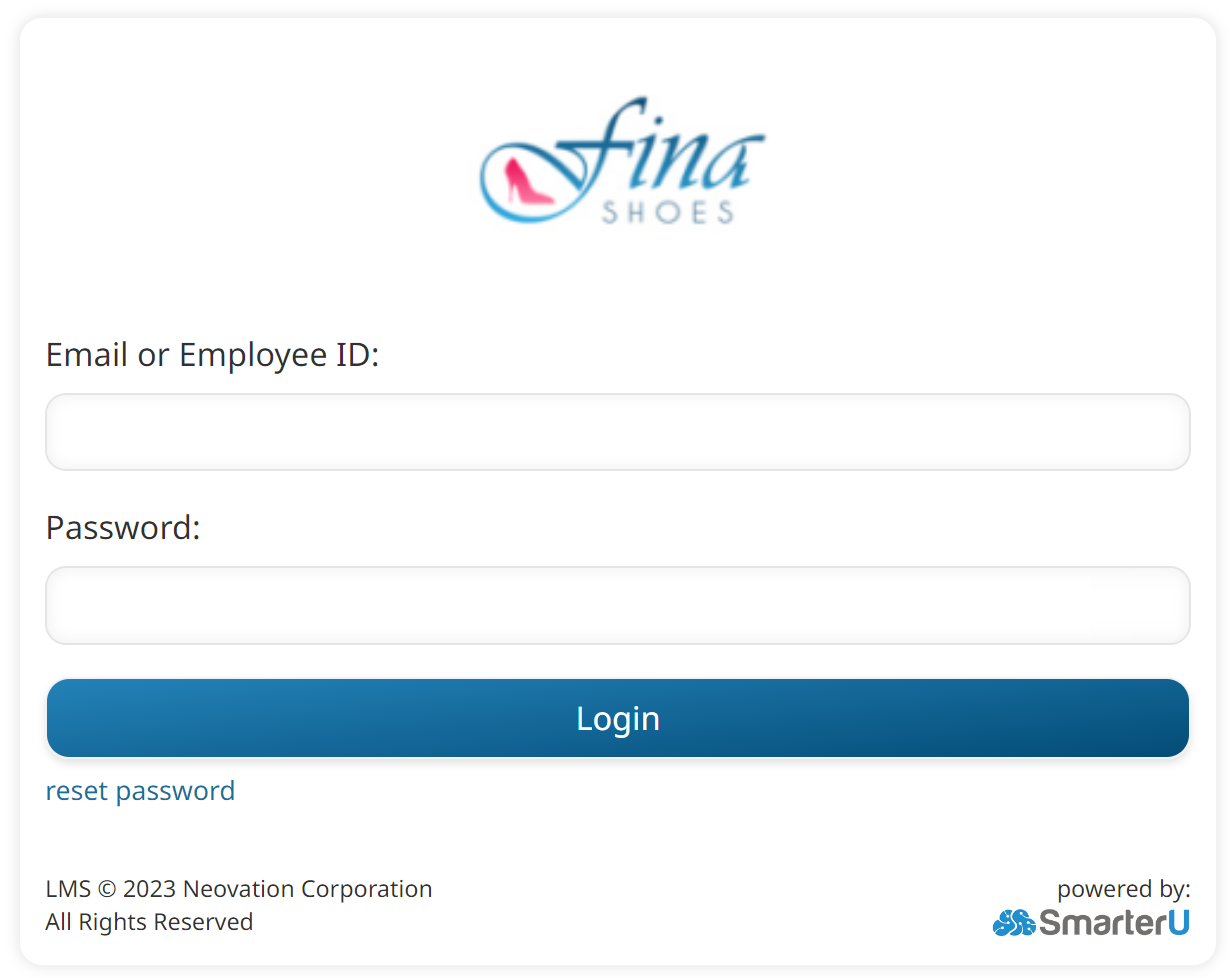
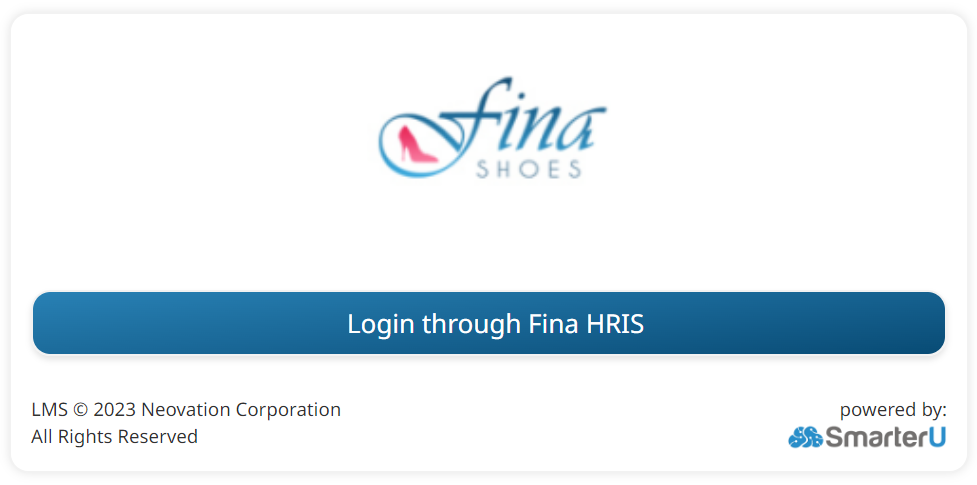
- External Authorization - Users can only log in using your organization’s Single Sign-On (SSO) provider. When users visit your portal login page, it displays your custom login message along with a button that redirects them to your external SSO login page (specified in the Login URL field).
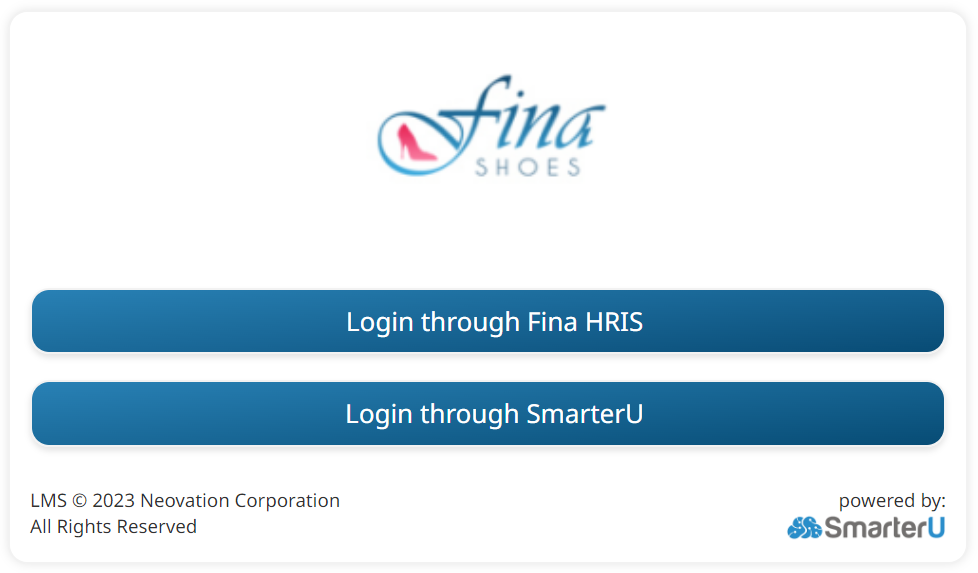
- Both - Users can log in through SmarterU using their standard SmarterU credentials, or through your Single-Sign On (SSO) provider. When users visit your portal login page, it displays your custom login message and two buttons. The first button redirects users to your external SSO login page (specified in the Login URL field). The second button redirects users to the standard SmarterU portal login page where they can log in using their email address or Employee ID and password.
- User-Specified - Allows you to manage login options on an individual user basis using the User Default Login setting on each user's profile. System-generated emails (such as invitations, course reminders, and password resets) automatically send users to the correct login page based on their profile setting.
Login links sent outside the system (e.g., manually shared through an Intranet or in email communications) need to point users to the specific address based on which login method they require: your SmarterU portal login address for direct login (where users enter their email address or Employee ID and password) or the SSO Login URL (your external SSO login page).
User Default Login
Specifies the default login method assigned to new users created in your account.
This setting is only applicable if the Enable External Authorization setting is checked and the Master Login Control field is set to User-Specified.
When users arrive via system-generated emails, such as invitations, course reminders, and password resets, SmarterU checks the login method assigned to their individual user profile to determine how they can log in. If the user does not have a specific method selected, SmarterU uses the account-level default selected here:
- SmarterU - By default, new users can log in directly using their SmarterU credentials (email address or Employee ID and password).
- External Authorization - By default, new users can log in through your Single Sign-On (SSO) provider.
- Both - By default, new users have access to both login options, allowing them to log in through SmarterU using their standard SmarterU credentials, or through your Single-Sign On (SSO) provider.
Login URL
This setting is only applicable if Master Login Control and User Default Login are set to a value other than SmarterU. This is the URL that users will be redirected to when they click the Login button on the portal page.
Customize Login Button Text
This setting is only applicable if Master Login Control is set to a value other than SmarterU. This is the label that displays on the login button.
Customize Portal Login Button Text
This setting is only applicable if Master Login Control is set to Both or User-Specified. This is the label that displays on the portal's login button.
Login Message
This setting is only applicable if the Master Login Control is set to External or Both, or if the User Default Login is set to External. Enter the login message that your account users will see.