As an LMS administrator, you want your learners to feel supported every step of the way, from the moment they log in, to the moment they receive their certificate of completion. At any point in this journey, questions may pop up. When they do, you can rely on a few key SmarterU features—the user help feature, Learner Dashboard Text widget, and home group messaging—to ensure your learners know exactly where to go for help.
To see how these features work in practice, let’s look at how they impact the onboarding experience for a typical learner.
The Scenario: Meet Alex
One of Clear Day Windows’ new hires, Alex, has just been assigned his onboarding training. To help Alex succeed, let's look at three things you can do in your SmarterU account in case he has questions.
Want SmarterNews delivered to your inbox? Subscribe today!
1. Enable the User Help Feature
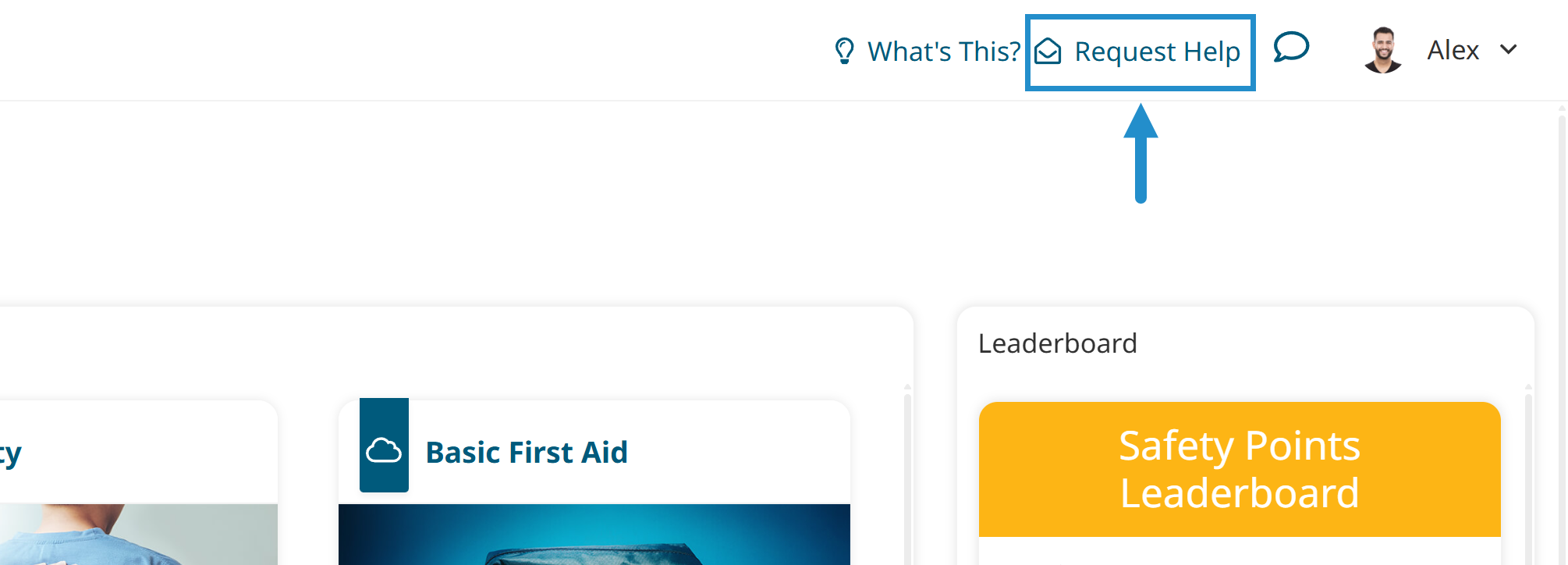
The first thing to do is ensure Alex has a direct line to your primary support team, regardless of where he goes in SmarterU. You can set up this important safety net with SmarterU’s user help feature. This feature adds a simple link to every learner page, allowing Alex or any other user to email the Clear Day Windows training team directly.
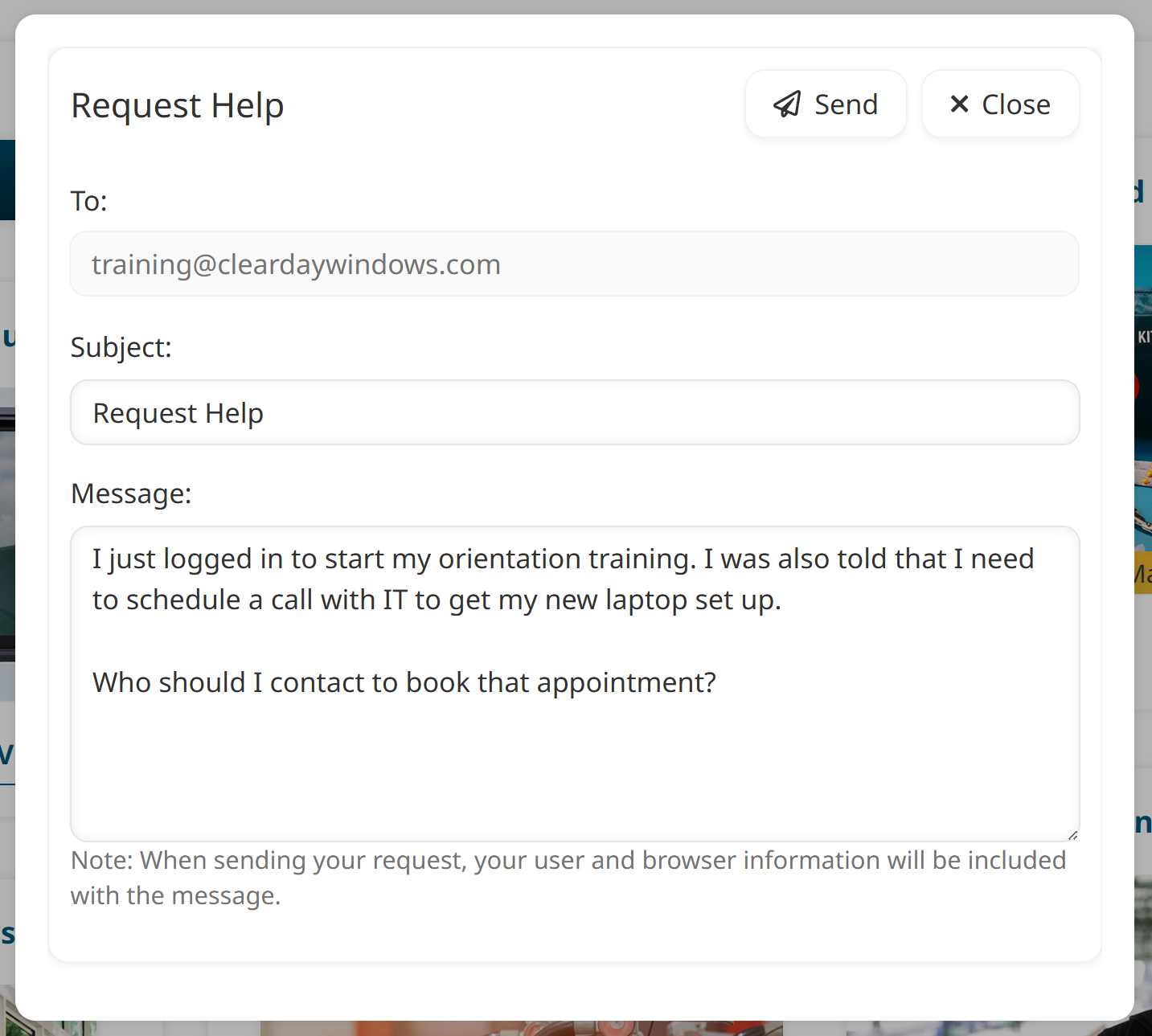
After clicking the link, Alex can simply enter his question and hit Send to contact Clear Day Windows’ general support team.
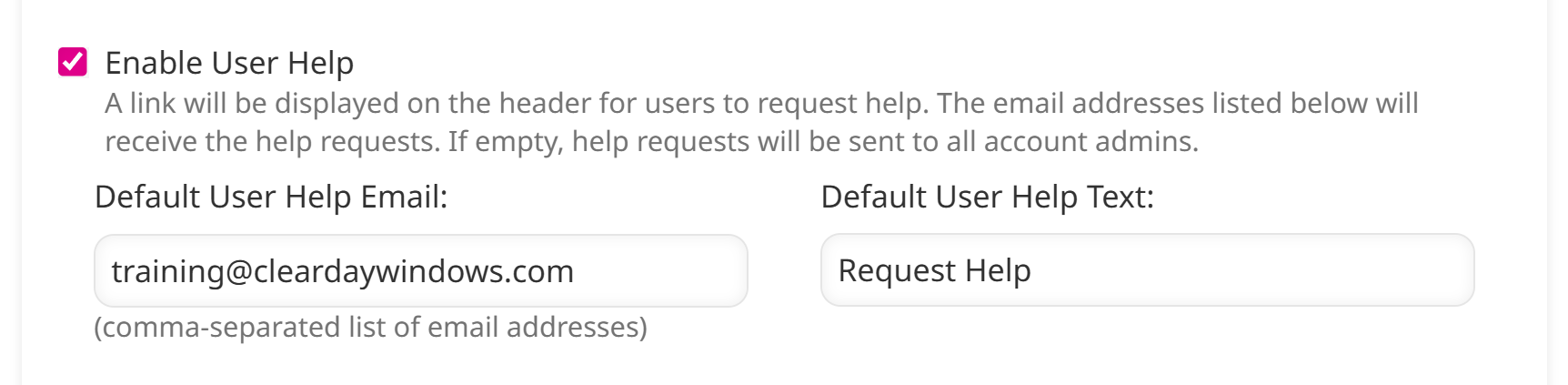
To turn on the User Help feature, follow these steps:
Navigate to your account settings.
View the Settings accordion.
Turn on Enable User Help.
Enter the Default User Help Email where you want learner inquiries to be sent.
Enter the Default User Help Text that you want to appear to learners.
Click Save.
For a more detailed look at the user help feature, check out our previous article, Offer Support to Your Learners Directly Within SmarterU LMS.
2. Add a Text Widget to the Learner Dashboard
While the help link is great for general inquiries, Alex might have questions specific to his role or location. By using a Text widget, you can place specific contact instructions in a prominent location on a custom Learner Dashboard page.
Custom Learner Dashboards allow you to design unique learner experiences that highlight the most important information. For a deep dive into how to build these, check out our blog post: 4 Ways to Use Your Custom Learner Dashboard.
After logging in to SmarterU, Alex lands on a custom dashboard page that provides a list of courses and learning plans he needs to complete. It also includes a Text widget with contact information for the Clear Day Windows’ training team and HR department.
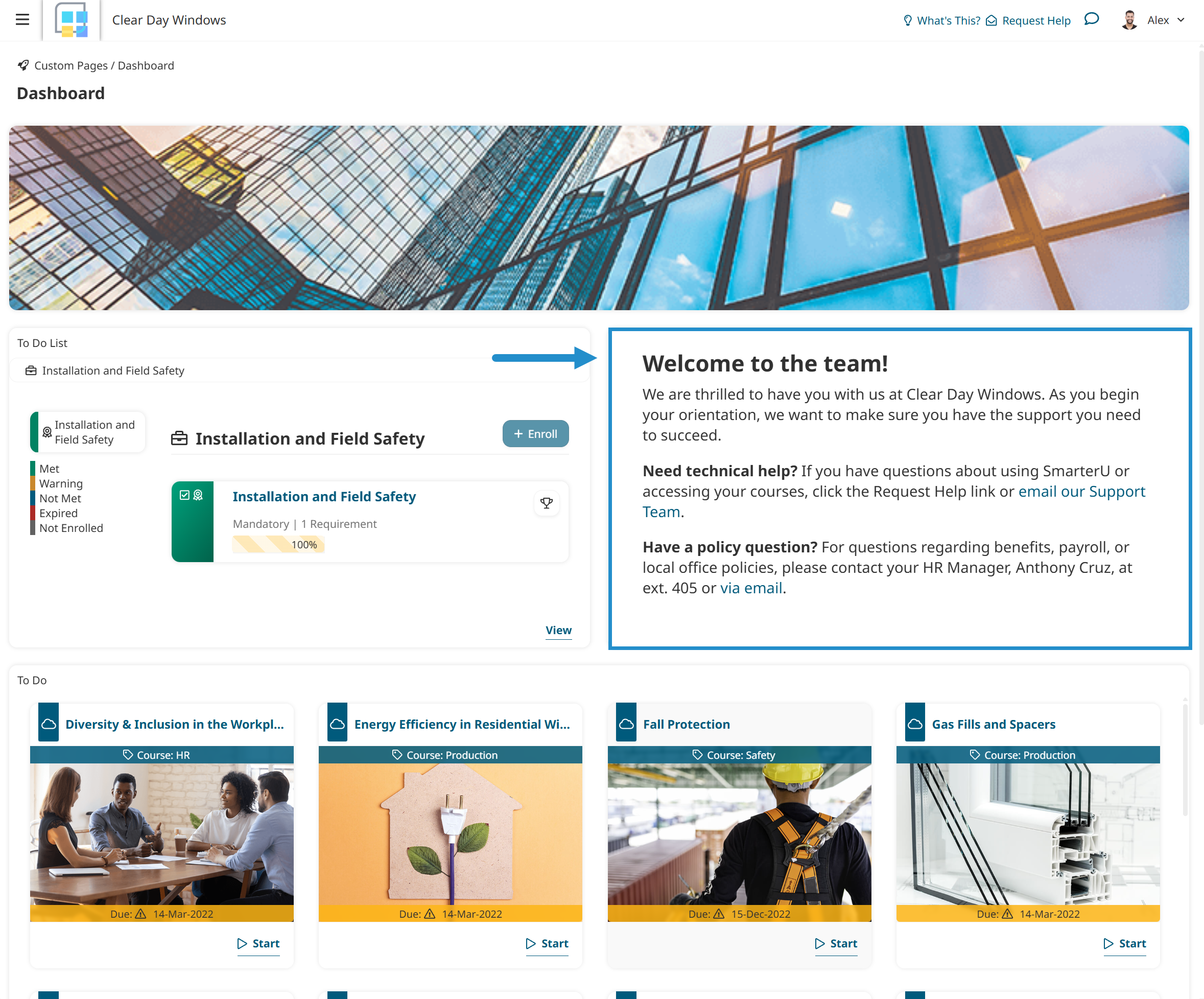
Because you can assign different dashboard pages to specific home groups or individual users, you can ensure the support information is relevant to the person viewing it. For Alex, this means his dashboard is tailored to the Colorado office, while a new hire in the California office would see a different set of contact details.
To add a Text widget to a custom dashboard page:
Navigate to the Learner Dashboard Builder.
Create or edit a custom dashboard page. This will open the Custom Page Builder.
Add a Text widget to the page.
Choose an existing page or create a new one.
Only pages with their Type set to Text will appear in the list.
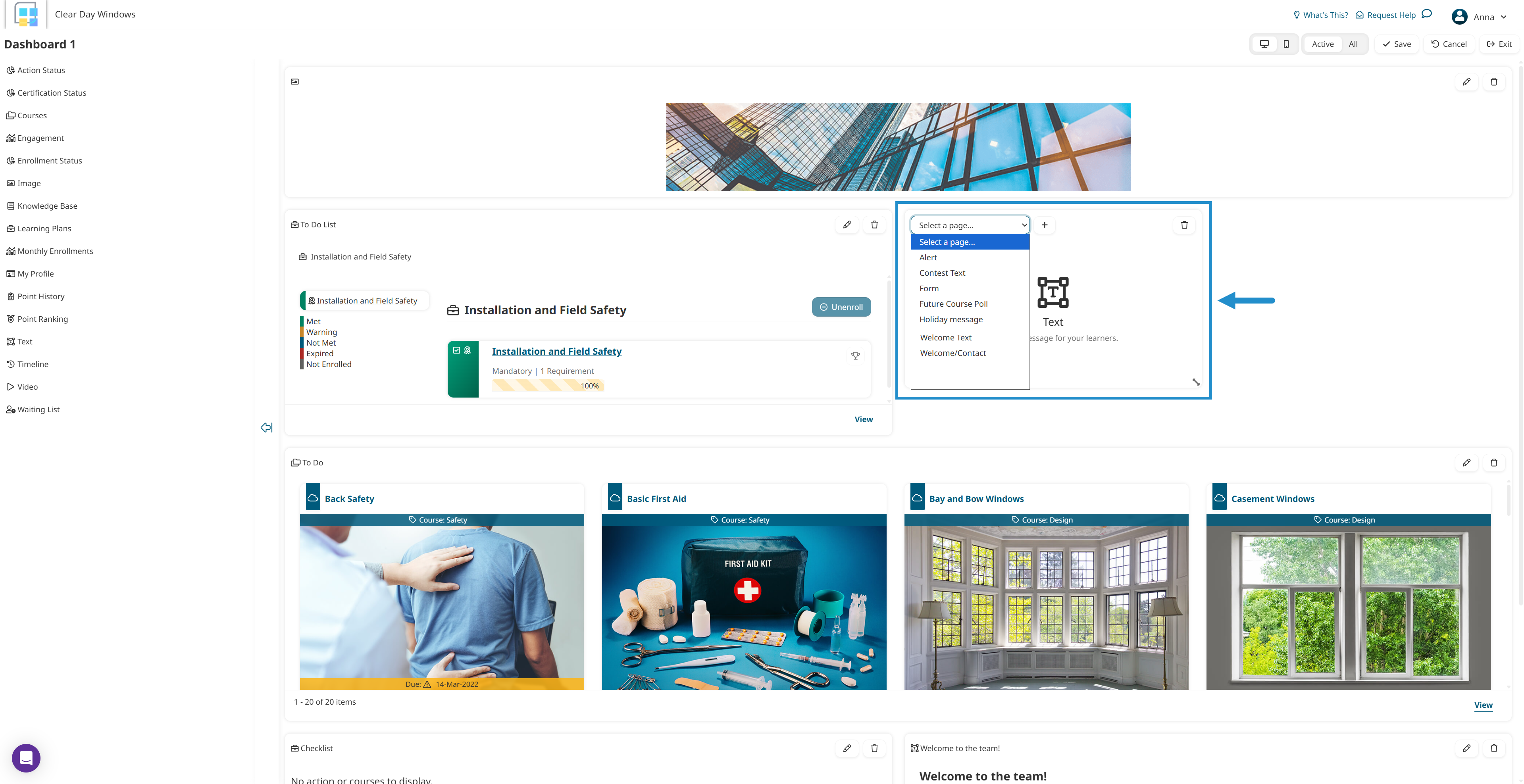
If you create a new page, enter your text content and complete the other page settings.
Did you know, instead of making users copy and paste an email address, you can turn it into a link that automatically opens a new message? Highlight your text and click the
.png) Link icon. Then, enter the email address (e.g., training@cleardaywindows.com), and click OK.
Link icon. Then, enter the email address (e.g., training@cleardaywindows.com), and click OK.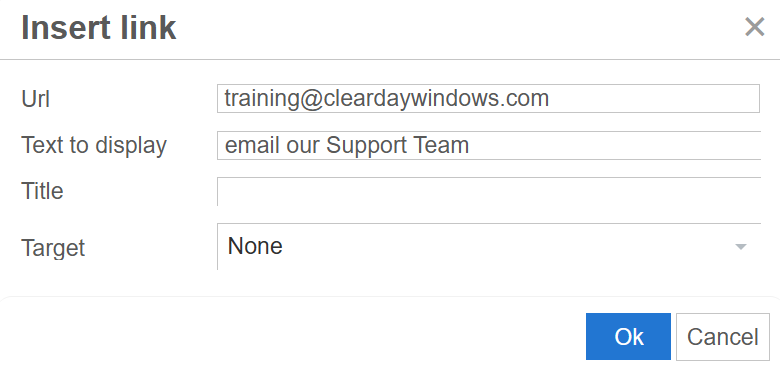
When SmarterU asks if you’d like to add a "mailto:" prefix (e.g., mailto:training@cleardaywindows.com), click Yes—this ensures the link opens a new email for your learner!
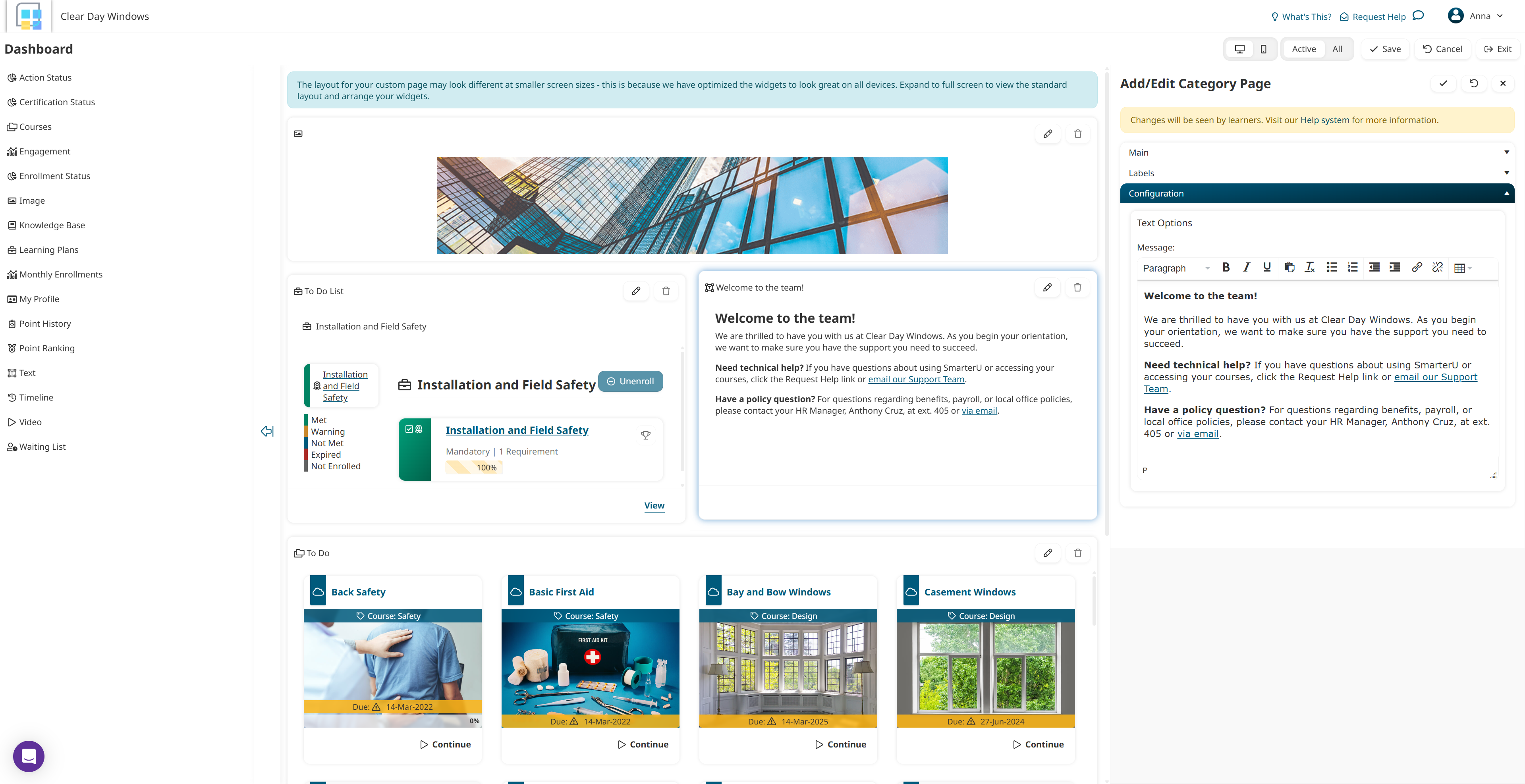
Click the
 Save icon to save the widget.
 Click Save to save the dashboard page.
3. Use Group Messages for Targeted Support
Sometimes, the support path needs to change temporarily. For example, imagine there is an upcoming local training event, or a specific announcement Alex needs to see before he starts his training. Home group messages allow you to place a high-visibility banner at the top of a dashboard page for a specific set of users.
This is a great way to provide Alex, and other learners in the same home group, with "just-in-time" information.
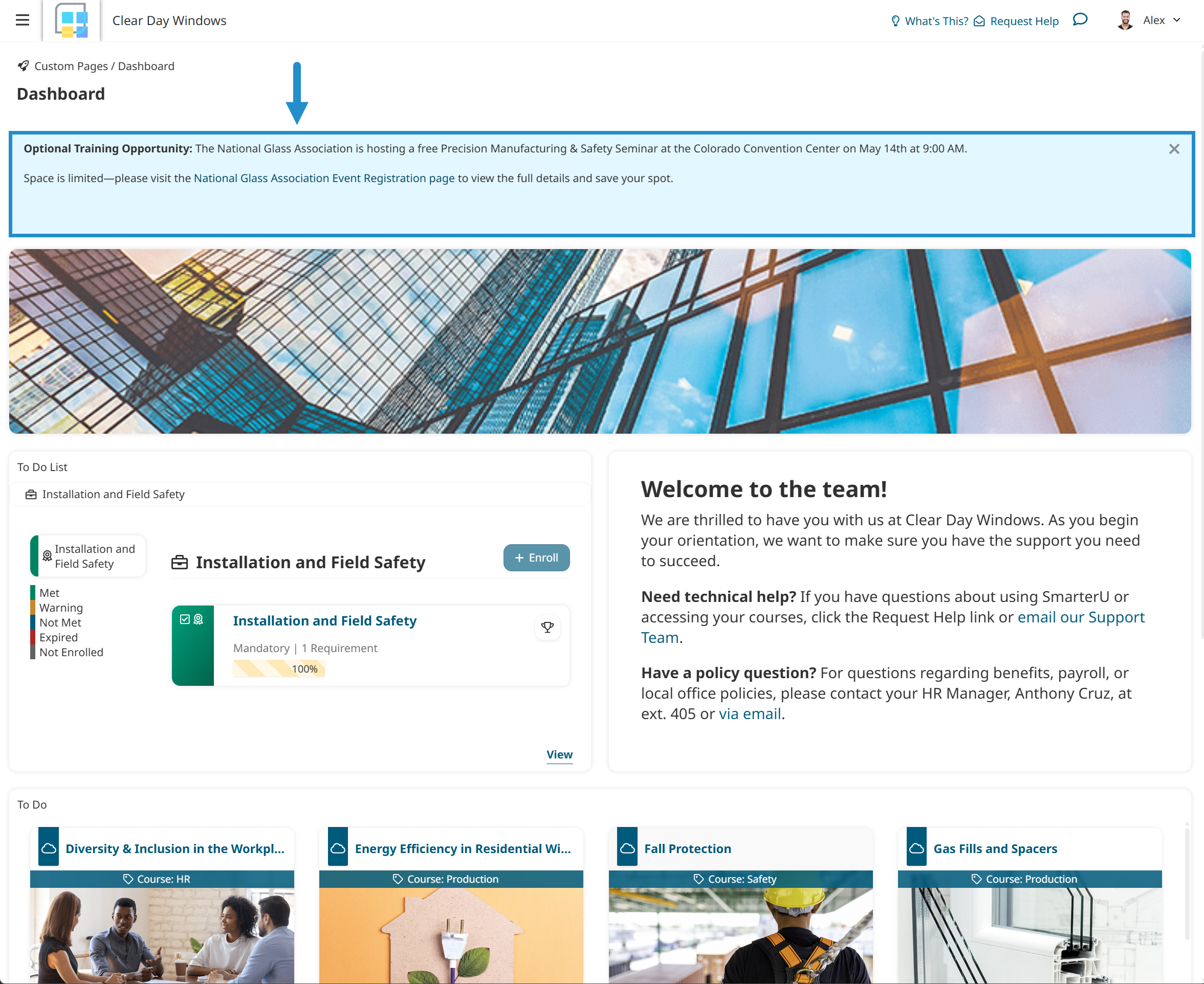
To add a targeted message for a specific home group:
Navigate to the Groups Dashboard.
View the Home Group Message accordion.
Enter your message.
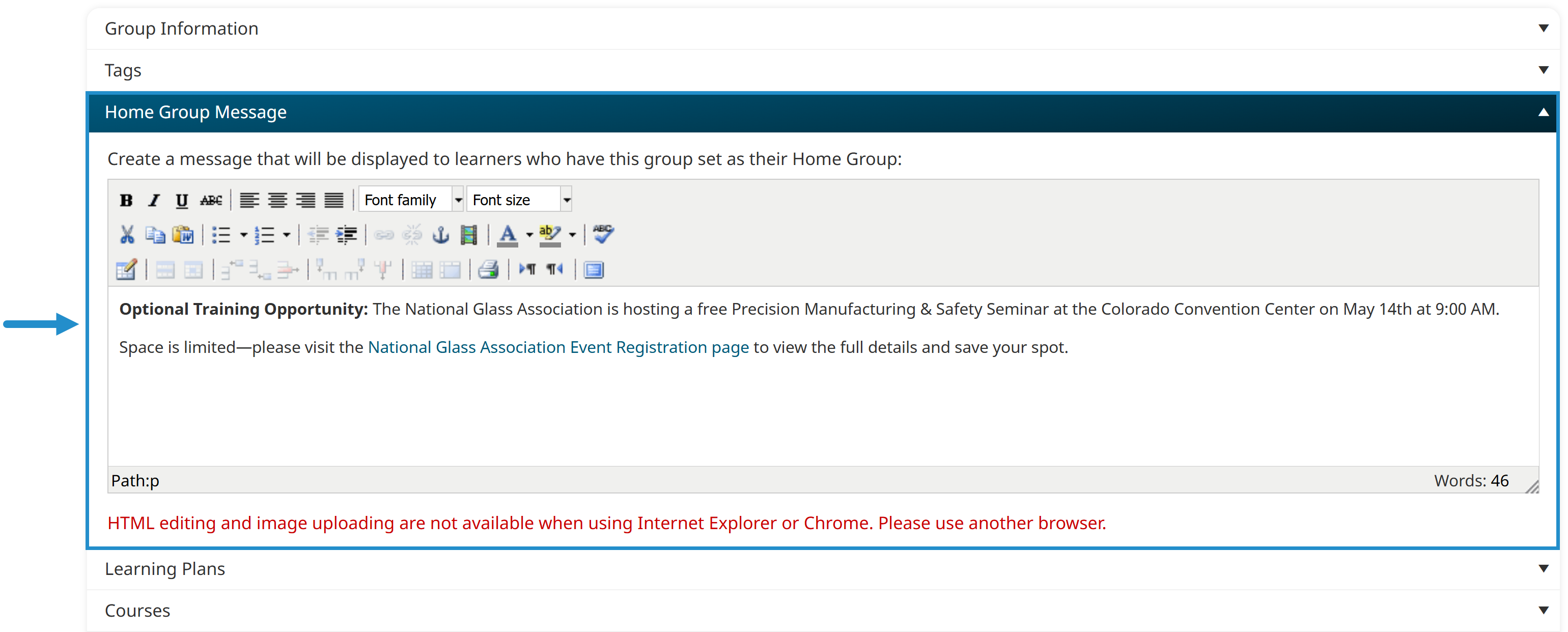
Click Save.
The group message banner will appear to learners until you remove or edit it.
Need to reach everyone at once? Use an account message to quickly add a global banner that appears to all learners in your account.
By using these three things—the user help feature, a targeted Text widget, and home group messaging—you ensure that Alex is never more than a click away from the assistance he needs. You've created a seamless experience that keeps your learners moving and fully supported along the way.
Further, setting up these support paths streamlines learning management. By clearly defining where different types of questions should go, you also ensure that support requests are automatically routed to the right person or department. This eliminates the "middle-man" work of forwarding questions to others and helps your team resolve issues faster.
Questions? Contact our Success Desk.